Start an Astralis assessment
Starting an assessment screens one processing activity against every published plan, opens a draft for each plan that applies, and starts the interview with the activity's data stewards. You can start one in Astralis, from the Astralis assistant, or from Slack or Microsoft Teams. Assessments can also start automatically.
Astralis Assessments is an alpha feature for Astralis Enterprise, turned on with the alphaAssessmentsV2 feature flag.
Prerequisites
- At least one assessment plan is published. See setting up assessment plans.
- Your role includes
privacy_assessment:create. The Owner role has it. - Starting from All assessments also needs the
alphaProcessOntologyflag,process:readandtaxonomy:read. - A chat provider is connected, either Slack or Microsoft Teams. Interviews run there.
Start an assessment in Astralis
The Start assessment button is in two places:
- Risk > All assessments, while the list is empty, next to Go to processes
- Data Governance > Processes, in the Assessments card of a process. See managing processes.
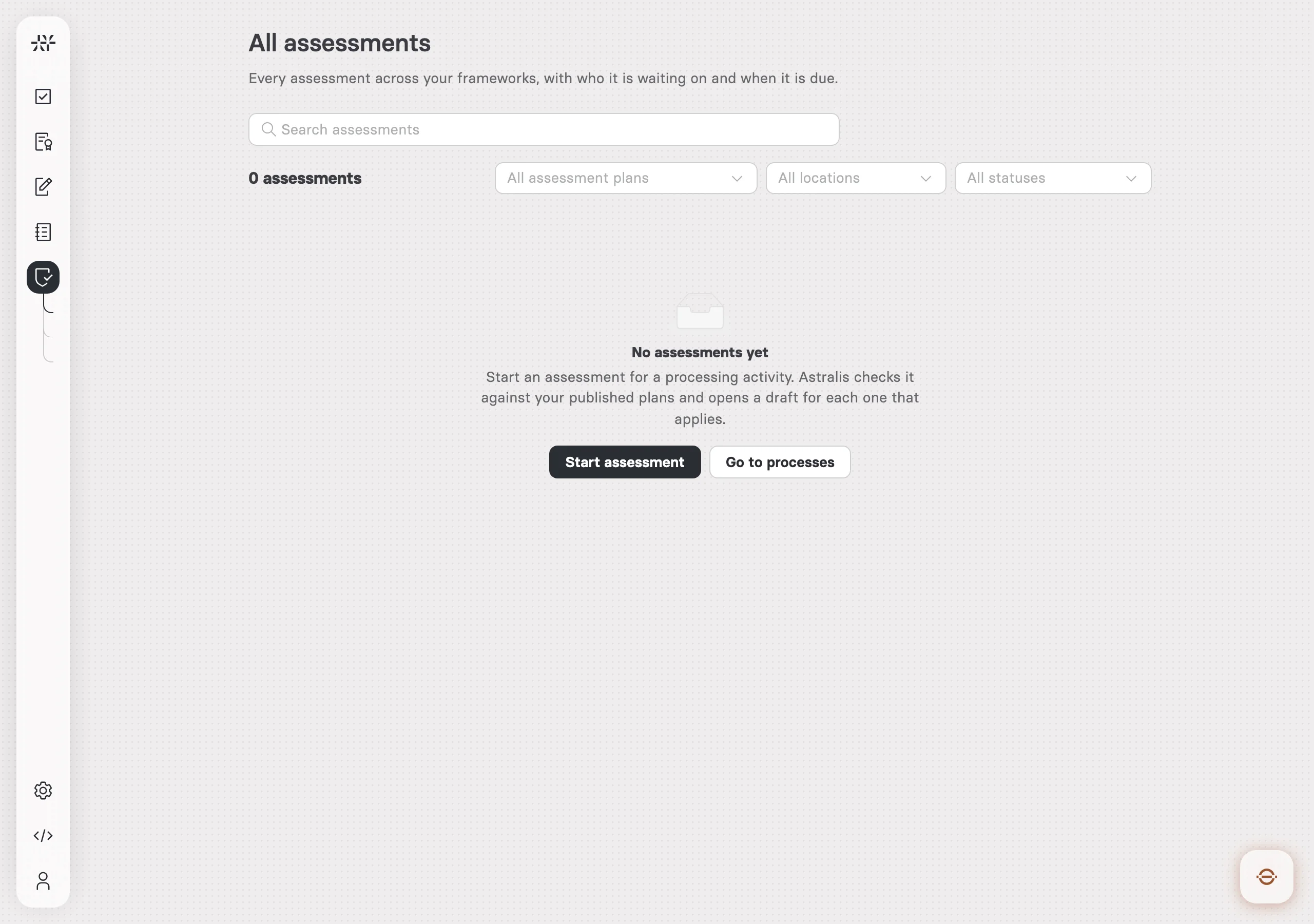
- Click Start assessment.
- In Processing activity, search for the activity and select it. If you started from a process, skip this step.
- Click Start.
The dialog then lists the results:
| Group | Meaning |
|---|---|
| Opened | These plans apply. Each links to its new draft assessment. |
| Waiting on the interview | Screening can't tell yet whether these plans apply. The interview asks what it needs to decide. |
| No published plan | These assessment types have no published plan, so they weren't checked. Go to assessment plans opens the plans page. |
The message above the groups says who the interview started with: the activity's stewards, or you if the activity has no stewards. If no plan is published, the dialog reads "No assessment plan is published yet, so there is nothing to start."
Verify the result
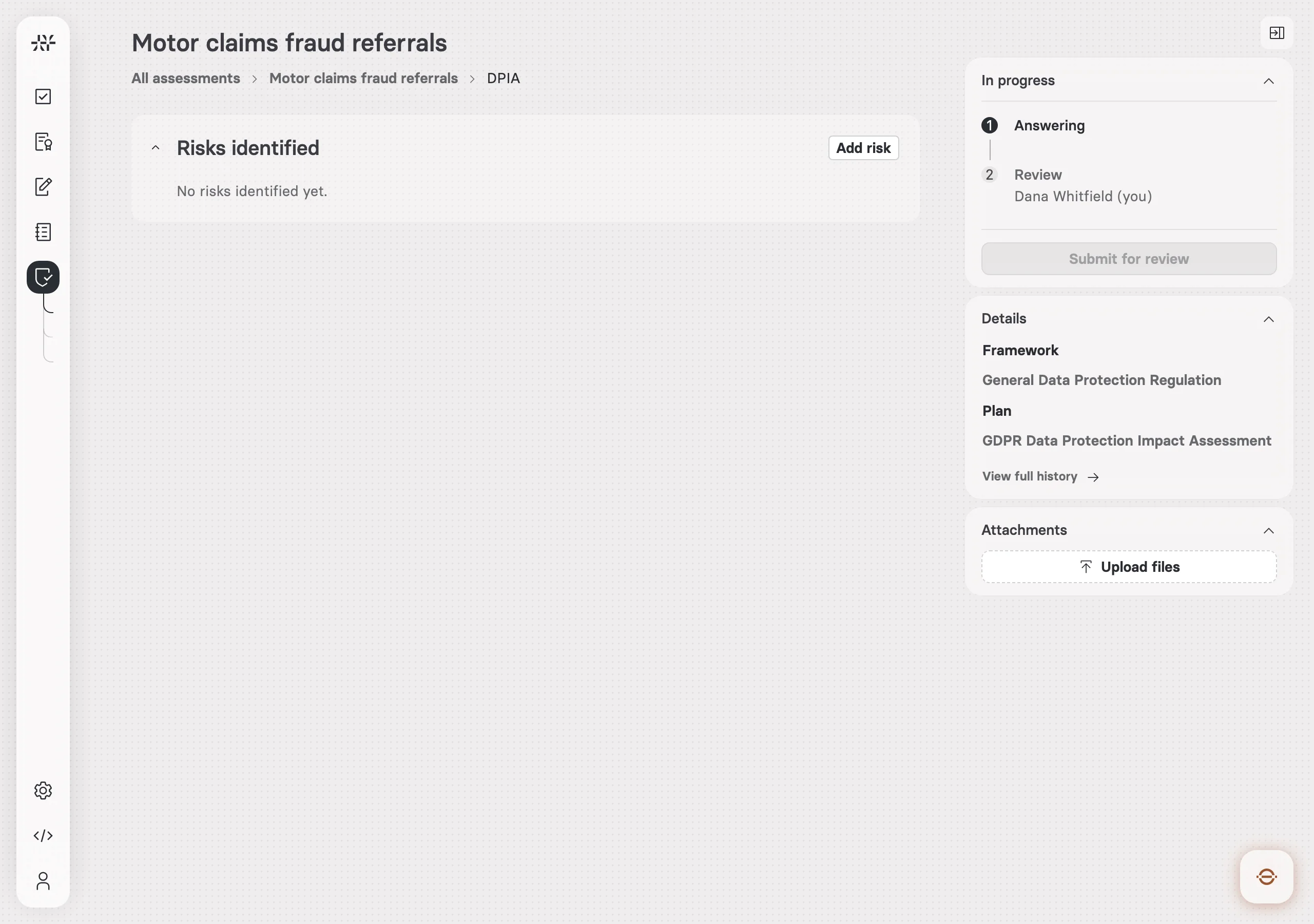
Each opened assessment appears in Risk > All assessments as In progress. Its page shows the Answering step with its respondents. A plan that was waiting on the interview opens its draft when the answers show that it applies.
Start an assessment from the Astralis assistant
In the chat dock, ask the Astralis assistant, for example "Start an assessment for Motor claims fraud referrals". The assistant shows a confirmation card. Click Approve to start the assessment, or Reject to cancel. If the interview can't run in your chat provider, the card explains why, starting with "The assessment can start, but".
Start an assessment from Slack or Teams
Mention the Astralis app in a channel where it is installed, or send it a direct message:
@Astralis start an assessment for Motor claims fraud referrals- To choose the organization, add
in org <organization name>. - If the activity isn't in your inventory, add details on new lines or after a semicolon:
system:,where:,use:,categories:,subjects:anddescription:. Usesystem: noneif you don't know which systems perform it. - An activity that doesn't exist is added to the inventory as a proposed activity, and Astralis tells you.
Astralis replies in the thread, and the interview continues there. The reply marks each plan applies, doesn't apply or can't tell yet, and says who the interview started with. Any other message to Astralis gets a reply that explains the command.
Automatic starts
Screening also runs when a plan is published and when a process changes, and opens a draft for each plan that applies. The automatic interviews setting decides whether those drafts contact anyone:
- Off (default): drafts wait in All assessments. To start the interview, start an assessment for the activity.
- On: each new draft starts its interview with the activity's stewards. An activity that screening can't settle gets a screening interview.
If an assessment's activity has no steward who can answer, it shows Unassigned in All assessments, with the note "This activity has no steward who can answer its interview. Assign one to its process to start it." Click Go to process to assign a steward. With automatic interviews on, the interview starts when a steward is added.
The assessment's History records why it was opened, for example "Astralis started this assessment after a plan was published" or "… after the process changed". See when screening runs and the automatic interviews setting.
Next steps
- Answering interviews: what the activity's stewards see
- Reviewing and approving assessments: review the draft after the interview