Review Privacy Request Documents
The Documents tab on a privacy request lists every file the data subject and your team provided, with who provided it, how it arrived, and when. Reviewers check the documents there, mark them verified, and choose which ones go in the access package before approving the request.
To ask data subjects for documents in the first place, see Collect documents.
Open the request's Documents tab
- In the Admin UI, go to Privacy requests > Request manager.
- Open the request.
- Select the Documents tab, next to Activity.
The tab shows how many documents the request has. A dot on the tab means the data subject's documents haven't been verified yet.
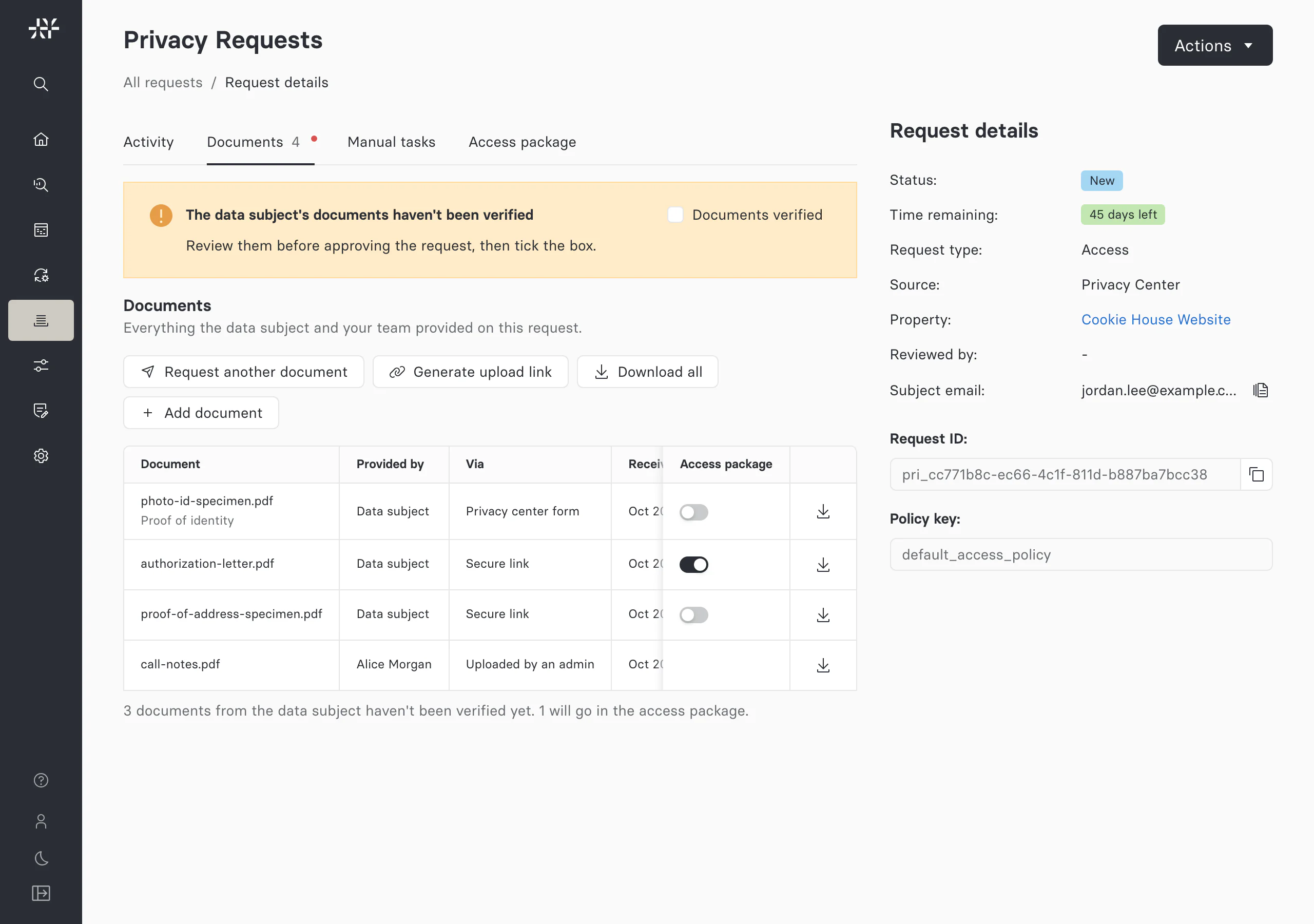
Each row describes one document.
| Column | What it shows |
|---|---|
| Document | The file name, with the form field that collected it underneath |
| Provided by | Who added the document |
| Via | How it arrived: Privacy center form, Secure link, Submitted on the subject's behalf, or Uploaded by an admin |
| Received | When it arrived. Hover over the date for the full time. |
| Size | The file size, and how many times the document has been downloaded |
| Access package | Whether the document goes in the access package. Shown when the request has documents from the data subject. |
A summary under the list says what still needs doing, such as how many documents from the data subject haven't been verified.
Download and check each document
- To download one document, click the download icon on its row.
- To download everything, click Download all. You get a zip of every document on the request.
Download links are short-lived, and every download from the Documents tab is recorded on the request.
Mark the documents verified
Once you've checked the data subject's documents, tick Documents verified in the alert above the list. Until you do, the alert reads The data subject's documents haven't been verified.
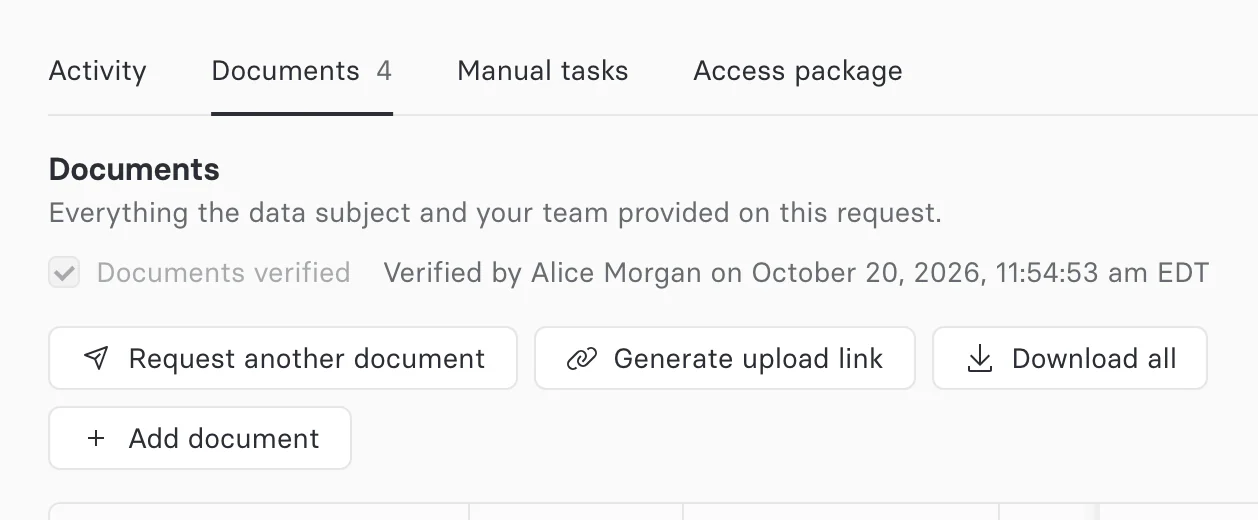
After you tick it, the checkbox shows who verified the documents and when. You can't clear the checkbox yourself. A new document from the data subject clears it, so the request asks for review again.
Verification covers documents from the data subject and files submitted on their behalf. Documents your team uploads with Add document don't need it.
Choose which documents go in the access package
Documents from the data subject, including files submitted on their behalf, stay out of the access package unless you include them. To deliver a document with an access request, switch on Access package on its row. Documents your team uploads with Add document are internal and are never sent to the data subject.
Set these switches before you approve the request. Once the request is closed, they can't be changed. See Include documents in the package.
Approve the request
Open Actions and select Approve. If the request type asks for documents, the approval dialog warns you when they haven't been verified, or when none have arrived.
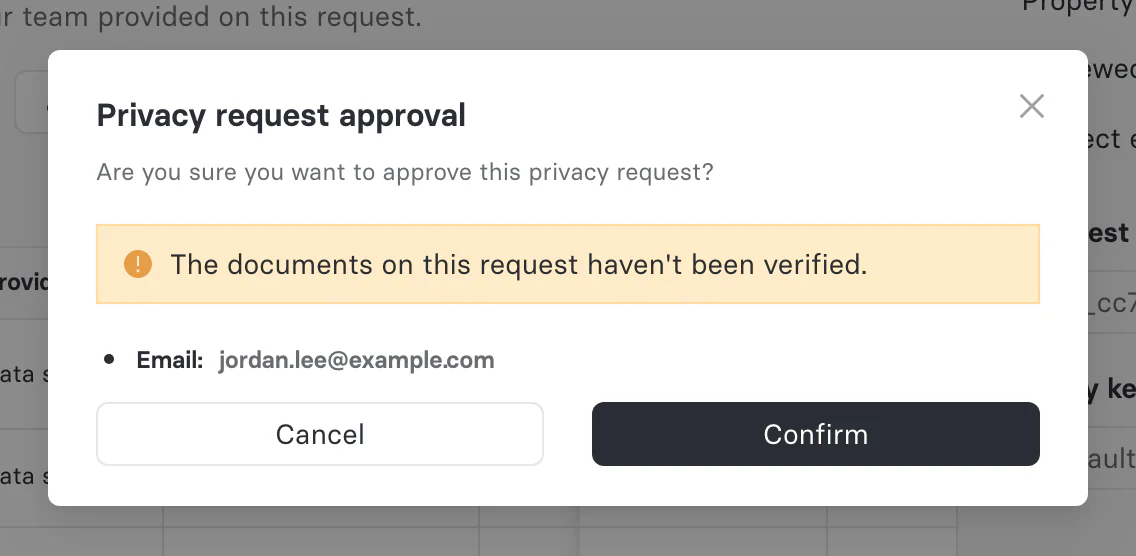
The warning doesn't block approval. For the rest of the review workflow, see Reviewing requests.
Verify the document activity
- Open the request's Activity tab. Every document event appears in one Documents entry.
- On that entry, click View N Logs to open Document events, which lists each event's time, action, file, and actor. Open documents on the same entry takes you to the Documents tab.
- Confirm the list shows your downloads and the verification.
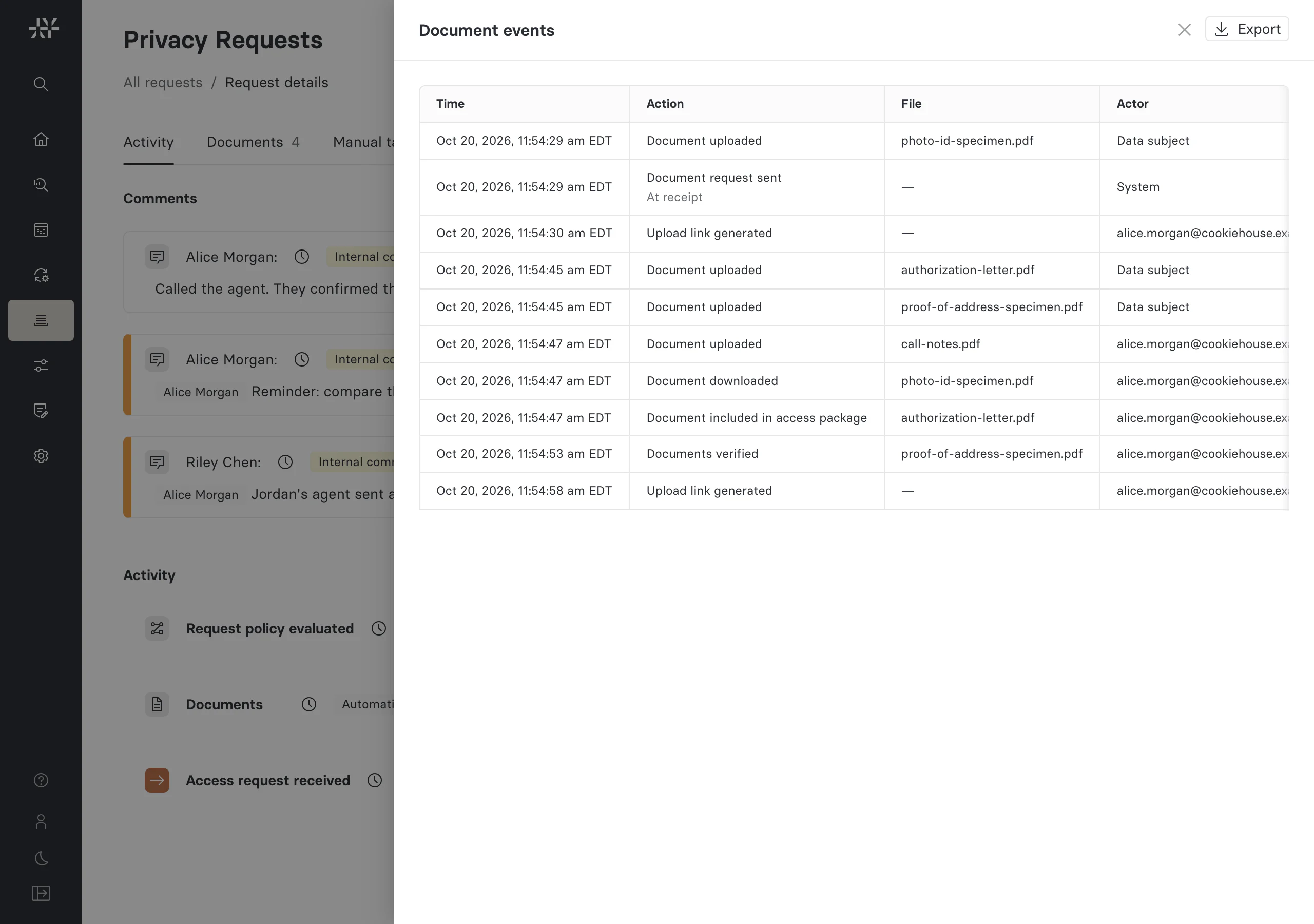
To keep a copy, click Export. The CSV file has the columns Time (UTC), Action, File, Document ID, Actor, and Detail. For what each action means, see What Astralis records.
Ask for another document
When a document is missing or unreadable, send the data subject a new link.
| Action | What it does |
|---|---|
| Request another document | Sends the data subject the document request message with a new upload link |
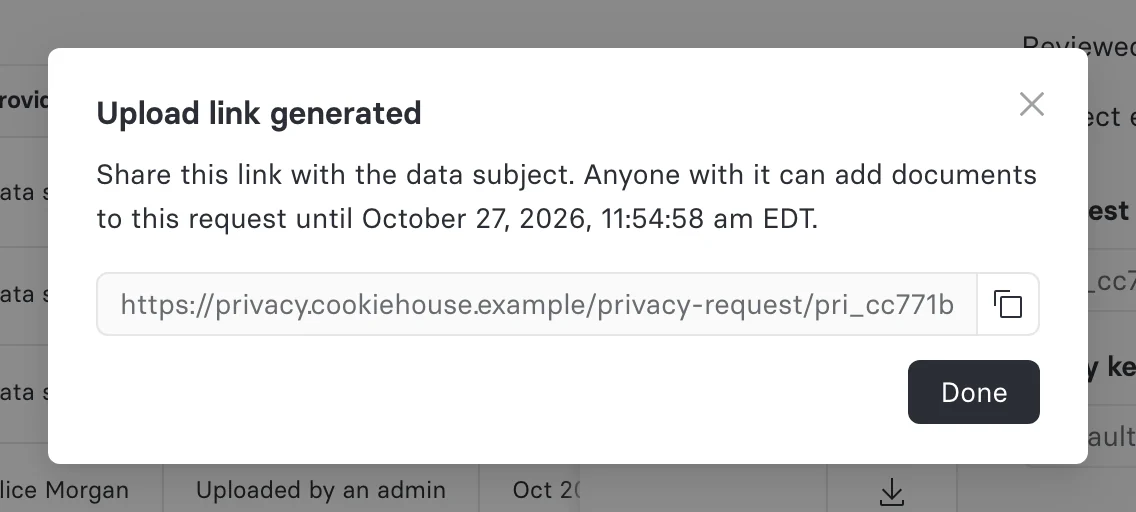
| Generate upload link | Creates a link for you to copy and share yourself, for example in a support conversation. No message is sent. |
Request another document asks Send a new upload link? before it sends. It needs an email address or phone number on the request and a messaging provider. With property-specific messaging, the Document request template must also be enabled for the request's property.
Generate upload link shows the link in a dialog with a copy button and its expiry date. Anyone with the link can add documents to the request until then, so share it only with the data subject.
Earlier links keep working until they expire. Neither action is available once the request is closed, and both need the privacy-request:review permission.
Add a document your team received
To attach a file your team received another way, click Add document and choose the file. It's listed with Via set to Uploaded by an admin. It's internal, so it never goes to the data subject or into the access package. Adding a document needs an active storage destination.
To add the data subject's own files when you create a request for them, use the file fields on the Admin UI's create request form. See Submitting requests.