Collect Documents from Data Subjects
A document request asks the data subject for files, such as a photo ID or an authorized agent's signed letter, after they submit a privacy request. You turn document requests on for each request type on a property, and Astralis then sends every new request of that type a secure link to a Privacy Center upload page.
Document requests keep identity documents out of email. The data subject uploads their files to the request itself, and reviewers check them on the request's Documents tab. To learn how upload links, storage, and the audit trail work, see Privacy request documents.
Before you start
You need:
- A property with a privacy request action for the request type.
- A storage destination, and your Privacy Center's address set in
FIDES__PRIVACY_CENTER__URL. See Prepare your deployment. - A messaging provider, so the document request reaches the data subject by email or SMS.
- The
property:updatepermission to change document settings, andmessaging-template:updateto edit the message.
Open the request type's document settings
- In the Admin UI, go to Settings > Properties and open your property.
- In the Privacy center section, find the row for the request type, such as Access your data.
- Click Documents on that row.
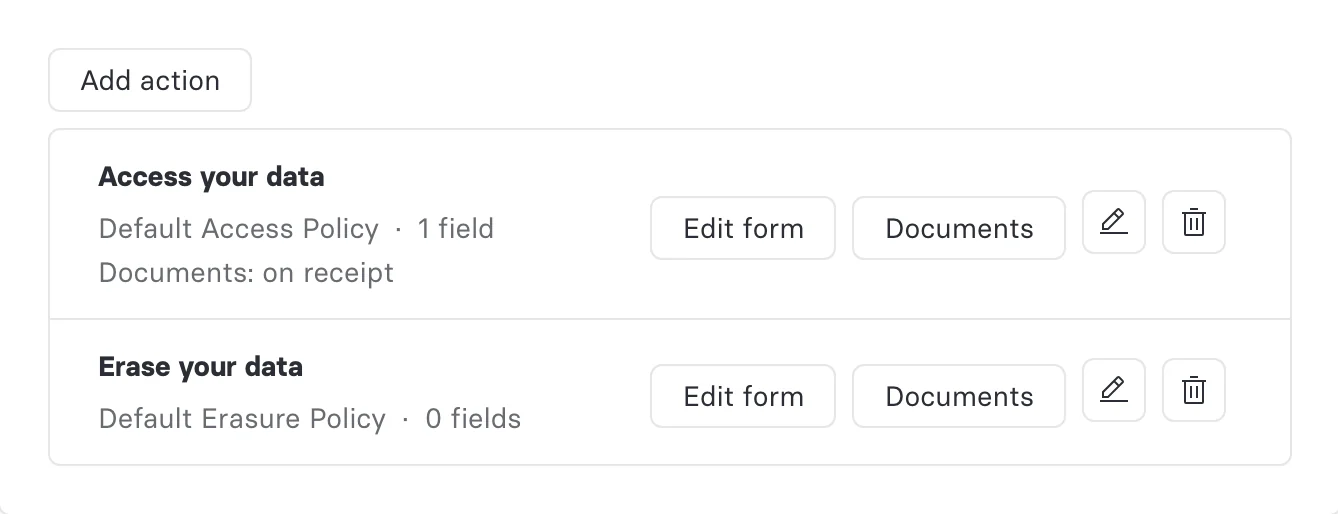
The Documents button appears once the property is saved. When document requests are on, the row shows when the link goes out, for example Documents: on receipt.
Turn on Ask for documents
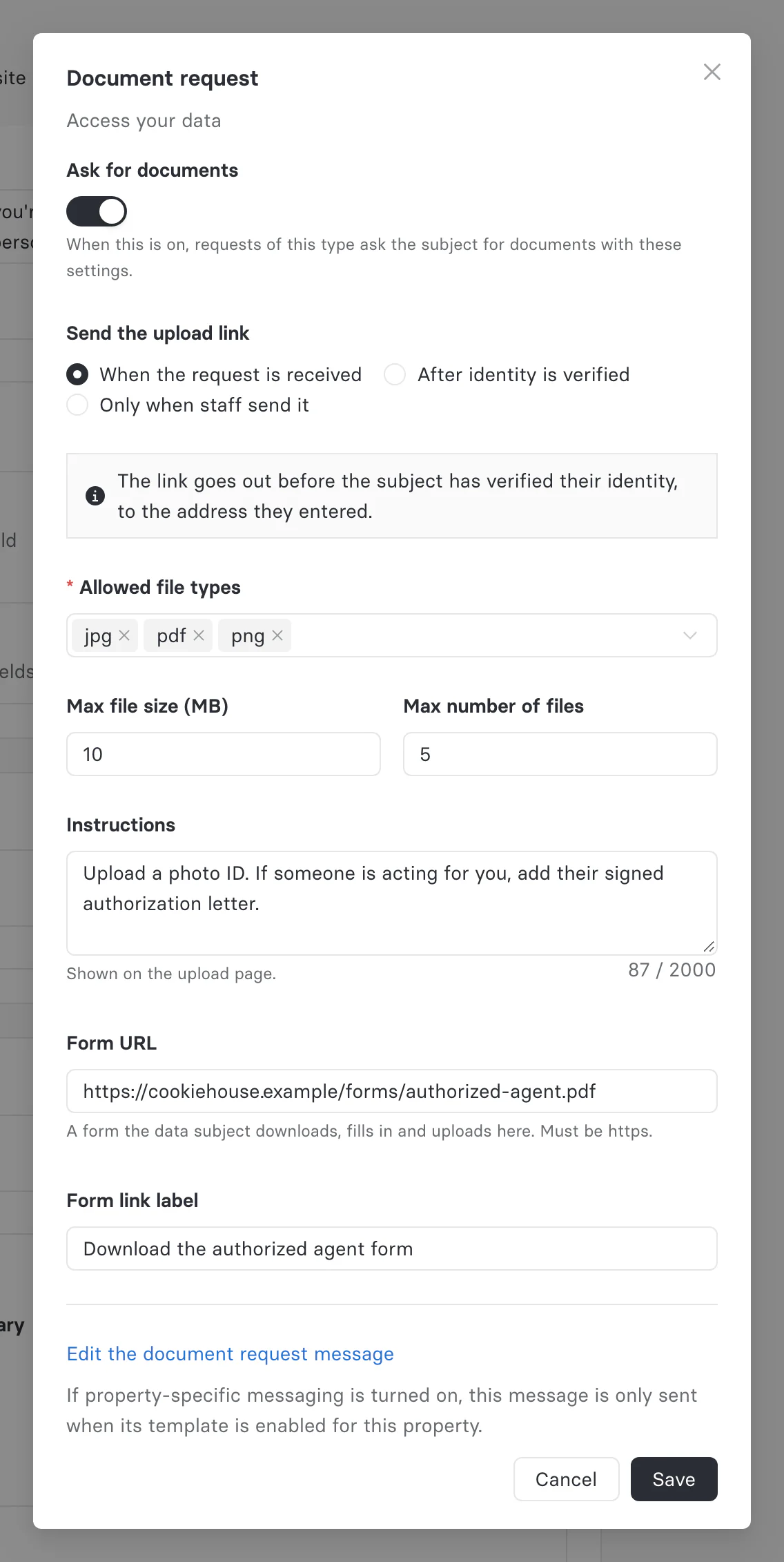
The Document request dialog holds every document setting for the request type. Switch on Ask for documents so that new requests of this type ask the data subject for documents with these settings.
Choose when the upload link is sent
Under Send the upload link, choose when Astralis sends the document request.
| Option | When the link goes out |
|---|---|
| When the request is received | As soon as the request arrives, to the address the data subject entered, before they verify their identity. This is the default. |
| After identity is verified | Once the data subject verifies their identity. If identity verification is off, the link goes out when the request is received. |
| Only when staff send it | Never automatically. Your team sends the link from the request, and these settings still apply to it. |
Astralis sends document requests automatically only for requests that data subjects submit themselves, for example through the Privacy Center. For a request your team creates in the Admin UI, send the link from the request. See Ask for another document.
Set what the upload page accepts
The remaining settings control the Privacy Center upload page.
| Setting | What it does |
|---|---|
| Allowed file types | The file types the page accepts. Defaults to JPG, PDF, and PNG. You can also allow DOC, DOCX, TXT, JPEG, XLS, XLSX, CSV, ZIP, MP4, MOV, and AVI. |
| Max file size (MB) | The largest file the page accepts. Defaults to 10 MB. |
| Max number of files | How many files one link accepts, from 1 to 20. Defaults to 5. |
| Instructions | Text shown on the upload page, up to 2,000 characters. Say which documents you need. |
| Form URL | An https link to a form the data subject downloads, fills in, and uploads, such as an authorization form for agents. |
| Form link label | The text of the form link, up to 100 characters. Defaults to Download the form. |
Click Save. The settings apply to new requests of this type and to links that are already out.
Review the document request message
Astralis sends the Document request messaging template, with the upload link and its expiry date filled in.
- Go to Settings > Notifications and open the Messaging templates tab.
- Open Document request. The Edit the document request message link in the Document request dialog opens the same template.
- Adjust the subject and body, then click Save.
The default message reads: We need some documents from you to process your privacy request __REQUEST_REFERENCE__. Upload them securely at __UPLOAD_LINK__. This link expires on __LINK_EXPIRES__. When you set a form link, __FORM_SECTION__ adds a sentence that asks the data subject to download and fill in the form. For every variable, see Email template types.
With property-specific messaging, the message is sent only when its template is enabled for the request's property. With basic messaging, turning on Ask for documents is all it takes.
Verify with a test request
- From your Privacy Center, submit a request of this type with an email address you can read.
- Open the document request message and follow the upload link. If you haven't set up messaging yet, open the request in the Admin UI and use Generate upload link instead.
- On the Add your identity documents page, add a file. Each file reads Added once it passes the checks.
- Click Submit documents. The page confirms how many documents were sent.
- In the Admin UI, open the request from Privacy requests > Request manager and select the Documents tab. Confirm the file is listed with Via set to Secure link.
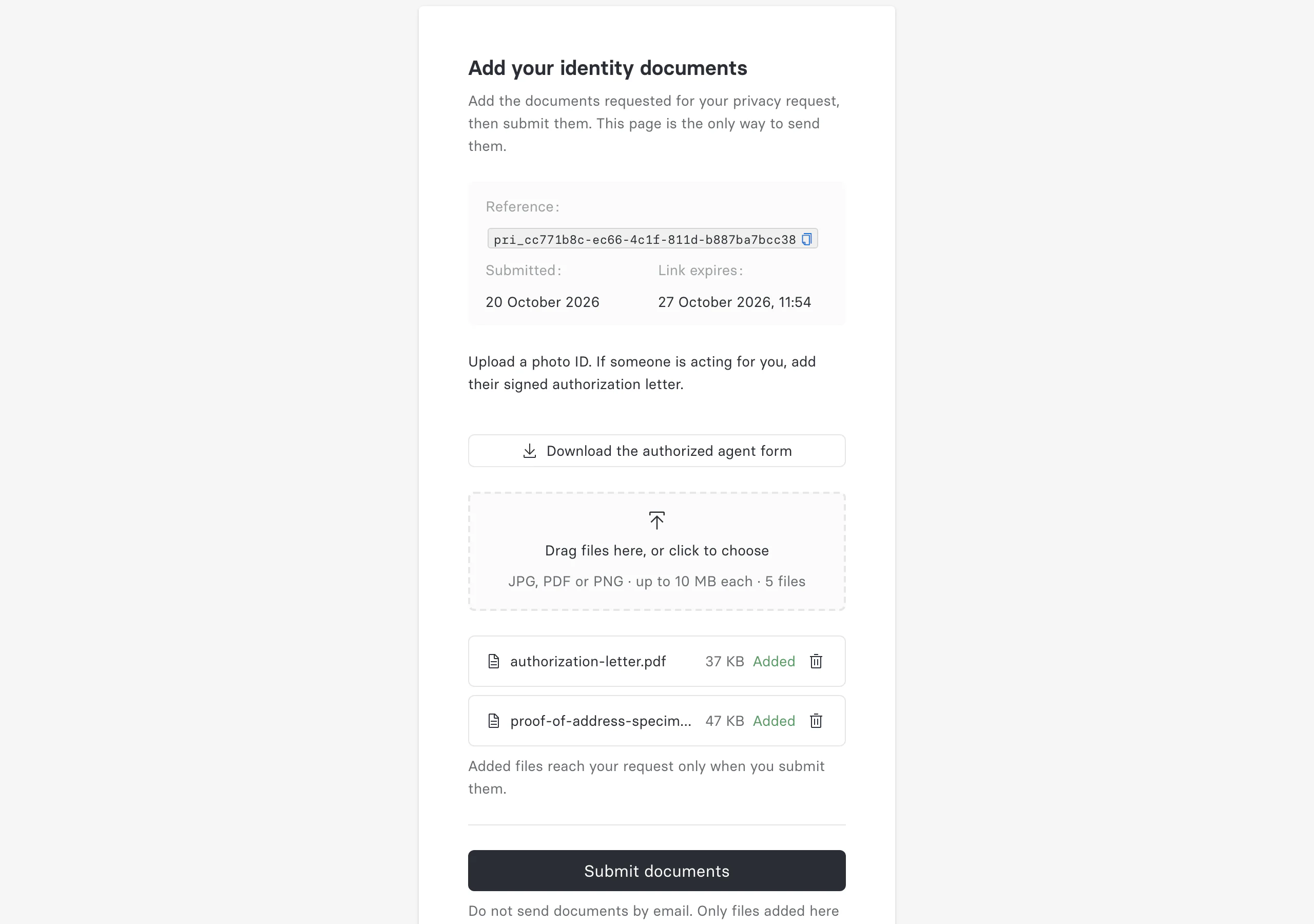
The files reach the request only when the data subject clicks Submit documents. If they try to leave the page with files that aren't submitted, their browser warns them first.
Ask for documents on the intake form
To collect a document at submission instead, add a File upload field to the request type's form in the form builder. Set Form URL and Form link label on the field to offer a downloadable form under the upload button. File upload fields need file uploads enabled in your deployment. See Enable file uploads.
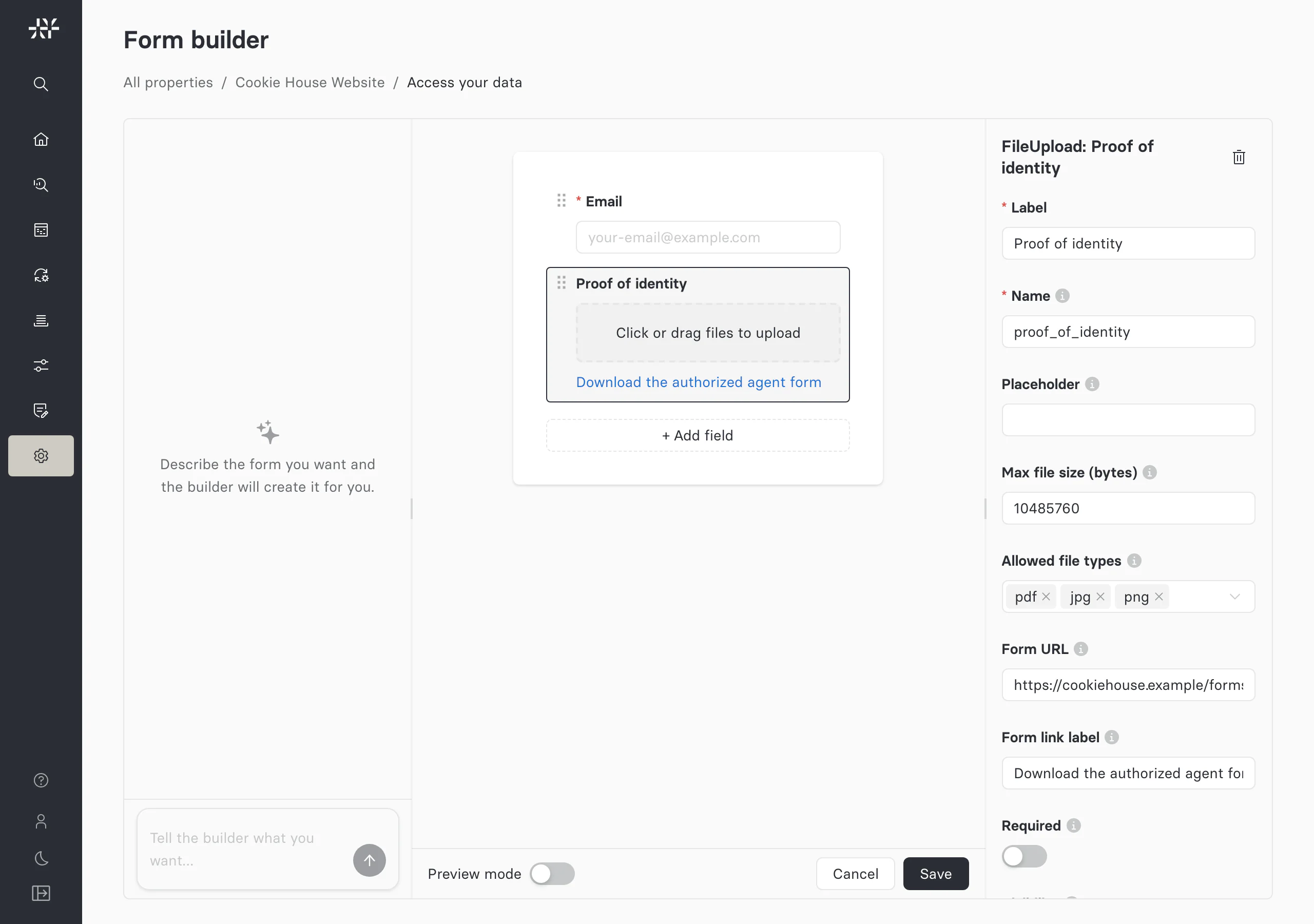
Files from the form arrive on the Documents tab with Via set to Privacy center form, under the name of the field that collected them. For file field limits, virus scanning, and uploading files through the API, see Attachments.
Send a link to one data subject
To ask one data subject for another document, or to share a link yourself, use Request another document or Generate upload link on the request's Documents tab. See Ask for another document.