Access Packages
An access package is the set of results an access request returns to the data subject. With access package review enabled, Astralis holds every completed access request for a human review before anything is delivered: a reviewer browses the packaged results in the Request Manager, redacts any fields that shouldn't be disclosed, and approves the package. Only then does Astralis build the final package, upload it to storage, and notify the subject.
This closes the gap between "the automation collected the right data" and "everything in this package is safe to hand to the subject"; third-party personal data, privileged material, or internal values that automated collection can't judge get a human decision before disclosure.
Enable access packages
Access package review is turned on at deploy time with an environment variable, set on both the Astralis webserver and its workers:
FIDESPLUS__ACCESS_PACKAGE__ENABLED=trueThis setting must be present in the deployment's environment and cannot be changed through the config API. Once enabled, every access request pauses for review; there is no per-request or per-policy opt-out.
Review a package
When an access request finishes collecting results, it moves to the Awaiting Access Review status instead of uploading:
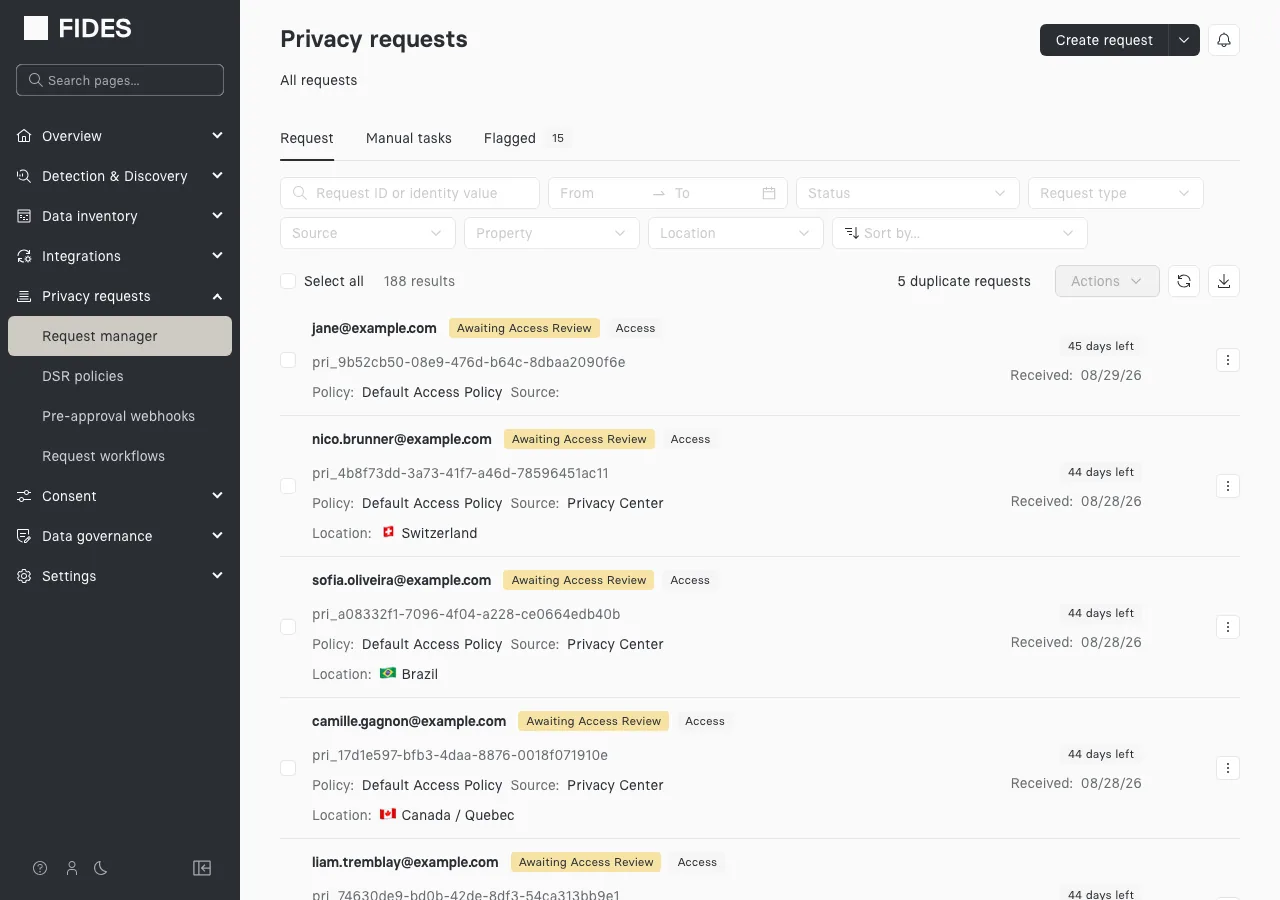
Open the request from the Request Manager and the Access package tab opens automatically on its details page.
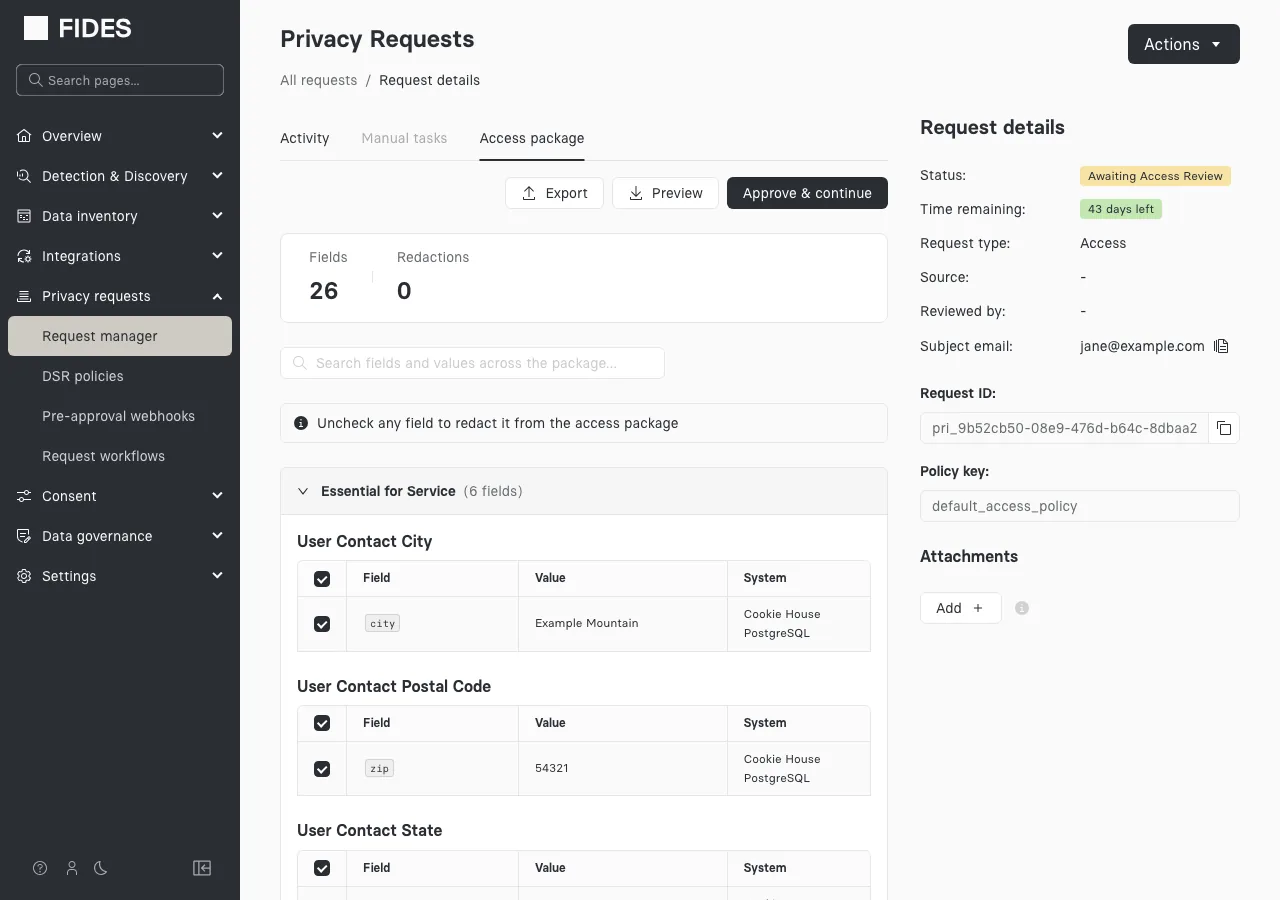
The tab presents everything the subject would receive:
- Results grouped by data use. Each section lists its fields with their values and the system each value came from, paginated for large packages.
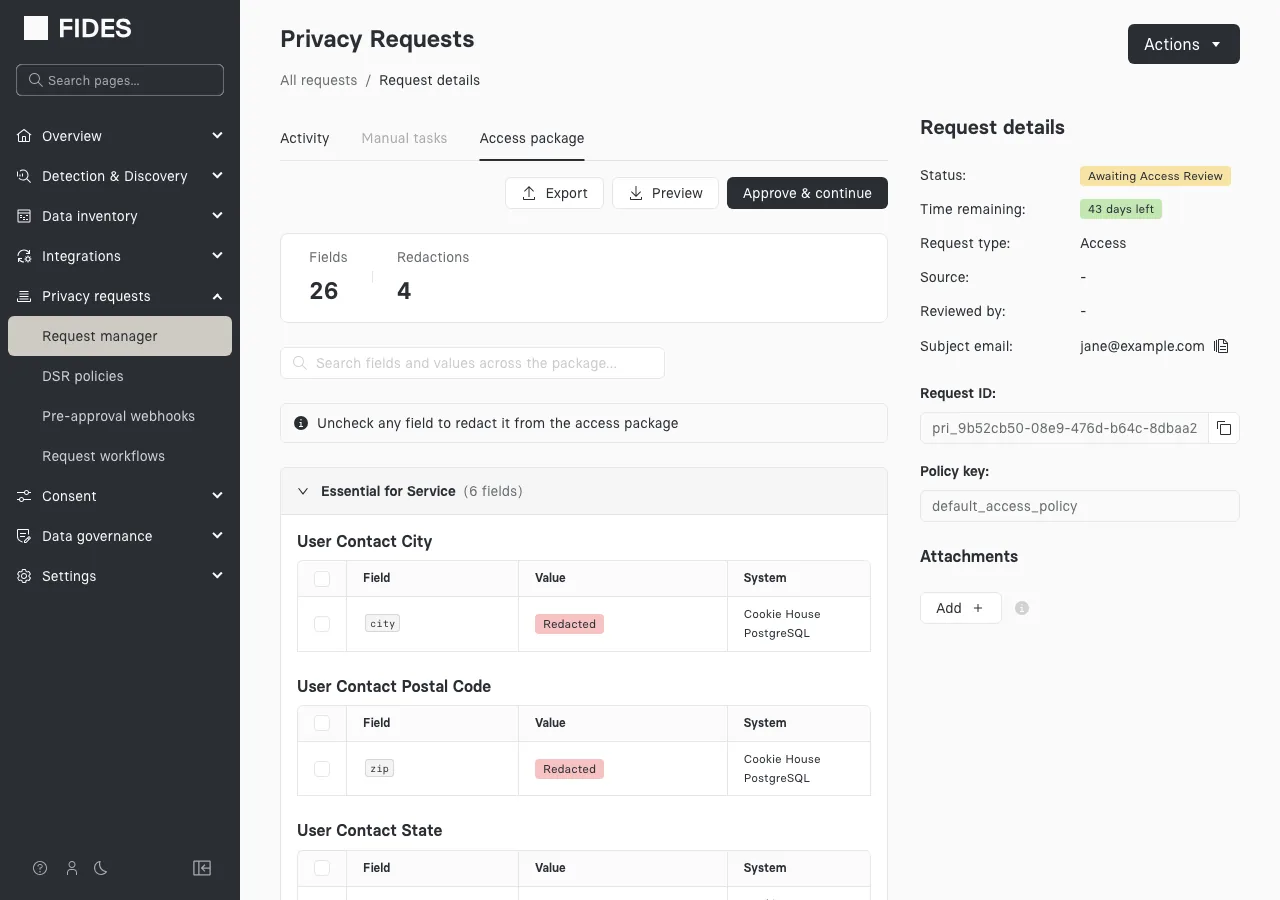
- Field and redaction counts. A running total of fields in the package and how many you've redacted so far.
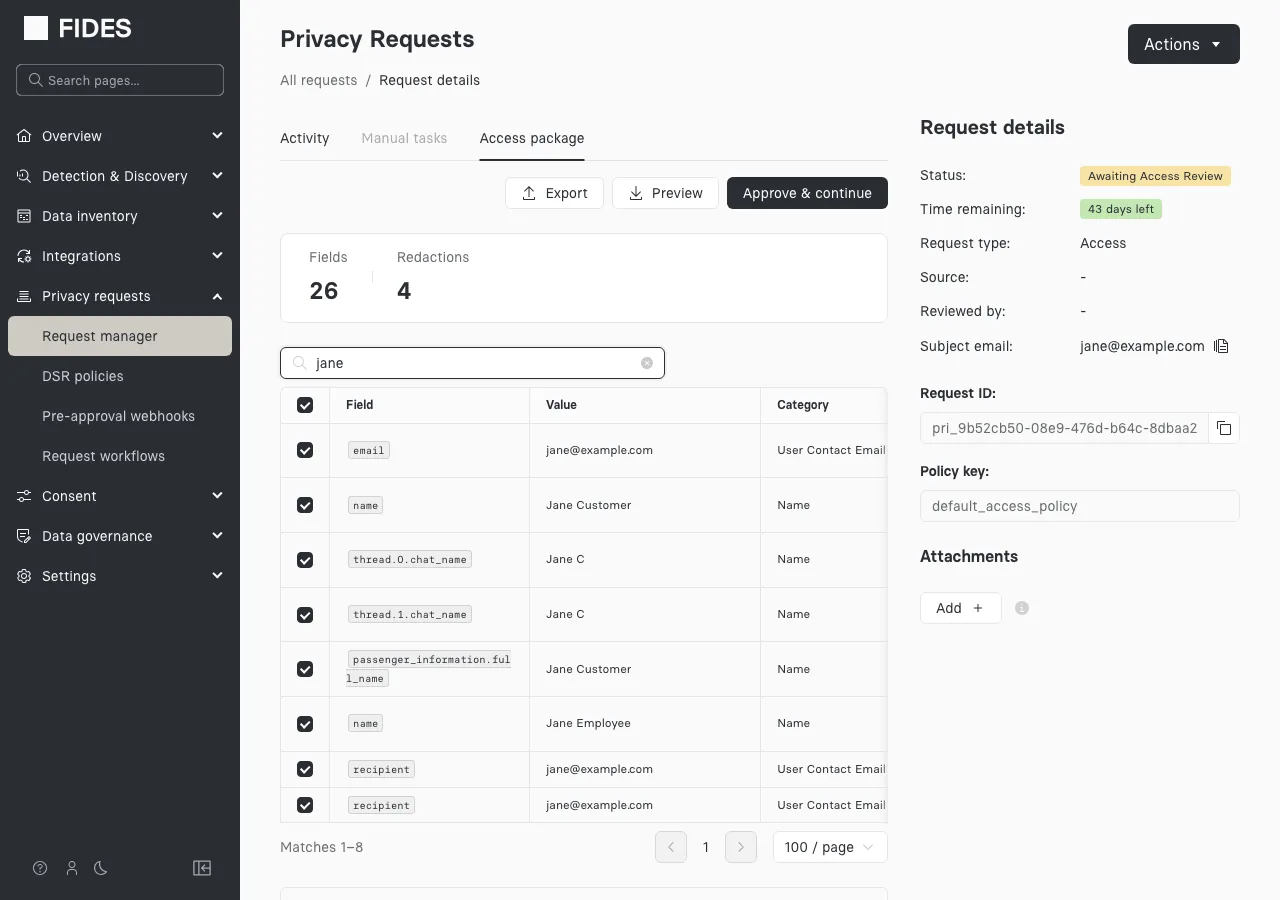
- Search. The search box matches field names and values across the entire package — useful for finding every occurrence of a specific value regardless of which system returned it. Search results are redactable in place, just like the section tables.
- Export downloads the full package contents as NDJSON, which stays practical for very large packages.
- Preview downloads the package as it currently stands — a ZIP containing the same report the subject would receive, with any redactions already applied.
Redact fields
Every field in the package is included by default. To redact one, uncheck its row — in a data use section or in search results. The value is immediately replaced with a Redacted tag in the review table, and with the literal text [REDACTED] in the delivered package. Astralis stops sending the underlying value to the reviewer's browser as soon as the redaction is saved.
Two behaviors are worth knowing:
- Redactions fan out across sources. Redacting a field redacts every source's copy of that value, so an identical value arriving from another system can't slip into the package unredacted.
- Search still finds redacted fields. Searching by the original value locates rows you've already redacted (displayed as redacted), so you can revisit a redaction without remembering where it was.
To undo a redaction, check the row again. Astralis re-fetches the value, since the browser no longer has it.
Every redaction is recorded in the request's activity timeline with the acting user, alongside the eventual approval, so the review itself is auditable.
Approve and deliver
When the review is done, click Approve & continue. Astralis resumes the request: it builds the final package with your redactions applied, uploads it to the configured storage destination, and emails the data subject a link to download their results. From there the request completes exactly as it would without review enabled.
To verify the delivery, confirm the request has moved to the Complete status in the Request Manager, and open the request's Activity tab to review the recorded redaction and approval entries.
Configure the source column
By default the review tables show which system each value came from. You can hide the source column in the Access packages section under Settings → DSR configuration.
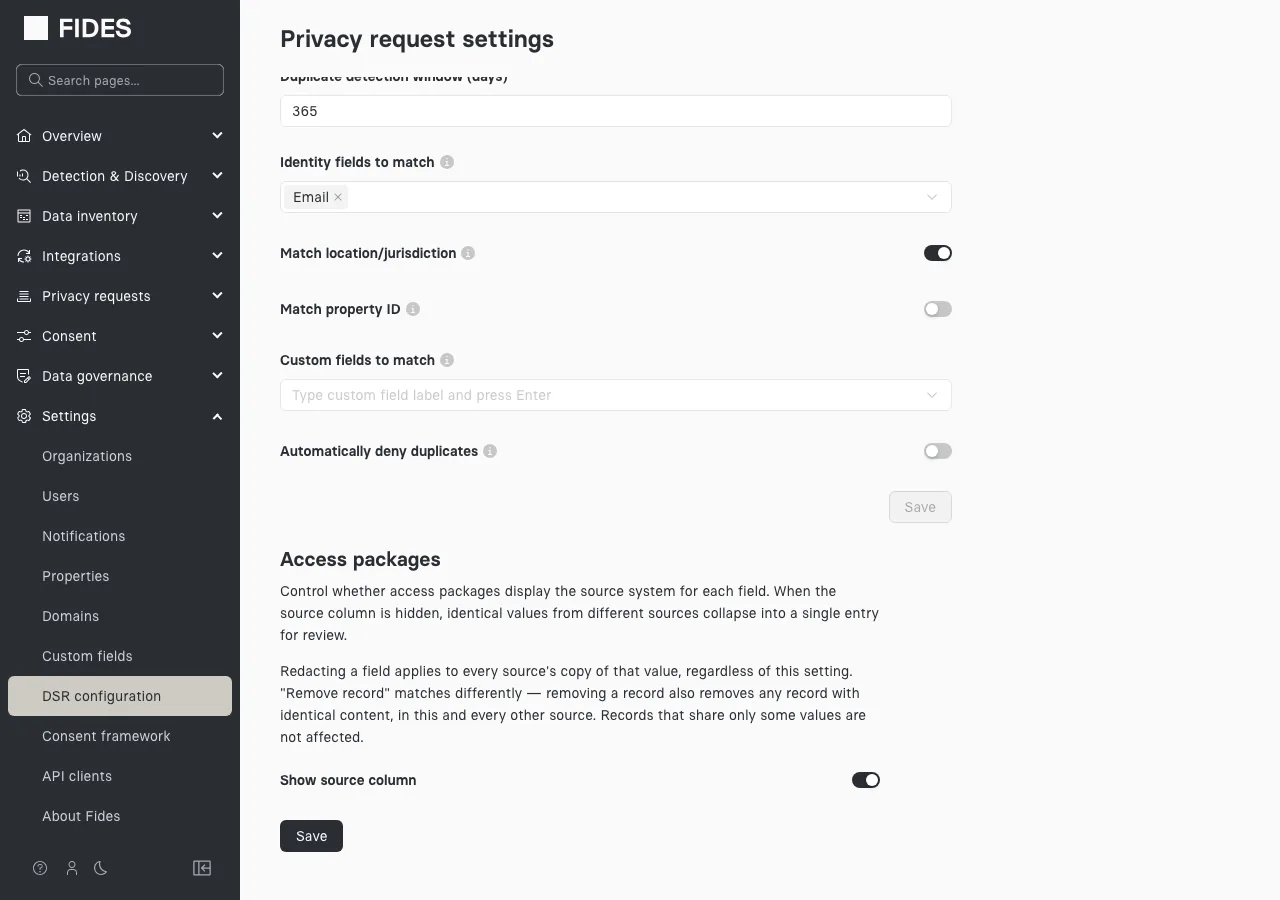
With the source column hidden, duplicate values arriving from different systems collapse into a single reviewable row — a cleaner view when many integrations return the same values. Redactions fan out across sources either way, so hiding the column never changes what a redaction covers.