Data Lineage
Overview
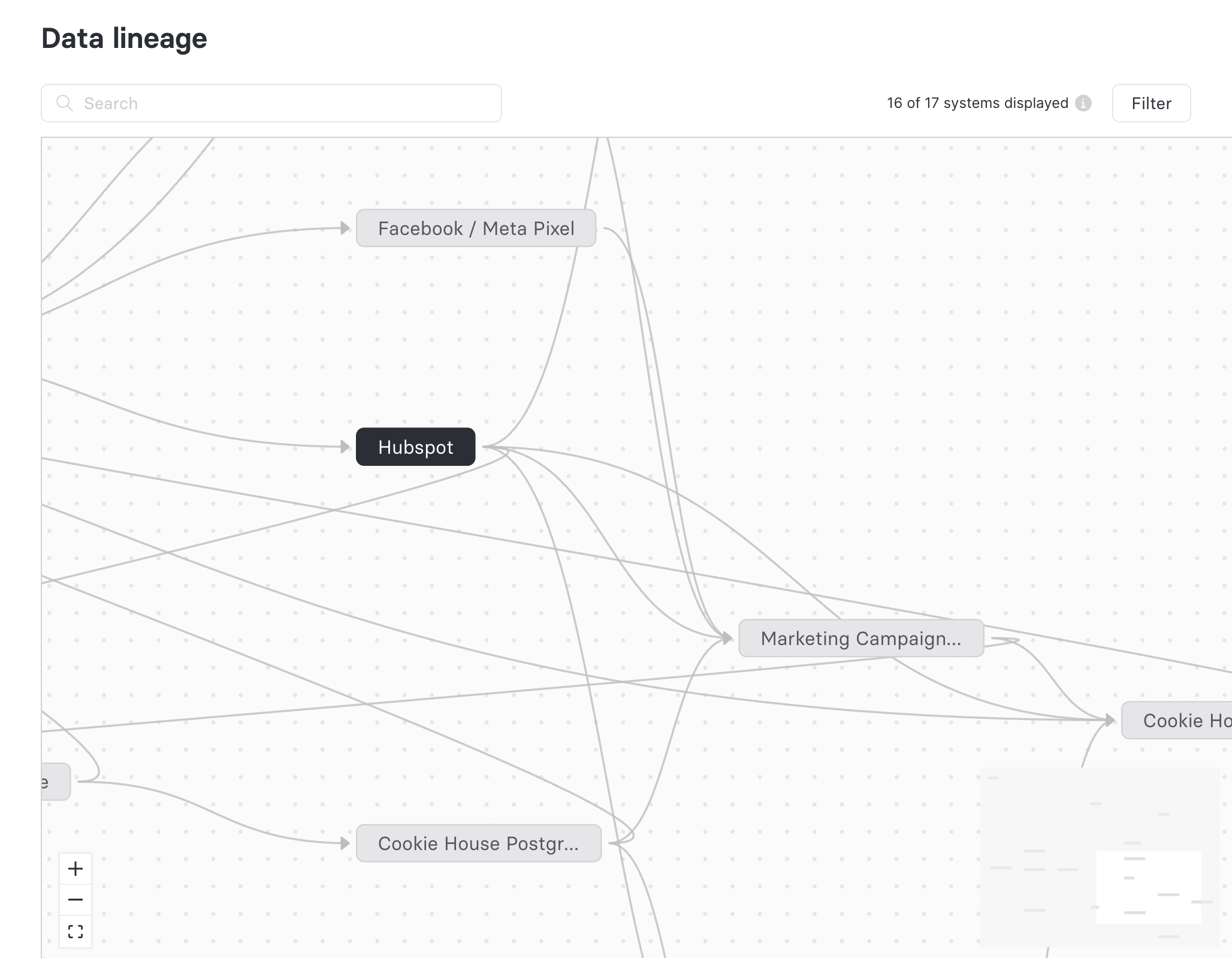
Data Lineage is a visual map of the systems in your organization and the data flows between them. The view is built from the same system inventory that powers the Data Map report; any system, added via monitoring or manually, appears here automatically.
Use Data Lineage to:
- Trace where personal data travels between systems across your organization
- Audit upstream and downstream dependencies for any system in your data map
- Investigate data flows by data use, data category, or data subject
Data Lineage is accessible from the Admin UI under Data inventory → Data lineage.
Reading the lineage graph
Each labeled node is a system. Arrows point from sources (systems that send data) to destinations (systems that receive it). Systems with no recorded sources or destinations appear as isolated nodes.
Click and drag on empty canvas to pan, and scroll to zoom.
Viewing and configuring a system
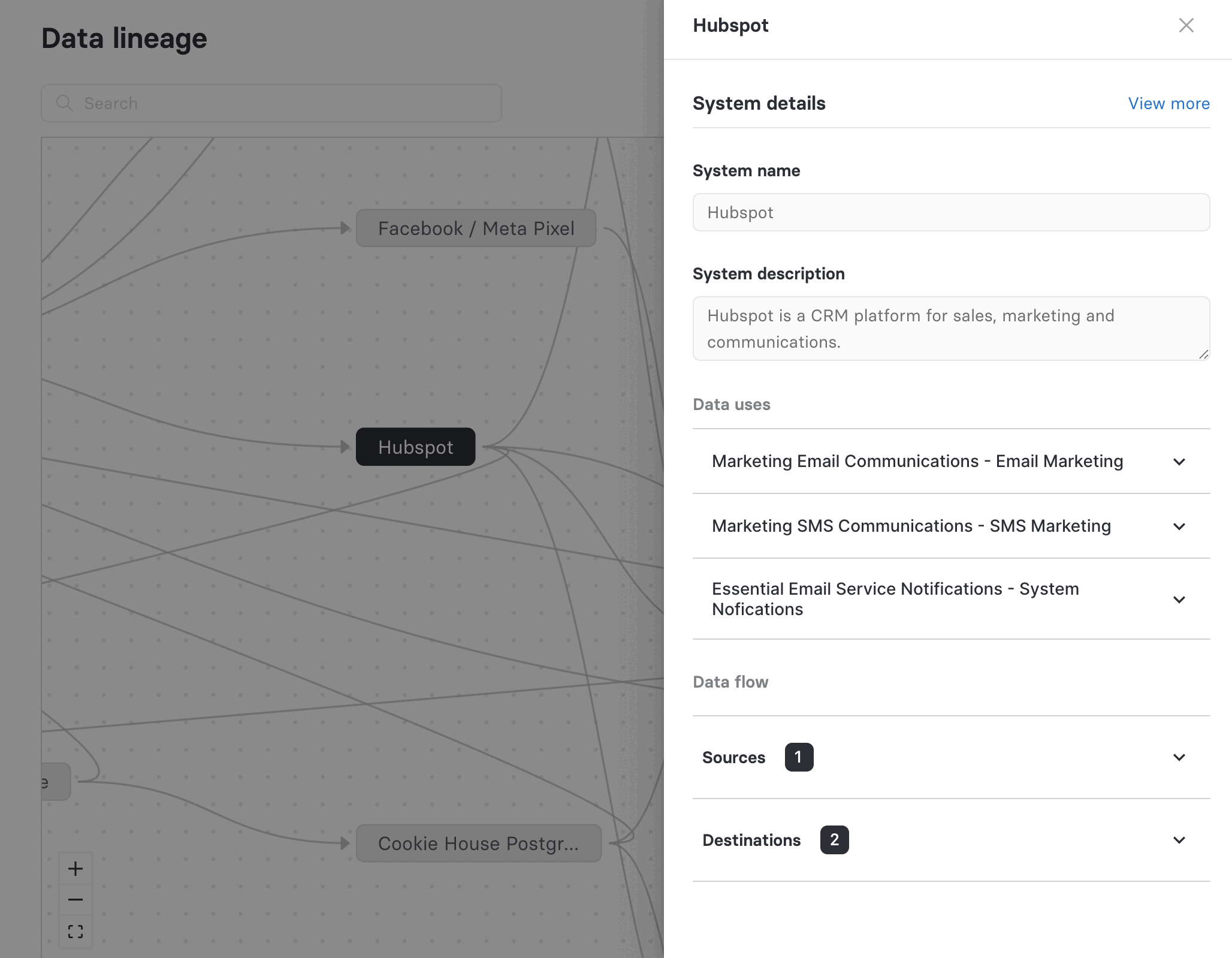
Click any node on the graph to open the system drawer on the right. The drawer summarizes the system and lets you configure its data flow without leaving the lineage view.
Data flow
The data flow section is split into two collapsible accordions:
- Sources — systems that send data into this system, with a count of how many sources are recorded
- Destinations — systems that receive data from this system, with a count of how many destinations are recorded
Expand an accordion and click Configure sources (or Configure destinations) to open the systems picker. Toggle the systems that act as sources or destinations for the current system, save, and the lineage graph redraws the arrows the next time it loads.
Filtering the graph
The Filter button opens a panel where you can narrow the graph to a specific slice of your data map. Filters are based on the privacy attributes recorded on each system's data uses.
You can filter by:
- Data Use — the processing activity (for example,
marketing.advertising,analytics.reporting) - Data Category — the type of data processed (for example,
user.contact.email,user.device.ip_address) - Data Subject — the category of individuals whose data is processed (for example,
customer,employee,prospect)
When a filter is applied, only systems with at least one matching data use, data category, or data subject remain on the graph. To clear active filters, reopen the panel and click Reset Filters.
Searching for a system
The search box above the graph filters the visible systems by keyword. Search matches on system attributes including the name, so you can type a system name (for example, Hubspot) or part of a data use (for example, analytics) to narrow the graph to relevant systems.