Duplicate DSR detection
Astralis can automatically detect and suppress duplicate Data Subject Requests (DSRs). When enabled, any new privacy request that matches an existing one — same identity, same request type, within a configured time window — is automatically labeled Duplicate and skipped without processing.
You can also enable auto-denial, which automatically denies detected duplicates and notifies the data subject — removing the need to review and close each duplicate by hand.
How duplicate detection works
When a new privacy request is received, Astralis checks for existing requests that match on the configured criteria. Matching is always scoped to a single policy — only requests submitted under the same policy are compared, so different request types such as access vs. erasure are always treated separately. Within that scope, Astralis compares:
- Identity fields — by default, the requester's email address. Can be extended to include additional fields such as phone number (see Configuring duplicate detection).
- Time window — only requests submitted within the configured lookback period are considered (default: 365 days).
- Location/jurisdiction (optional, on by default) — when enabled, only requests with the same location/jurisdiction are considered duplicates. Matching is exact: jurisdictions are compared as-is and are not nested, so a region-level location (e.g.
US-CA) is not treated as matching its parent country (US). Requests that both have no location set match each other on this criterion. - Property (optional) — when enabled, only requests submitted against the same property are considered duplicates.
- Custom fields (optional) — when enabled, matches are further narrowed to requests with matching values for the specified custom privacy request fields. Custom fields refine identity-based matching rather than replacing it.
Astralis combines all active criteria with AND logic — a request must match on every enabled criterion to be flagged as a duplicate.
If a match is found, Astralis groups the requests together and then applies the following priority rules to decide which request is the canonical (authoritative) one:
| Priority | Condition | Outcome |
|---|---|---|
| 1 | An existing request in the group is already actioned (approved, in processing, paused, awaiting email send, requires input, requires manual finalization, or error) | New request is marked Duplicate |
| 2 | An existing request in the group has a verified identity and this request does not | New request is marked Duplicate |
| 3 | This request is the first to have its identity verified | This request is canonical and will not be marked as a duplicate; other unverified requests are marked Duplicate |
| 4 | No requests have verified identities — the oldest request in the group is canonical | Newer matching requests are marked Duplicate |
Duplicate requests are assigned a "Duplicate" status and are automatically skipped during execution. Their activity log will record a Duplicate Request Detection entry explaining which canonical request caused the duplicate label.
Automatically denying duplicates
By default, Astralis flags duplicates with a Duplicate status and leaves them for an administrator to review. With auto-denial enabled, Astralis goes one step further and automatically moves each detected duplicate to a Denied status without any manual action.
You configure auto-denial independently of duplicate detection. You can run detection on its own (flag duplicates for manual review) or add auto-denial on top of it (deny them automatically).
When auto-denial is enabled and a request is detected as a duplicate:
- Astralis transitions the request from Duplicate to Denied automatically — no admin action needed.
- Astralis sends a denial notification email to the data subject (when review notifications are configured and enabled for the property), using the configurable denial reason. The default message explains that an existing request with the same details is already being processed.
- Astralis records the denial for audit purposes (see Audit trail).
The original (canonical) request continues processing normally; Astralis denies only the duplicate.
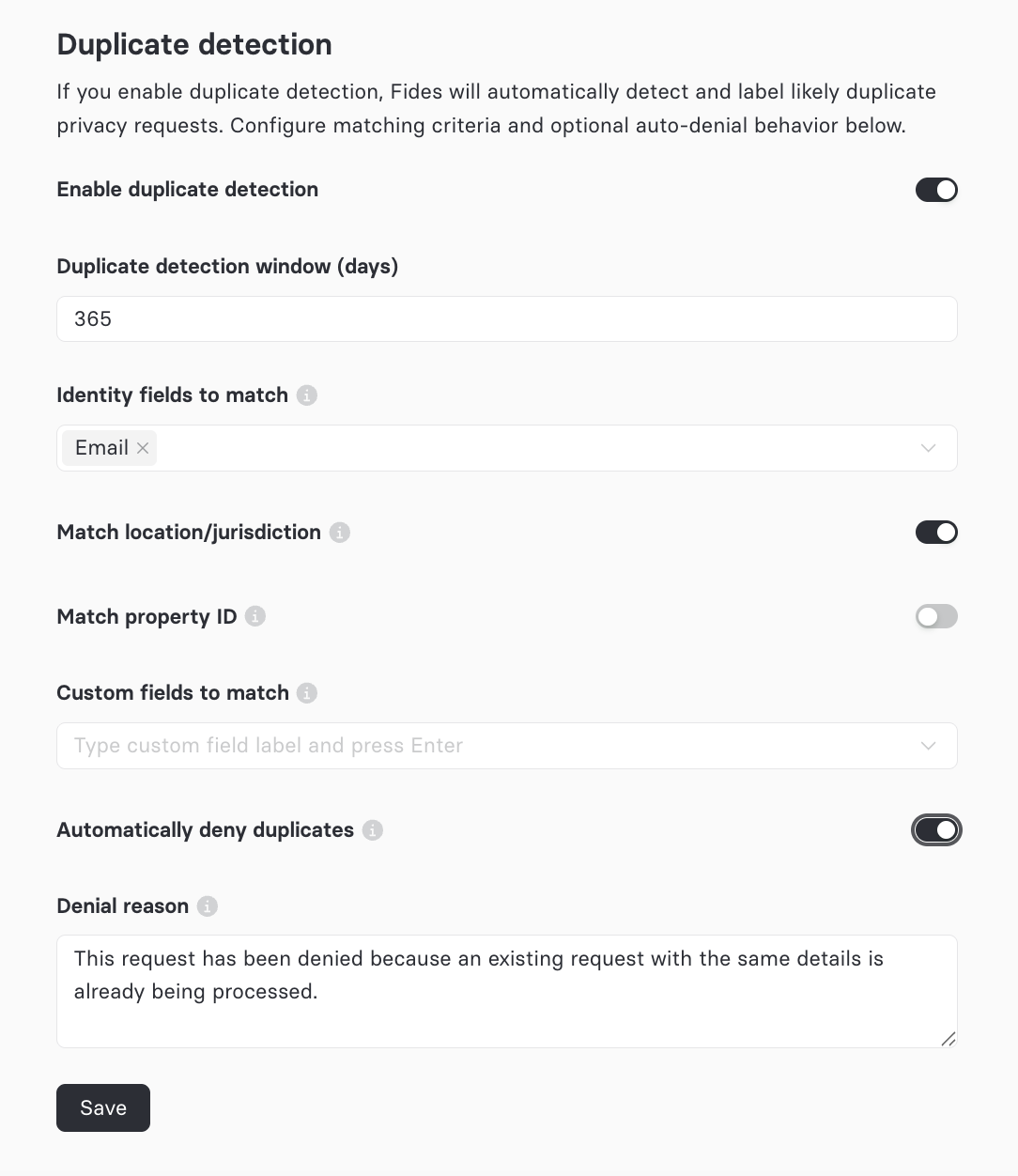
require_manual_request_approval setting. Even when your organization requires manual approval for privacy requests in general, detected duplicates are still automatically denied — the manual-approval requirement does not hold them in Duplicate status.Audit trail for auto-denied requests
Every auto-denial is fully auditable:
- The activity timeline records a Duplicate Request Detection event log entry identifying the canonical request the duplicate matched against.
- The request's audit log records the denial action, including the denial reason and the ID of the original request the duplicate matched (
Duplicate of request <id>). - Astralis marks auto-denied requests with a denial source, distinguishing them from manual denials.
You can access these records from the request's detail view in the Request Manager.
Configuring duplicate detection
Duplicate detection is disabled by default. To configure it:
- Navigate to Settings → DSR configuration
- Scroll to the Duplicate detection section
- Toggle Enable duplicate detection on
- Configure the matching criteria and options described below
- Click Save
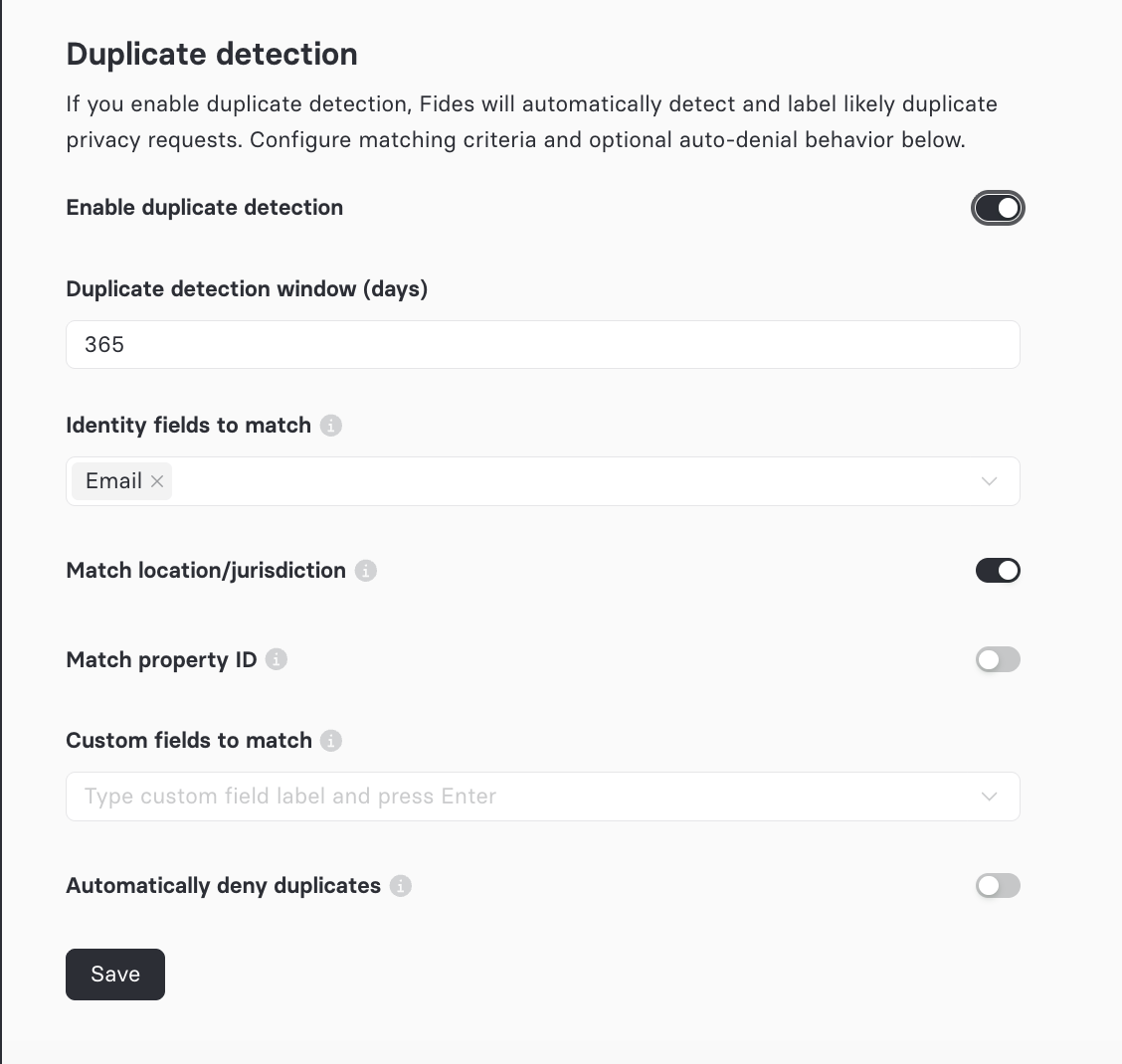
The available settings are:
| Setting | Description |
|---|---|
| Enable duplicate detection | Turns duplicate detection on or off. |
| Duplicate detection window (days) | The number of days to look back when comparing requests (minimum: 1, maximum: 3,650; default: 365). |
| Identity fields to match | The identity fields used for matching. At least one identity field is required for duplicate detection to run. Options include Email, Phone number, GA Client ID, LJT Reader ID, Astralis User Device ID, and External ID. Defaults to Email. |
| Match location/jurisdiction | When on, only requests with the same location/jurisdiction are considered duplicates. On by default. |
| Match property ID | When on, only requests with the same property ID are considered duplicates. When off, property ID is ignored. |
| Custom fields to match | Additional custom privacy request field labels that further narrow matches. Custom fields refine identity-based matching — they do not replace it. Type a label and press Enter to add it. |
| Automatically deny duplicates | When on, detected duplicates are automatically denied (see Automatically denying duplicates). |
| Denial reason | The message sent to the data subject when a duplicate is auto-denied. Required when auto-denial is on; maximum 1,000 characters. |
Configuration via API or environment variables
The same settings can be managed via the API or environment variables. By default only email is used for identity matching.
Environment variable example:
FIDES__PRIVACY_REQUEST_DUPLICATE_DETECTION__MATCH_IDENTITY_FIELDS=["email","phone_number"]API
{
  "privacy_request_duplicate_detection": {
    "enabled": true,
    "time_window_days": 365,
    "match_identity_fields": ["email", "phone_number"],
    "match_location": true,
    "match_property_id": false,
    "match_custom_fields": [],
    "auto_deny_enabled": false,
    "auto_deny_reason": "This request has been denied because an existing request with the same details is already being processed."
  }
}Viewing duplicate requests
When duplicate detection is enabled and duplicates exist, the Request Manager displays a "X duplicate requests" button above the request list. Clicking it filters the view to show only requests with a Duplicate status.
You can also filter for duplicates manually:
- Navigate to Privacy Requests → Request Manager
- Use the Status filter and select Duplicate
Understanding a duplicate request
To see why a specific request was marked as a duplicate:
- Click on the request to view its details
- Select View Logs
- Click on an Event log row with the skipped status
- Copy the duplicate request ID
- Return to the Request Manager page
- Search for the duplicate request using the ID copied in step 4
Workflow for handling duplicates
How you handle duplicates depends on whether auto-denial is enabled.
- With auto-denial enabled, duplicates are denied automatically and the data subject is notified — no further action is typically required. Use the audit trail to review what was denied and why.
- With auto-denial disabled, duplicates are flagged with a Duplicate status and left for review. Depending on your organization's process you may want to act on them manually.
Bulk actions on duplicate requests
Duplicate requests support the same bulk actions as pending requests. To act on multiple duplicates at once:
- Navigate to Privacy Requests → Request Manager
- Filter by Status: Duplicate (or click the "X duplicate requests" button)
- Use the Select all checkbox to select all visible requests, or check individual requests
- Open the bulk actions dropdown and choose an action:
- Deny — formally deny the requests (a denial reason is required). This is the recommended action when you want a clear audit trail showing the requests were reviewed and dismissed.
- Delete — remove the requests from view. Use this to clean up noise when the duplicates are clearly redundant.
- Approve — re-queue the requests for processing. Use this if a request was incorrectly labeled as a duplicate and needs to be fulfilled.
Other handling options
- Leave them — Duplicates are already suppressed from processing. If your team reviews them periodically, they can remain as an audit record without any further action.
- Check the canonical request — Use the ID from the duplicate's events log to find the related canonical request and verify it is progressing correctly.
- Re-evaluate configuration — If legitimate requests from the same person are being incorrectly flagged (e.g., two people sharing the same email address, or a re-submission after a previous request errored), consider adjusting the time window or matching criteria, or consulting your Astralis administrator to review the configuration.