Reviewing & editing assessments
After Astralis generates an assessment, your privacy team reviews the AI-generated answers, edits them as needed, and fills in any gaps. This guide covers navigating the assessment detail view, editing answers, inspecting evidence, and viewing answer history.
Opening an assessment
Navigate to Privacy assessments in the left navigation. The list shows all assessments grouped by template, with a completeness percentage and status indicator for each. Click the assessment title or the Resume button to open it.
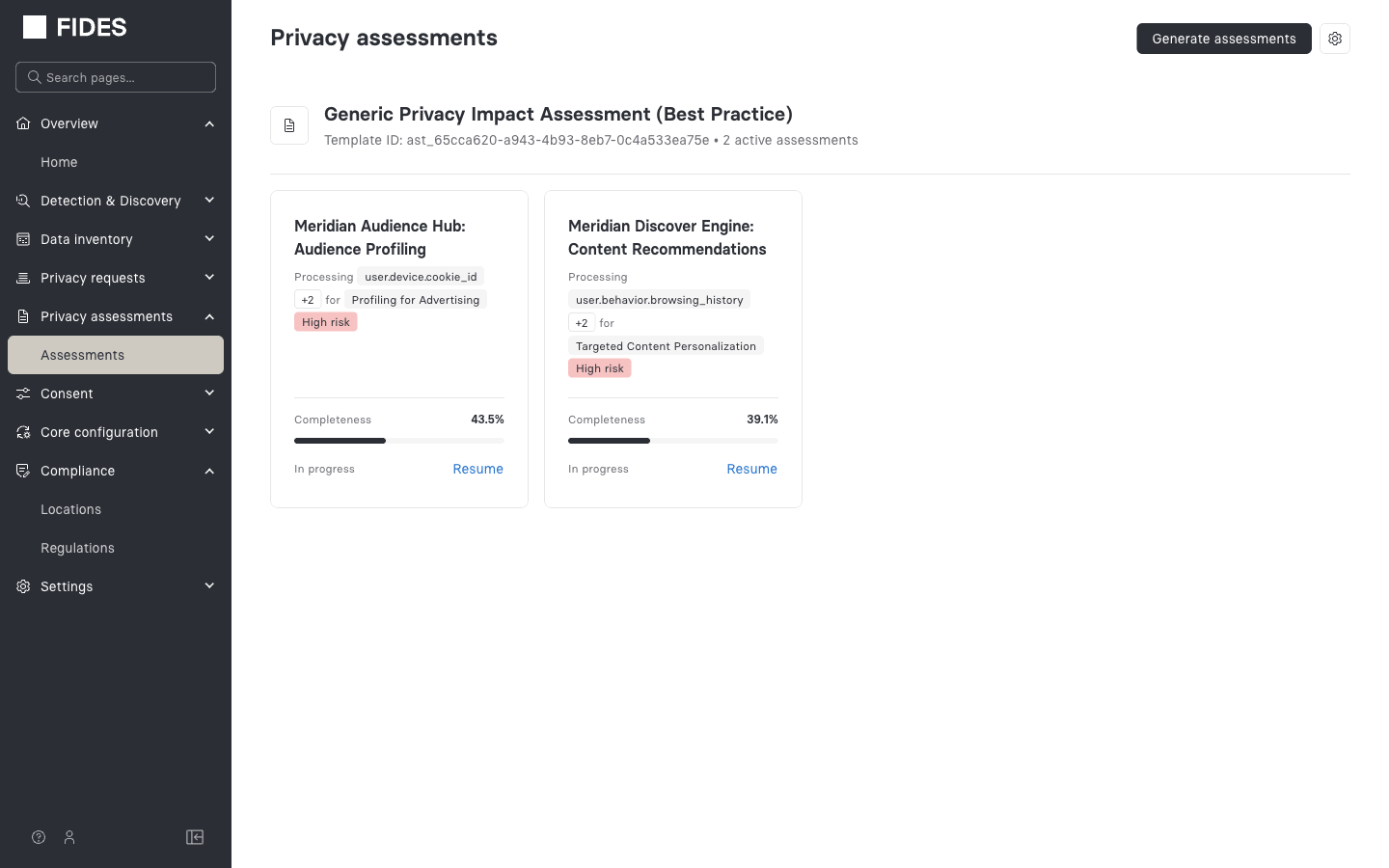
The assessment detail view
The assessment detail page shows:
- The assessment title, system name, and status badge (
In progress,Completed, orOutdated) - The primary data categories and processing purpose from the system's data use declaration
- A High risk badge if the system matched any high-risk triggers
- A Request input from team button (enabled when Slack is configured)
- All question groups as collapsible sections
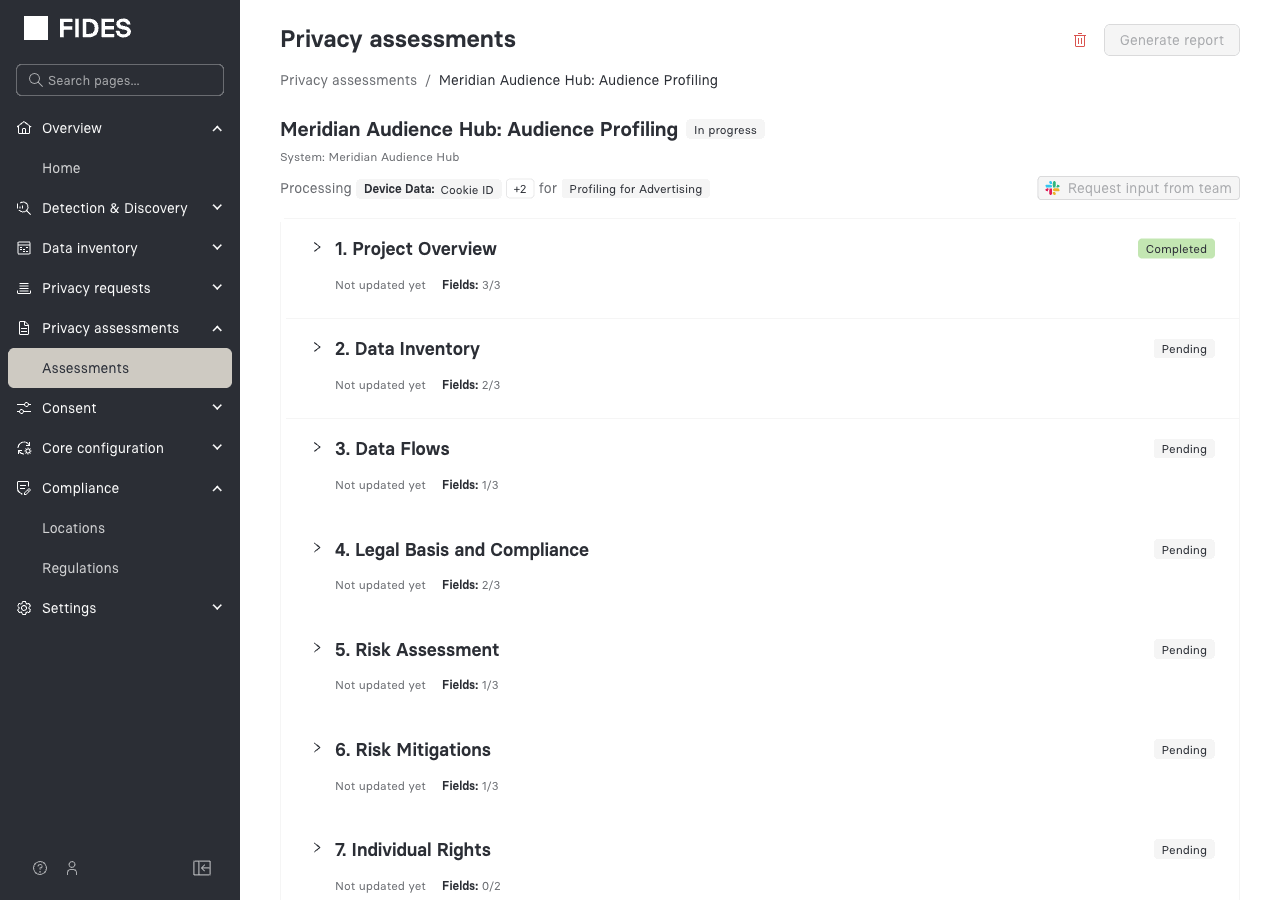
Each question group header shows:
- The group number and name
- A last-updated timestamp
- A fields counter (e.g., "Fields: 3/3")
- A View evidence button when the group has evidence
- A status badge: Completed (all fields have answers) or Pending (one or more fields need answers)
Expanding a question group
Click any question group header to expand it and reveal its questions and answers. Answers generated by the AI carry an Agent source badge. Answers you've edited carry a Manual input badge.
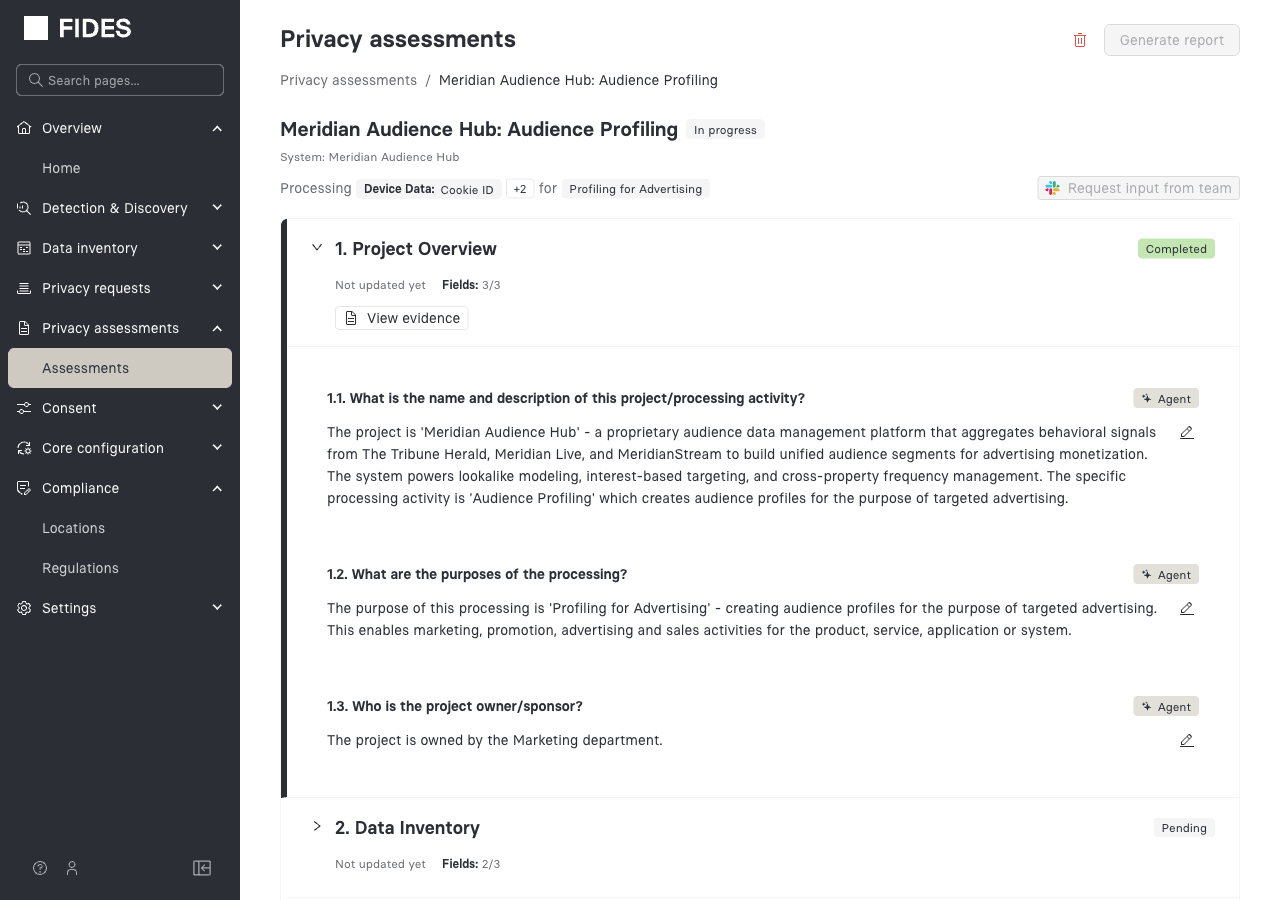
Editing an answer
Click the pencil Edit icon next to any answer. The answer text becomes an editable text area. Make your changes, then click Save to commit or Cancel to discard.
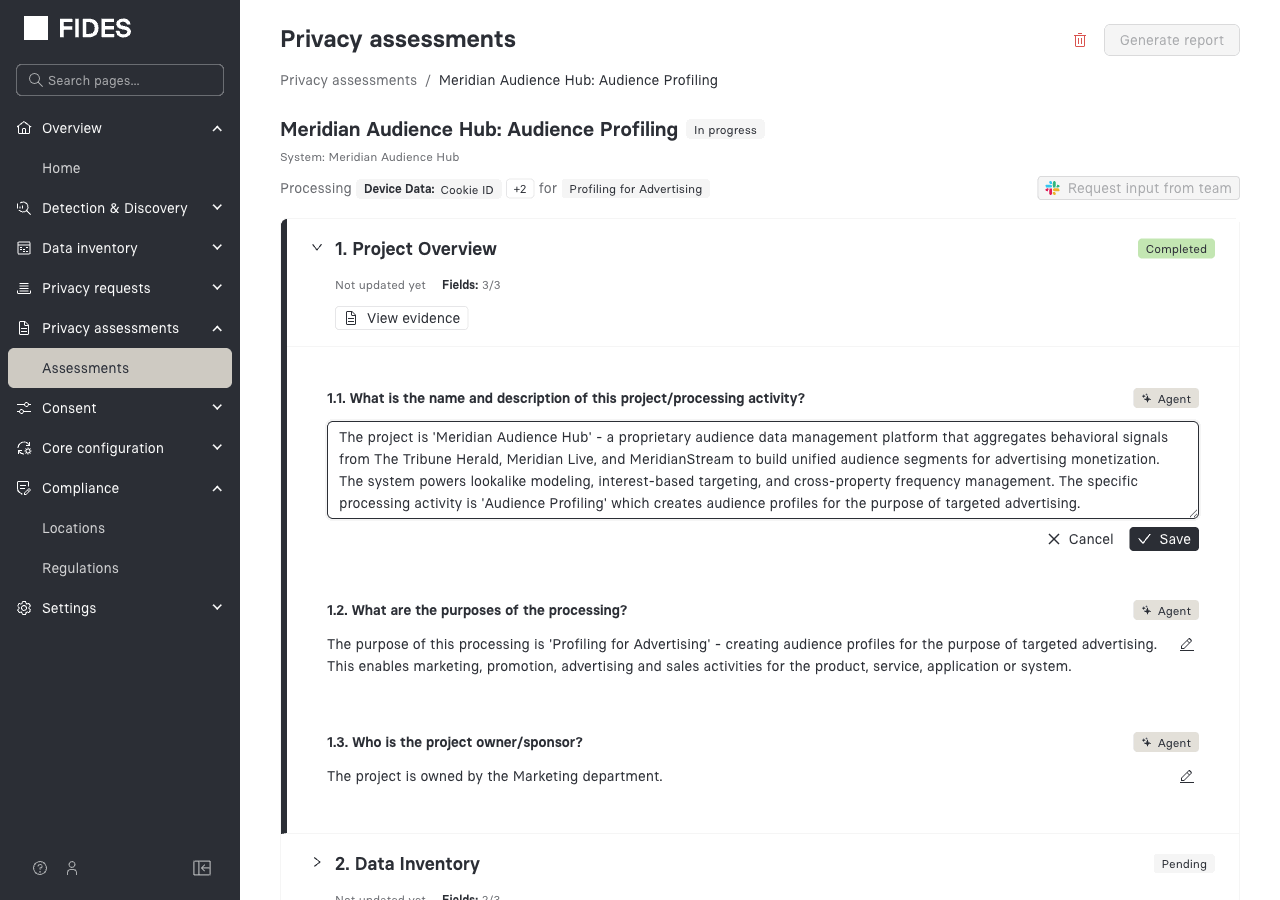
Saving creates a new immutable version of the answer. The source label changes to "Manual input". The previous AI-generated version remains in the version history.
You can edit any answer at any time, including ones already marked complete. Astralis keeps the full version history regardless of how many times an answer is edited.
Viewing the evidence drawer
Click View evidence in any question group header to open the evidence panel. The evidence drawer shows all Astralis data points the AI cited when generating answers for that group, organized by evidence type:
- System-derived data: system name, description, and department
- Data use declaration: declaration name and data use
- Data use: processing purpose description
- Dataset: field-level metadata
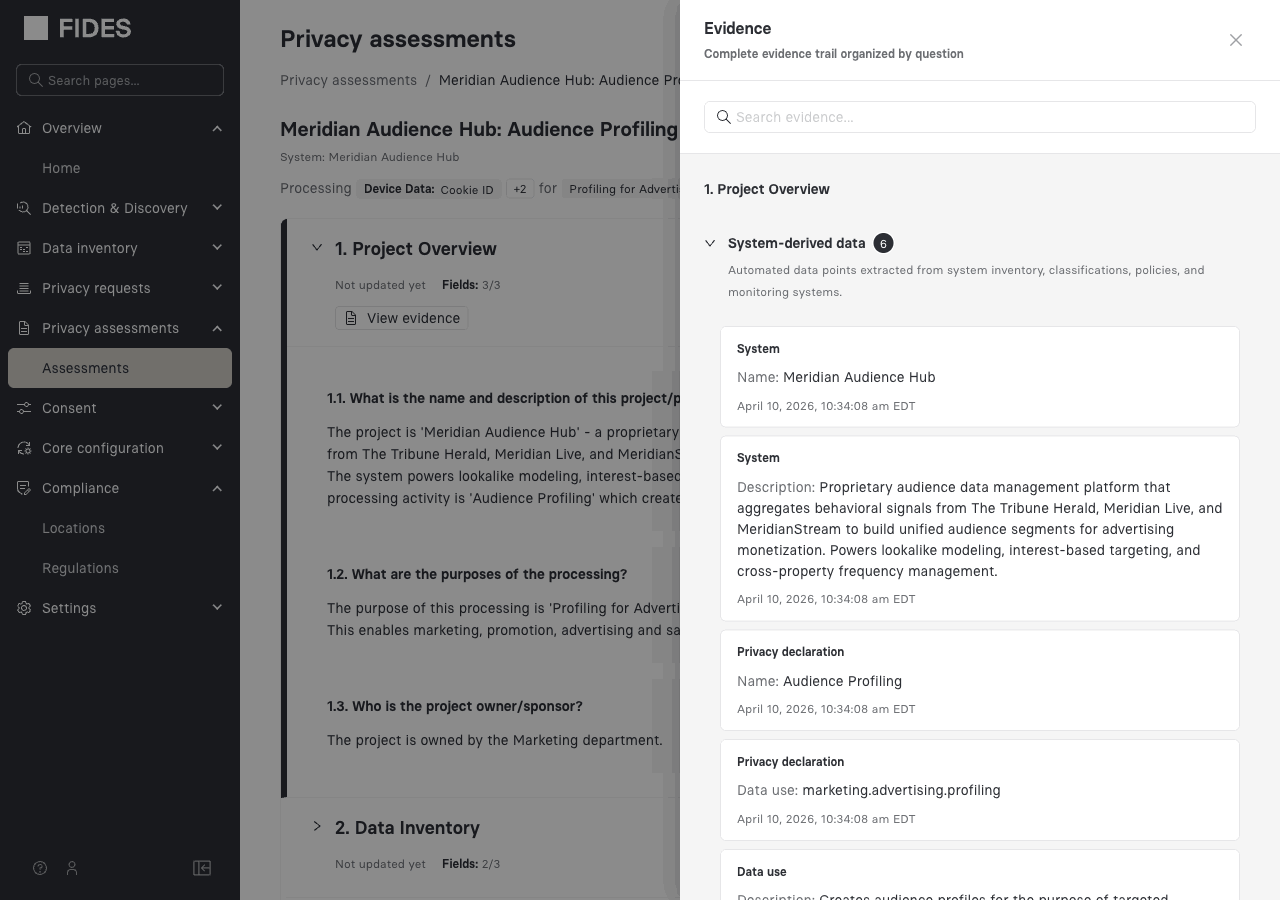
Use the search box in the evidence drawer to filter citations by keyword. Evidence provides the auditable link between your assessment answers and your verified data inventory.
Next steps
For questions the AI couldn't answer ("Needs input" status), use the Slack questionnaire to route them to subject-matter experts. When you're satisfied with all answers, export the assessment as a PDF.