Generating assessments
To generate a privacy assessment, Astralis reads the data use declarations and data categories you've configured for your systems, then uses an AI agent to pre-fill answers to each assessment question. This guide walks you through starting a generation job and monitoring its progress.
Prerequisites
Before generating an assessment, ensure the following:
- At least one system exists in your Astralis data map with data use declarations configured. The quality of AI-generated answers depends on how completely your systems are described. Systems with data categories, processing purposes, legal bases, and dataset connections will produce significantly better answers than bare system records.
- The AI integration is configured. Astralis uses a default model out of the box. You can override the model in assessment settings.
Step 1: Open the Generate assessments dialog
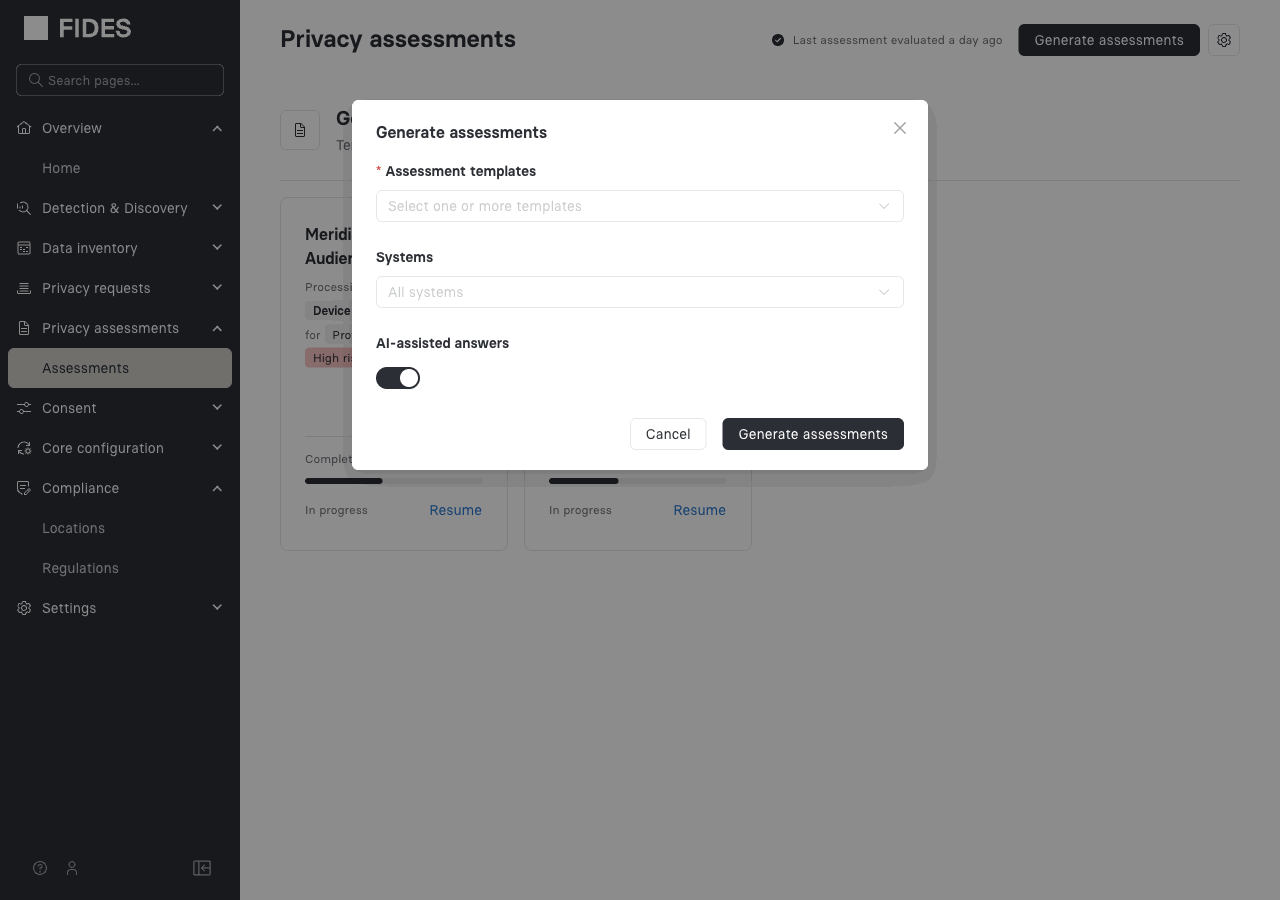
Navigate to Privacy assessments in the left navigation, then click Generate assessments in the top-right corner.
Step 2: Select assessment templates
Click the Assessment templates dropdown and select one or more templates. You can select multiple templates to generate several assessment types in a single job. Astralis creates one assessment per system-template combination.
See the assessment types reference for the full list of available templates and their regulatory scope.
Step 3: Optionally scope to specific systems
By default, Astralis generates assessments for all systems in your inventory. To limit generation to specific systems, click the Systems dropdown and select the systems you want.
Scoping to specific systems is useful when:
- You're assessing a newly launched product or feature before it goes live.
- A specific system has undergone a material change that requires a fresh assessment.
- You want to assess only high-risk systems first.
Step 4: Enable or disable AI-assisted answers
The AI-assisted answers toggle is on by default. Leave it enabled to have Astralis pre-fill answers using your system data. Disabling it generates an assessment with blank answers, which is useful if you want to fill the assessment entirely by hand or via the Slack questionnaire workflow.
Step 5: Click Generate assessments
Click Generate assessments. Astralis queues a background job for each system-template combination and returns you to the assessments list. Generation runs in the background; you don't need to wait on the page.
The header of the assessments list shows a timestamp indicating when generation last ran ("Last assessment evaluated X ago"). New assessments appear on the list as soon as they're created.
Next steps
Once assessments have been generated, open them to review and edit the AI-generated answers. See reviewing & editing assessments.