Act on website monitor results
Acting on website monitor results means deciding, for each vendor and asset a scan found, whether it belongs in your system inventory, needs different categories of consent, or should be left out. You do this in the Action Center, one vendor at a time or in bulk.
To find your way around the Action Center first, see website monitor results.
Add a vendor's assets to the inventory
Adding an asset records it in your system inventory, under its vendor's system, with its categories of consent.
- In the Action Center, select the website monitor.
- In the vendor's row, select Add. To add only some assets, select the vendor's name to open its assets, then select Add on each asset, or Add all.
- If the inventory already holds a system with the vendor's name, choose whether to add the assets to that system or create a new one. Adding to the existing system keeps one record per vendor.
Astralis confirms with an Added to inventory message. Select View to open the system's Assets tab. Added assets move to the Added tab.
When you add cookie assets, Astralis attaches them to the privacy notices that cover their data use. Your privacy experiences then list those cookies, and FidesJS removes them when a visitor opts out.
Assign a system to uncategorized assets
Compass places assets it can't match to a vendor under Uncategorized assets.
- Select Uncategorized assets to open the assets.
- Select the assets that belong to the same vendor.
- Select Actions > Assign system and choose the vendor's system.
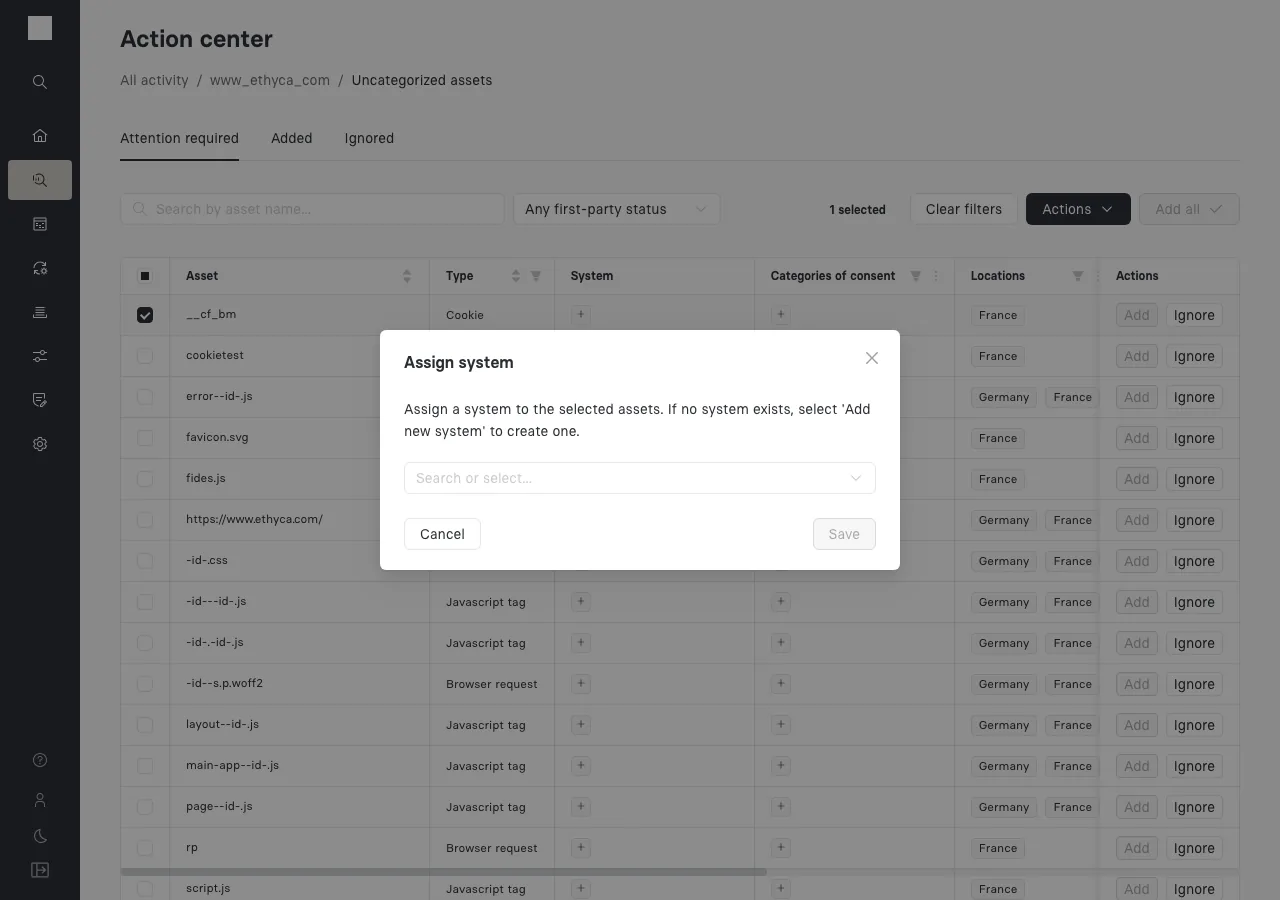
Change an asset's categories of consent
Categories of consent decide which privacy notice covers an asset and how the monitor judges its consent compliance.
- Open the vendor's assets.
- In Categories of consent, select + to add a category, or the x on a category to remove it.
- To change many assets at once, select them and choose Actions > Add consent category.
The monitor recalculates the asset's consent status when its categories change.
Ignore and restore assets
Ignore assets you don't need to track, such as a font file. Ignored assets move to the Ignored tab, and later scans leave them out.
- To ignore, select Ignore on an asset or a vendor row, or select assets and choose Actions > Ignore.
- To restore, open the Ignored tab, select the assets, and choose Actions > Restore.
Mark assets TCF compliant
On pages that serve a TCF experience, a vendor that reads the TCF consent string can load before the visitor chooses. Mark its assets TCF compliant to record that, and their status becomes Exempt (TCF). See review a finding for when to apply it.
Use bulk actions
Select assets with the checkboxes, then choose Actions.
| Action | What it does |
|---|---|
| Add | Adds the selected assets to the inventory. |
| Add consent category | Adds a category of consent to every selected asset. |
| Assign system | Moves the selected assets to another system. |
| Mark TCF compliant | Records the selected assets as TCF compliant. On TCF pages, their status becomes Exempt (TCF). |
| Mark not TCF compliant | Removes the TCF compliant mark. |
| Ignore | Moves the selected assets to the Ignored tab. |
| Restore | On the Ignored tab, returns the selected assets to review. |
Add consolidated assets
Some results are consolidated, or wildcard, assets: one entry, marked by the -id- placeholder in its name, that stands in for many variants of the same technology. For example, _ga_-id- represents _ga_18MY9V5RLC, _ga_CWILS0SXPK, and every other _ga_ cookie. Adding it categorizes all of them at once.
A consolidated asset also replaces any matching assets you'd already added one by one. Adding _ga_-id- replaces the specific _ga_18MY9V5RLC and _ga_CWILS0SXPK assets in your inventory with the single wildcard asset. Before it does, Astralis lists exactly which assets it will replace and asks you to confirm.
Manage assets after adding them
Added assets live on their system's Assets tab, in the system inventory. There you can view each asset's history, edit it, or create an asset by hand: select Add asset + and set the asset type, categories of consent, and domain.