Verifying a Classification with Sample Values
When you review a field's classification in the Action Center, the field's name and type aren't always enough to tell whether its data category is right. Field sample preview lets a reviewer fetch a few live values for one field, on demand, and check the label against the actual data before confirming it.
Preview reads values only when a reviewer asks for them. Astralis never stores them in its database, and every request is audited.
Field sample preview is off by default. It takes two switches to turn it on: one for the deployment and one on each monitor. Before you turn it on, read Before you turn it on: preview shows real, unmasked values to reviewers and runs queries against your data stores.
How it works
- A reviewer opens a field in the Action Center and clicks Sample values.
- The Astralis API checks both switches and the reviewer's permission on the monitor.
- A worker connects to the data store through the monitor's existing connection and reads up to 10 non-empty values from that one column, under a time limit.
- The worker hands the values back through Redis. They expire there after five minutes.
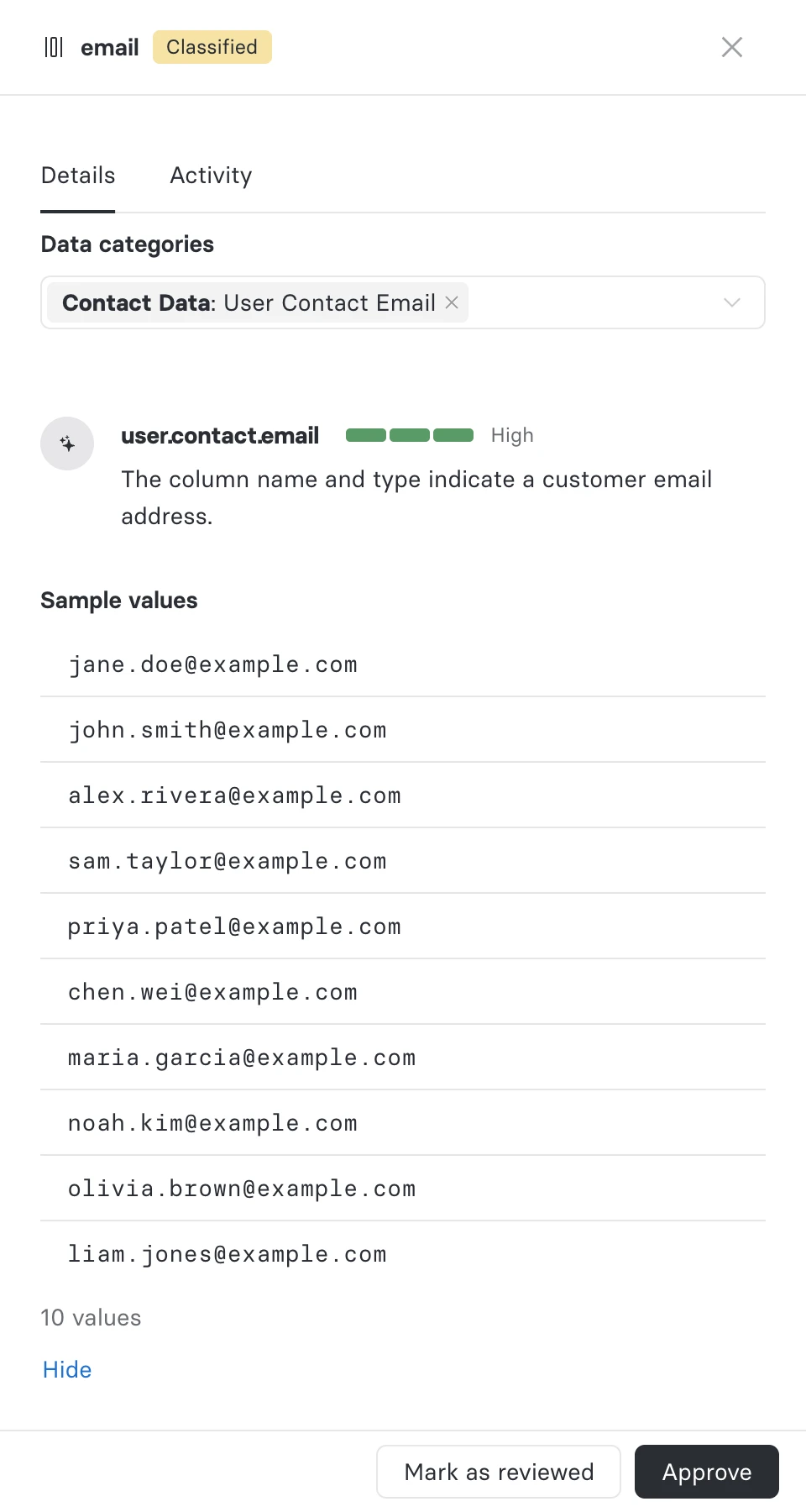
- The drawer shows the values. Opening the same field again within five minutes reuses them instead of querying the data store again.
Values are read with the same credentials the monitor uses for detection and classification. Detection only needs to read catalog and schema metadata, so the monitor's account may not be able to read rows yet. See Data store access.
Before you turn it on
Preview changes what Astralis can read from your data stores and who in Astralis can see it. Review the points below with the owners of the data stores and your security team before you switch it on.
Security
- Astralis can read rows, not just metadata. Without preview, a monitor's account only needs catalog and schema metadata. Preview needs it to read rows, so the credentials stored in Astralis can then read the data itself, including personal data, in every table you grant. Grant read access only on the schemas or tables your reviewers need to check.
- Values are shown unmasked. Reviewers see the stored values, up to 256 characters each: email addresses, names, identifiers or whatever the column holds. Masking applied by the data store, such as Snowflake masking policies or SQL Server dynamic data masking, still applies. See Data store access.
- More people can see data. Anyone who can act on a monitor's results can view its values. That includes Owners, Contributors and the monitor's stewards, and stewards inherited from the linked System. Check who that is before you turn on a monitor's switch. API clients with the
discovery_monitor:updatescope can request values too. See Who can view sample values. - Values pass through Redis as plain text. Values are held in Astralis' Redis for up to five minutes, unencrypted. If your Redis persists to disk or is backed up, a value can end up in a snapshot. On Ethyca-hosted deployments, that Redis runs in Ethyca's environment.
- Every request is audited. The audit log records who requested values for which field, and when, but never the values.
Operational
- Previews query your live data stores. Each preview runs one small, time-limited read on the connection the monitor already uses. If that connection points at a production primary, previews run there.
- A preview can hold a table briefly. On PostgreSQL, MySQL and Microsoft SQL Server, a running preview holds a shared read lock on the table, so a schema change on the same table, such as
ALTER TABLE, can wait up to 30 seconds for it to finish. Lock waits count toward a preview's own 30-second limit. - Some previews cost money. On Snowflake, a preview uses the integration's warehouse and resumes it if it's suspended, which Snowflake bills. On BigQuery, previews of views run a query billed up to 1 GiB each. On Salesforce, each preview uses one API call from the org's allowance. See Supported data stores.
- Load is bounded. A field is queried at most once every five minutes however many reviewers open it, and each user can run at most 3 previews at once and start 30 a minute. See Data handling.
- You can turn it off at once. Turning off the deployment setting or a monitor's switch stops previews right away, including values already held in Redis. To be sure Astralis can no longer read rows, also revoke the row access you granted.
Before you begin
- A data store monitor on a supported data store that has detected the fields you want to review.
- Row read access for the monitor's data store account. See Data store access.
- A worker that consumes the
fidesplus.discovery_monitors_samplingqueue. See Worker setup. - Permission to edit the monitor (Owner or Contributor) to turn the monitor switch on.
Turn on sample preview for the deployment
Set the deployment setting on the Astralis webserver and on every worker, then restart them:
FIDESPLUS__DETECTION_DISCOVERY__SAMPLING_PREVIEW_ENABLED=trueOr, in fides.toml:
[detection_discovery]
sampling_preview_enabled = true
The setting can't be changed through the API or the Admin UI. Turning it off stops all previews on the deployment right away, whatever each monitor's switch says. See Configuration.
On Ethyca-hosted deployments, sample values pass through Ethyca's environment. Contact Ethyca to have preview turned on for a hosted deployment.
Turn on sample preview for a monitor
- Check that the monitor's data store account can read rows. See Data store access.
- Open the integration and edit the monitor.
- In the Sampling section, switch on Allow sample value preview.
- Save the monitor.
The Sampling section appears only when the deployment setting is on and the monitor's data store supports sampling.
Each monitor has its own switch. It is never inherited from a shared configuration, so turning preview on for one monitor doesn't turn it on for any other. Only users who can edit the monitor (Owners and Contributors) can change the switch, and every change is recorded in the audit log.
To change the switch through the API, set sampling_config.preview_enabled on the monitor. See Monitor API.
Fetch sample values for a field
- In the Action Center, open the monitor's results.
- Click a field to open its details drawer.
- Click Sample values.
The values appear in the drawer as plain text, in the order the data store returned them. Below the list, the drawer shows how many values were found and whether any were shortened. Click Hide to clear them. The values are also cleared when you close the drawer or move to another field.
If the data store takes more than a couple of seconds, the drawer shows Still fetching from the source… and keeps checking until the values are ready.
Who can view sample values
Anyone who can act on a monitor's results can view its sample values:
- Owners and Contributors
- Monitor stewards of that monitor, including stewards inherited from the data stewards of the monitor's linked System
Because inherited stewardship is on by default, making someone a data steward of a System lets them view sample values on every monitor for that System that has preview turned on.
Users with the Viewer, Viewer + Approver or Data Steward role who aren't stewards of the monitor can't view sample values. They see the Sample values button, and clicking it shows You don't have permission to sample values for this monitor.
Monitor stewards can view sample values but can't turn preview on or off.
Data handling
| Values per preview | Up to 10 non-empty values. Empty (NULL) values are skipped. |
| Value length | Each value is shown as text and cut to 256 characters. The drawer says when a value was shortened. |
| Masking | Values are not masked. |
| Where values are held | In Astralis' Redis cache, for at most five minutes. A failed attempt is held for 15 seconds so it can be retried soon. |
| Where values are never stored | The Astralis database, Celery task results, logs, the audit log, and browser storage. API responses carry Cache-Control: no-store. |
| Request limits | Each user can have at most 3 previews running at once and start at most 30 a minute. Reopening a field within five minutes doesn't count. |
| Audit | Every request is recorded, including requests answered from the cache, still-fetching responses and failures. Each record has the monitor, the field, the outcome, the number of values and whether the cache answered it. It never contains the values. |
Supported data stores
| Data store | How each preview is bounded |
|---|---|
| PostgreSQL, Amazon RDS for PostgreSQL, Google Cloud SQL for PostgreSQL | The query runs with a 30-second statement_timeout, so the database cancels it after 30 seconds. |
| MySQL, Amazon RDS for MySQL, Google Cloud SQL for MySQL | The query carries a MAX_EXECUTION_TIME hint of 30 seconds, so the server stops it after 30 seconds, including time spent waiting for another session's table lock. Needs MySQL 5.7.8 or later, which includes Aurora MySQL. If the integration points at a MariaDB server, the query runs with SET STATEMENT max_statement_time=30 FOR instead, which needs MariaDB 10.1.2 or later. On older servers preview shows an error rather than run without a limit. |
| Microsoft SQL Server | SQL Server has no statement timeout, so the worker sets a 30-second query timeout on its connection. When the timeout expires the connection is closed and SQL Server ends the query. Time spent waiting for another session's lock counts toward the 30 seconds. |
| Snowflake | The query runs with STATEMENT_TIMEOUT_IN_SECONDS and STATEMENT_QUEUED_TIMEOUT_IN_SECONDS both set to 30, so it can wait up to 30 seconds for a busy warehouse and run for up to 30 more. The session settings are reset afterwards. |
| BigQuery | Tables and snapshots are read through the BigQuery tabledata.list API, which runs no query and bills nothing. The read stops after 1,000 rows. Views and materialized views run a query capped at 1 GiB billed. External tables aren't supported. |
| Salesforce | One SOQL query per preview, with no filter or sort, so Salesforce returns the first records it finds. The worker waits up to 30 seconds and doesn't retry. Each preview uses one call from the org's API request allowance. |
All other data store monitors, including Amazon S3, DynamoDB, ScyllaDB and Microsoft Purview, can't have preview turned on. Saving a monitor on one of them with sampling_config.preview_enabled set to true returns 422. Website, identity provider and cloud infrastructure monitors don't support preview either.
Data store notes:
- BigQuery tables: only the first 1,000 rows are read. If the field is empty in all of them, the preview is empty, even if later rows have values.
- BigQuery tables with row access policies: when BigQuery refuses
tabledata.list, Astralis runs the capped query instead, so the row access policies apply. - BigQuery views: a view over a large table can need more than 1 GiB to answer even a 10-row query. BigQuery then refuses the query and the preview shows an error.
- Salesforce: because empty values are dropped after the query, a preview can show fewer than 10 values even when more records have one.
- Mostly empty columns on large tables: on PostgreSQL, MySQL, Microsoft SQL Server and Snowflake, the data store may have to scan far into the table to find 10 non-empty values. If it can't within the time limit, the preview shows an error.
Data store access
Detection and classification read only catalog and schema metadata, so a monitor's account often has no access to the rows themselves. Preview reads rows, so the account needs read access to every table or view you want to sample. Grant at least the following to the account or role the monitor's integration uses:
| Data store | Minimum access |
|---|---|
| PostgreSQL, Amazon RDS for PostgreSQL, Google Cloud SQL for PostgreSQL | USAGE on the schema and SELECT on the table or view. |
| MySQL, Amazon RDS for MySQL, Google Cloud SQL for MySQL | SELECT on the table or view. |
| Microsoft SQL Server | A database user for the login in each database the monitor scans, and SELECT on the table or view. |
| Snowflake | USAGE on the database, the schema and the integration's warehouse, and SELECT on the table or view. |
| BigQuery | bigquery.tables.getData on the table or view, for example through BigQuery Data Viewer (roles/bigquery.dataViewer) on the dataset. For views, materialized views and tables with row access policies, preview runs a query, which also needs bigquery.jobs.create on the service account's project, for example through BigQuery Job User (roles/bigquery.jobUser). A standard view also needs bigquery.tables.getData on the tables it reads, unless it is an authorized view. |
| Salesforce | For the integration user: the API Enabled permission, Read on the object, and field-level read access on the field. |
Access can differ from one table to the next, so a preview can work on one table and fail on another table of the same monitor. Sample each table you plan to review once to confirm access.
Example grants. These cover a whole schema; grant on single tables instead if reviewers only need some of them:
-- PostgreSQL
GRANT USAGE ON SCHEMA analytics TO fides_monitor;
GRANT SELECT ON ALL TABLES IN SCHEMA analytics TO fides_monitor;

-- MySQL
GRANT SELECT ON analytics.* TO 'fides_monitor'@'%';

-- Microsoft SQL Server, in each database the monitor scans
GRANT SELECT ON SCHEMA::sales TO fides_monitor;

-- Snowflake
GRANT USAGE ON WAREHOUSE monitor_wh TO ROLE fides_monitor;
GRANT USAGE ON DATABASE analytics TO ROLE fides_monitor;
GRANT USAGE ON SCHEMA analytics.public TO ROLE fides_monitor;
GRANT SELECT ON ALL TABLES IN SCHEMA analytics.public TO ROLE fides_monitor;
When the data store refuses the account read access, the drawer says The monitor's credentials can't read values from this table. Grant them read access to use sample preview. Some data stores give the same answer for a table the account can't see as for one that no longer exists; those show This table or field couldn't be read, which names both causes. See Troubleshooting.
Row-level security policies (Postgres and SQL Server), dynamic data masking (SQL Server) and masking policies (Snowflake) don't refuse the read. A field they hide shows No values found for this field., and a masked field shows the masked values.
Worker setup
Previews run on a dedicated Celery queue, fidesplus.discovery_monitors_sampling, so a reviewer's request never waits behind a long classification run.
Route the sampling queue to your Helios workers (detection and promotion). They already have the data store drivers and connect to the same data stores:
fides worker --queues=fidesplus.discovery_monitors_detection,fidesplus.discovery_monitors_promotion,fidesplus.discovery_monitors_samplingUntil your deployment routes the queue to Helios workers, the default "other" worker handles it, because it consumes every queue it doesn't explicitly exclude. Once the queue is routed to Helios workers, exclude it from the "other" worker so previews run only there.
See Workers for the full list of queues.
If no worker starts a preview within 70 seconds, Astralis drops it and the drawer shows Could not load sample values: no worker picked up the request in time. Click Sample values to try again once a worker is consuming the queue.
Troubleshooting
| What you see | Why | What to do |
|---|---|---|
| No Sample values button in the field drawer | The monitor's switch is off, or the resource isn't a field | Turn on Allow sample value preview for the monitor. |
| No Sampling section in the monitor form | The deployment setting is off, or the monitor's data store isn't supported | Set FIDESPLUS__DETECTION_DISCOVERY__SAMPLING_PREVIEW_ENABLED=true, or check Supported data stores. |
| After a click, the button is disabled with the tooltip Sample preview is turned off for this deployment. | The deployment setting is off, though the monitor's switch is on | Turn the deployment setting on and restart the webserver and workers. |
| After a click, the button is disabled with the tooltip Sample preview is off for this monitor. Enable it in the monitor's settings. | The monitor's switch was turned off after you opened the page | Turn the monitor's switch back on. |
| You don't have permission to sample values for this monitor. | You aren't an Owner, a Contributor or a steward of this monitor | Ask an Owner to assign you as a monitor steward. |
| Could not load sample values: no worker picked up the request in time. | No worker consumes fidesplus.discovery_monitors_sampling, or the queue is backed up | Check Worker setup, then click Sample values again. |
| Too many sample requests. Try again shortly. | You have 3 previews running, or started 30 in the last minute | Wait a few seconds; the button is enabled again when you can retry. |
| Taking longer than expected. Try again. | The data store is slow to answer | Try again. If it keeps happening, check the data store's load. |
| No values found for this field. | The data store returned no non-empty values. On BigQuery tables, only the first 1,000 rows are read. | Nothing is wrong; the field is empty in the rows read. |
| The monitor's credentials can't read values from this table. Grant them read access to use sample preview. | The data store refused the monitor's account read access to the table | Grant the account data store access for this table, wait 15 seconds, then click Sample values again. |
| This table or field couldn't be read. It may have been removed or renamed since the last scan, or the monitor's credentials may not have access to it. | The data store reports the table or field as missing. Snowflake, BigQuery and Salesforce give the same answer when the account can't see it. | If the table or field still exists, check the account's data store access. If it was removed or renamed, run the monitor again so the results catch up. |
| Could not retrieve sample values from the datastore | The data store returned another error or hit its time or cost limit | Check the monitor's connection, then try again in 15 seconds. On BigQuery views, the 1 GiB cap may be too low for the view. |
| Sample values cannot be read for this field | The data store can't sample this field, for example a BigQuery external table | None. Review the field without samples. |
Related
- Data Monitoring — setting up data store monitors
- Monitor API — the field sample endpoint and
sampling_config - Monitor stewardship — who counts as a monitor steward
- Workers — worker queues and startup commands