Website monitor results
Website monitor results are the assets a scan found, shown in the Action Center grouped by the vendor that runs them. This page describes every view, column, filter, and report the Action Center shows for a website monitor. To act on the results, see act on website monitor results.
Monitor results by vendor
Selecting a monitor opens its results, one row per vendor. A summary at the top shows how many resources need review, how many are classified, and the most common categories of consent.
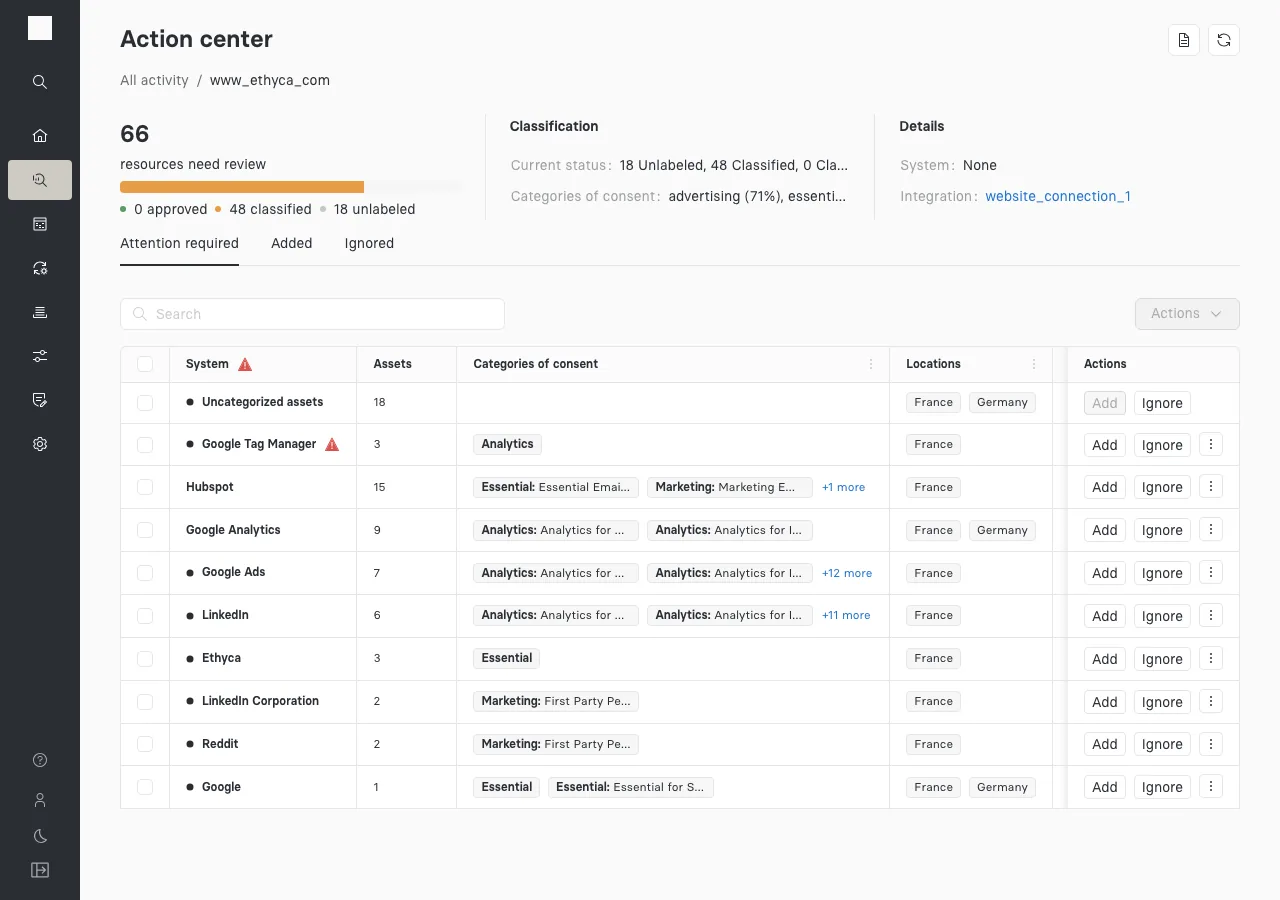
| Column | Meaning |
|---|---|
| System | The vendor's system. A red warning icon marks a vendor with at least one consent compliance issue. Uncategorized assets collects assets Compass couldn't match to a vendor. |
| Assets | The number of the vendor's assets awaiting review. |
| Categories of consent | The data uses the vendor's assets serve. |
| Locations | The countries the assets were detected from. |
| Domains | The domains the assets loaded from. |
| Actions | Add, Ignore, and more actions for every asset of the vendor at once. |
Asset details
Selecting a vendor opens its assets. Results sit in three tabs: Attention required for assets awaiting review, Added for assets added to the inventory, and Ignored for assets left out of review.
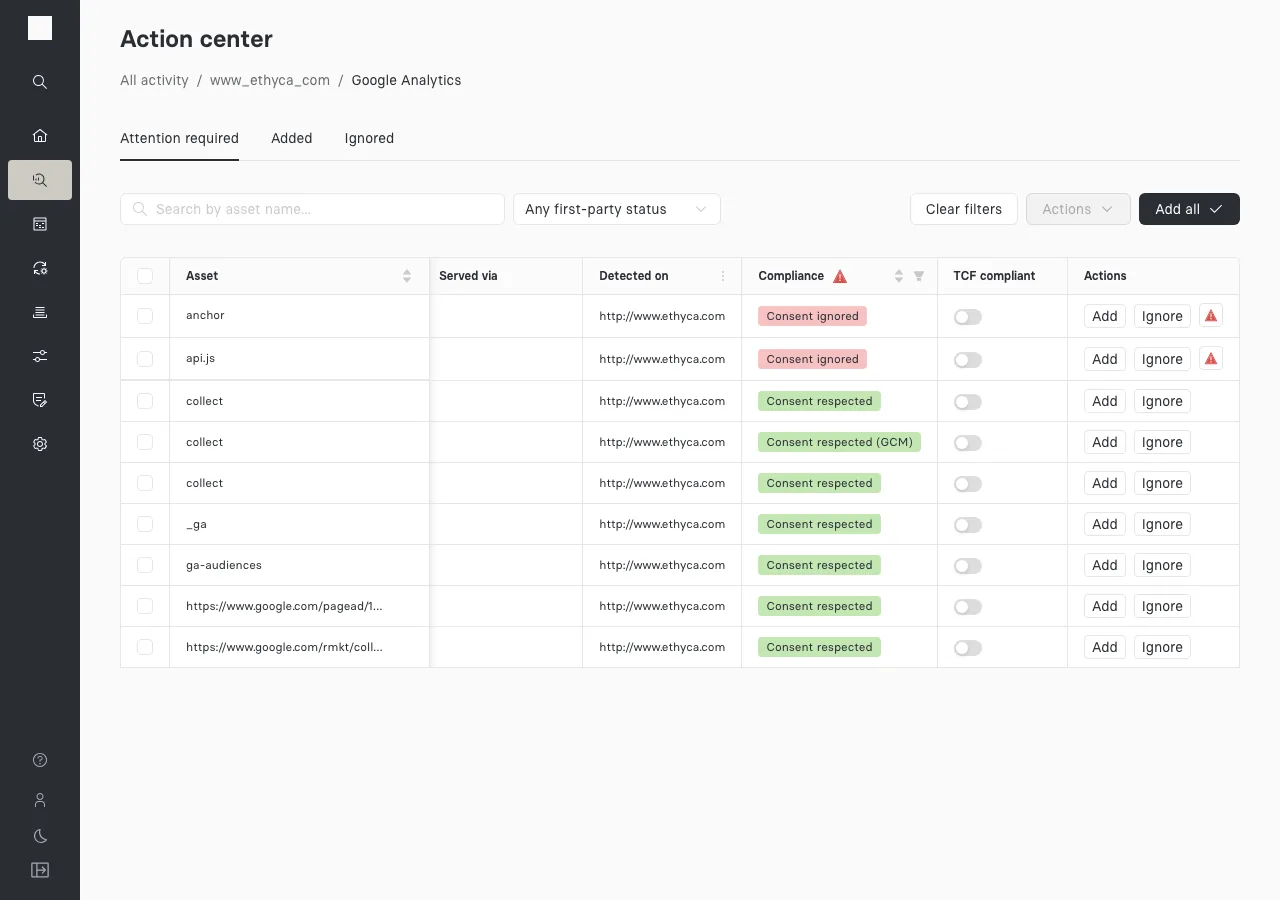
| Column | Meaning |
|---|---|
| Asset | The asset's name, such as the cookie name or the script's file name. |
| Type | Cookie, Javascript tag, Image, iFrame, or Browser request. |
| System | The vendor's system. Select it to assign a different system. |
| Categories of consent | The asset's data uses. Compass suggests them, and you can change them. |
| Locations | The countries the asset was detected from. |
| Domain | The domain the asset loaded from. |
| Served via | The content delivery network that served the asset, when one did. |
| Detected on | The pages the asset appeared on. |
| Compliance | The asset's consent status, such as Consent ignored or Pre-Consent. Select the warning icon in Actions to open the evidence. |
| TCF compliant | Marks a vendor that reads the TCF consent string, on pages serving a TCF experience. See the TCF exemption. |
| Actions | Add, Ignore, and the compliance evidence. |
Filter the assets
- First-party status shows only first-party assets, only third-party assets, or both.
- Automatically ignored assets are hidden by default. An alert above the table offers Show auto-ignored assets.
- Column filters narrow the table by categories of consent, location, page, and compliance.
Automatically ignored CDN assets
Files served from a known content delivery network (CDN) don't identify the vendor behind them, so the monitor ignores them automatically unless the monitor's Include CDN assets setting is on. You can review and restore them from the Ignored tab. Restoring one is permanent.
Consolidated assets
Many cookies, network requests, and subdomains carry a unique, dynamic identifier, such as a session ID, user ID, or request hash. Left as they are, each would surface as a new asset on every scan, flooding your results with entries that all represent the same technology.
To prevent this, the website monitor normalizes asset identifiers. It detects the dynamic part of a cookie name, URL path, or subdomain and replaces it with an -id- placeholder. Assets that normalize to the same value roll up into one representative result: a consolidated, or wildcard, asset.
| Detected values | Consolidated asset |
|---|---|
_ga_18MY9V5RLC, _ga_CWILS0SXPK | _ga_-id- |
cid_8f4d24c67aef4fc5abc7ddd590a3299e | cid_-id- |
https://js.hs-scripts.com/19834782.js | https://js.hs-scripts.com/-id-.js |
abc123.cdn.example.com | -id-.cdn.example.com |
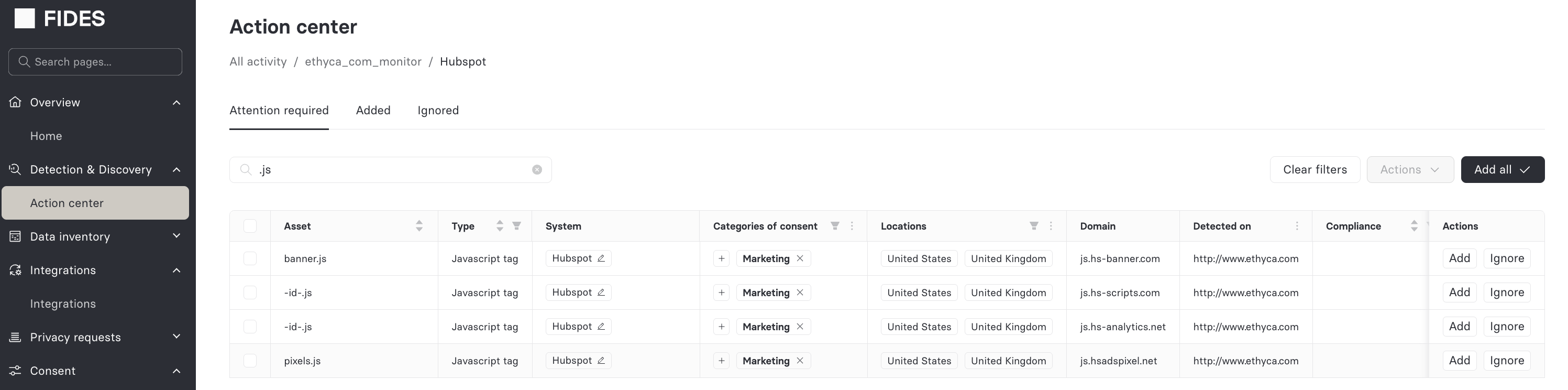
The monitor only collapses parts of an identifier that look machine-generated, such as UUIDs, long hexadecimal or alphanumeric tokens, and runs of digits. Stable, human-meaningful names stay as they are, for example __Secure-ROLLOUT_TOKEN, eupubconsent-v2, and ordinary subdomains like www. A consolidated asset stands in for every variant rolled up into it, so categorizing or adding it once covers all of them.
Generate a PDF report
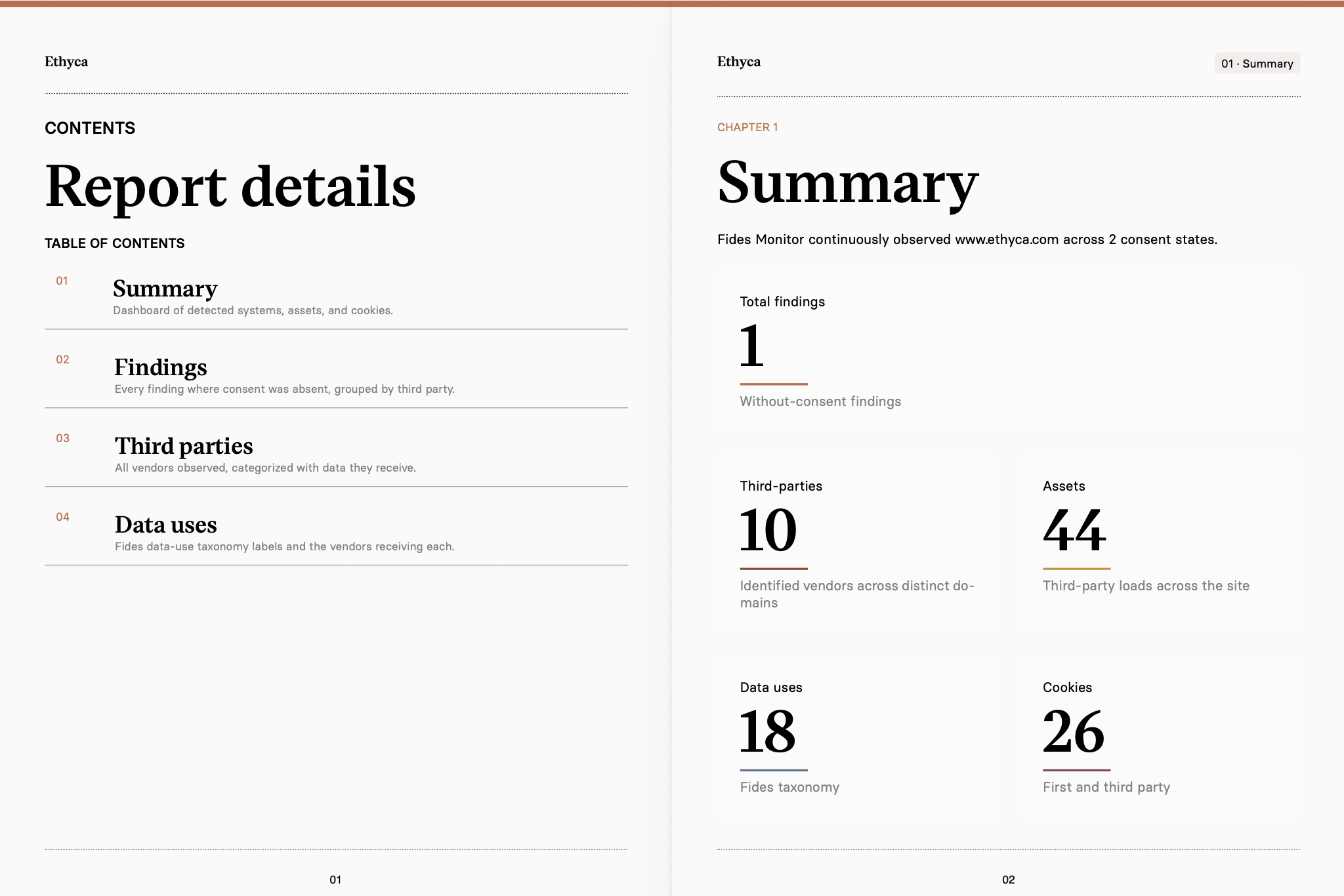
On a monitor's results page, select the Generate Report icon to download a PDF website audit. Share it with stakeholders outside Astralis, such as the team that owns your tag manager.
| Chapter | Contents |
|---|---|
| Summary | What the scan covered and an overview of its findings. |
| Findings | The assets with consent compliance issues, by page and country. |
| Third parties | The vendors detected on the site. |
| Data uses | The categories of consent the site's assets serve. |
Export added assets
The Asset report lists every asset added to your inventory, from all monitors, with its consent status. Select Export CSV to download it.