Consent Management: Configuring Privacy Experiences
In this tutorial, we'll review privacy experiences, how they're configured, and how they're presented to visitors.
After reading this, you'll be familiar with how to configure privacy experiences and how privacy notices are presented within your privacy experiences to visitors based on their location.
Prerequisites
For this tutorial you'll need:
- The role of
OwnerorContributorfor your Astralis organization. - At least one system with a data use on your Data Map. Read how to add systems to the Data Map now.
- At least one privacy notice configured. Read how to configure privacy notices now.
What are Privacy Experiences?
A privacy experience in Astralis is the user experience for how privacy notices are presented to a visitor based on the regulations that apply in the user's location.
Astralis has three default privacy experiences, the Banner+Modal, the standalone Modal and the Privacy Center. Learn about privacy experience fundamentals here.
Viewing Privacy Experiences
To view privacy experiences in Astralis, navigate to Consent → Experiences where you'll see a list of currently configured privacy experiences for your Astralis account.
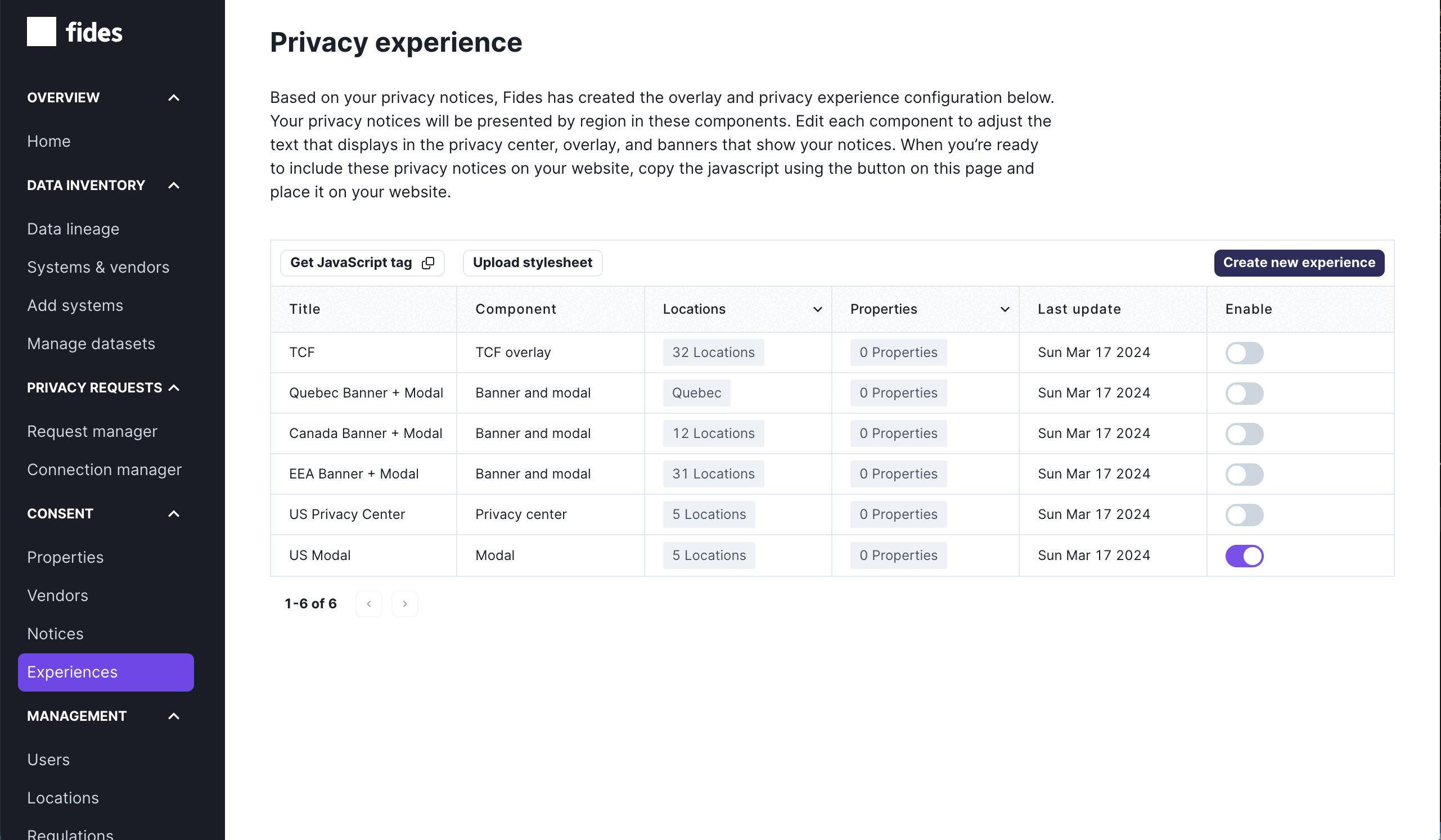
Each item on the list of privacy experiences consists of a title, component type, locations, properties, last updated date, and a toggle to enable it.
- Title: the name given to the privacy experience to identify it.
- Component: the type of privacy user experience.
- Locations: the locations this privacy experience is configured to be displayed.
- Properties: the properties to which the privacy experience is assigned.
- Last update: the last time the privacy experience was modified.
- Enable: a toggle to activate to deactivate the privacy experience. An inactive experience is not displayed to any visitor.
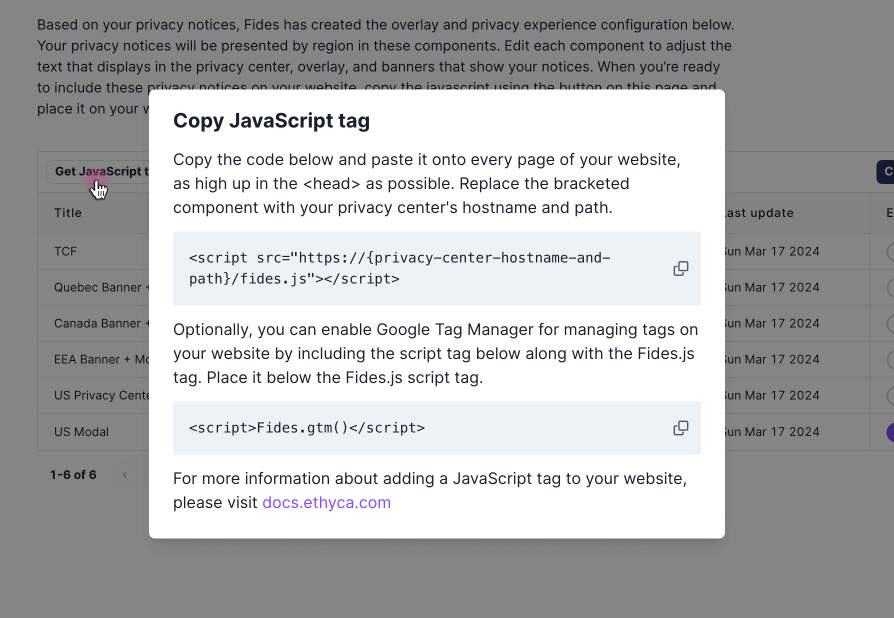
The Get JavaScript tag button allows you to copy your JavaScript tags for configuring front end consent. Learn how to configure front end consent here.
Available Privacy Experiences
Astralis has four default privacy experiences you can configure:
- Banner+Modal: a banner and pop-up commonly used for opt-in cookie consent.
- Modal: a pop-up often used for opt-out consent which is common in the United States.
- Privacy Center: a privacy center typically available at
https://privacy.your-brand.com. - TCF Overlay (if enabled): a privacy experience that is compliant with the IAB's Transparency and Consent Framework.
- Consent Form: a pop-up that lets a visitor in a US state opt out of the sale or sharing of their personal information without identity verification. See Configuring the Consent Form Experience below.
Configuring the Banner+Modal Experience
Click on any Banner+Modal component to view the detailed configuration page.
From here you can set the 4 components of the privacy center experience:
- Experience name, type, dismissable settings:
- Name: name given to the experience so that you can easily identify it.
- Type: experience type assigned when the experience was created. Once created, this cannot be edited.
- Dismissable: whether or not consumers can dismiss the experience before making a consent selection.
- Properties: assign the experience to a property you've created.
- Privacy notices: choose one or more privacy notices to display in the privacy experience.
- Locations & Languages: choose the languages the privacy experience will support. Support for languages other than English requires a special Astralis license.
Configuring the Modal Experience
Click on any Modal component to view the detailed configuration page.
From here you can set the 4 components of the modal experience:
- Experience name and type:
- Name: name given to the experience so that you can easily identify it.
- Type: experience type assigned when the experience was created. Once created, this cannot be edited.
- Properties: assign the experience to a property you've created.
- Privacy notices: choose one or more privacy notices to display in the privacy experience.
- Locations & Languages: choose the languages the privacy experience will support. Support for languages other than English requires a special Astralis license.
Configuring the Privacy Center Experience
Click on any Privacy center component to view the detailed configuration page.
From here you can set the 4 components of the privacy center experience:
- Experience name, type, dismissable settings:
- Name: name given to the experience so that you can easily identify it.
- Type: experience type assigned when the experience was created. Once created, this cannot be edited.
- Dismissable: whether or not consumers can dismiss the experience before making a consent selection.
- Properties: assign the experience to a property you've created.
- Privacy notices: choose one or more privacy notices to display in the privacy experience.
- Locations & Languages: choose the languages the privacy experience will support. Support for languages other than English requires a special Astralis license.
Configuring the TCF Overlay Experience
When TCF is enabled for your Astralis account, a TCF Overlay experience will also be available. Click on any TCF Overlay component to view the detailed configuration page.
From here you can set the 4 components of the TCF Overlay experience:
- Experience settings:
- Name: name given to the experience so that you can easily identify it.
- TCF configuration: select the TCF publisher restrictions configuration to apply to the experience (see TCF publisher restrictions for more information).
- Reject all behavior: Determines whether opting out of all purposes blocks everything (both consent and legitimate interest processing) or only blocks consent-based processing while allowing legitimate interest to continue.
- Reject all: Blocks both consent and legitimate interest data processing across all purposes, features, and vendors.
- Reject consent: Blocks only consent-based processing, but allows legitimate interest processing to continue, requiring separate objection.
- Reject all visibility: Choose whether the reject all button is visible on the banner and modal, or only on the modal. This setting will be reflected in the preview.
- Banner and modal: Reject all button is visible on both the banner and the modal.
- Modal only: Reject all button is visible on the modal only.
- Dismissable: whether or not consumers can dismiss the experience before making a consent selection.
- Properties: assign the experience to a property you've created.
- Privacy notices: TCF Purposes are automatically added to the TCF Overlay experience and cannot be removed. You can also add additional notices to the experience if necessary.
- Locations & Languages: choose the languages the privacy experience will support. Support for languages other than English requires a special Astralis license.
Changes to a TCF Overlay experience's vendors, purposes, or publisher restrictions update its version hash and are recorded in its TCF version history, which you reach from the History → link on this experience.
Configuring the Consent Form Experience
The Consent Form is a pop-up designed for US-state opt-out of sale/sharing that does not require identity verification. It offers a two-tier opt-out: an immediate opt-out for every visitor, and an optional full opt-out that creates a privacy request when the visitor chooses to provide their identity details. It also surfaces a Global Privacy Control (GPC) prompt when a GPC signal is present.
Select Consent form as the experience type. You then configure it through the standard Privacy Experience editor, where you can set:
- Experience name, type, dismissable settings:
- Name: name given to the experience so that you can easily identify it.
- Type: experience type assigned when the experience was created. Once created, this cannot be edited.
- Dismissable: whether or not consumers can dismiss the experience.
- Properties: assign the experience to a property you've created.
- Privacy notices: choose one or more privacy notices to display in the privacy experience.
- Locations & Languages: choose the languages the privacy experience will support, and configure the Consent Form's text, including the opted-out notices label, the two-tier opt-out success screens, and the GPC prompt copy. Support for languages other than English requires a special Astralis license.
Unlike the other experience types, the Consent Form's identity input fields are not configured in the experience editor. They come from the associated Property's Privacy Center form (configured in the Form Builder). For the form to render its optional full opt-out, the experience must be associated with a property whose Privacy Center form has an action configured for identity opt-out. If no property is associated, the editor shows a warning to this effect.
For the full walkthrough, including enabling the experience, the two-tier opt-out model, configuring the identity fields from the Property's Privacy Center form, the text and translation fields, GPC, and the confirmation screen, see the dedicated Consent Form configuration guide.
Adding a new custom privacy experience
To add a new privacy experience, click on "Create new experience" in the top right of the Experiences page. Give your experience a name and select the type of experience you want to create from the dropdown menu. The available types are:
- Banner+Modal: a banner that appears at the bottom of the page with a modal for detailed preferences
- Modal: a modal dialog that appears in the center of the page
- Headless: an experience that does not display any UI, allowing you to programmatically manage consent or implement a fully custom UI using the Astralis API and SDK
- Privacy Center: a standalone privacy center page
- Consent form: a pop-up for US-state opt-out of sale/sharing without identity verification. See Configuring the Consent Form Experience.
After creating the experience, you can configure it using the same settings described in the sections above for each default experience type.
Configuring the locations and languages
All privacy experiences include a section to configure locations and languages the privacy experience is served in.
Locations
You can assign a privacy experience to any location which is enabled in the Locations and regulations section of the Astralis settings. By default, all US states, all EEA countries, and the UK are enabled in Astralis.
Languages
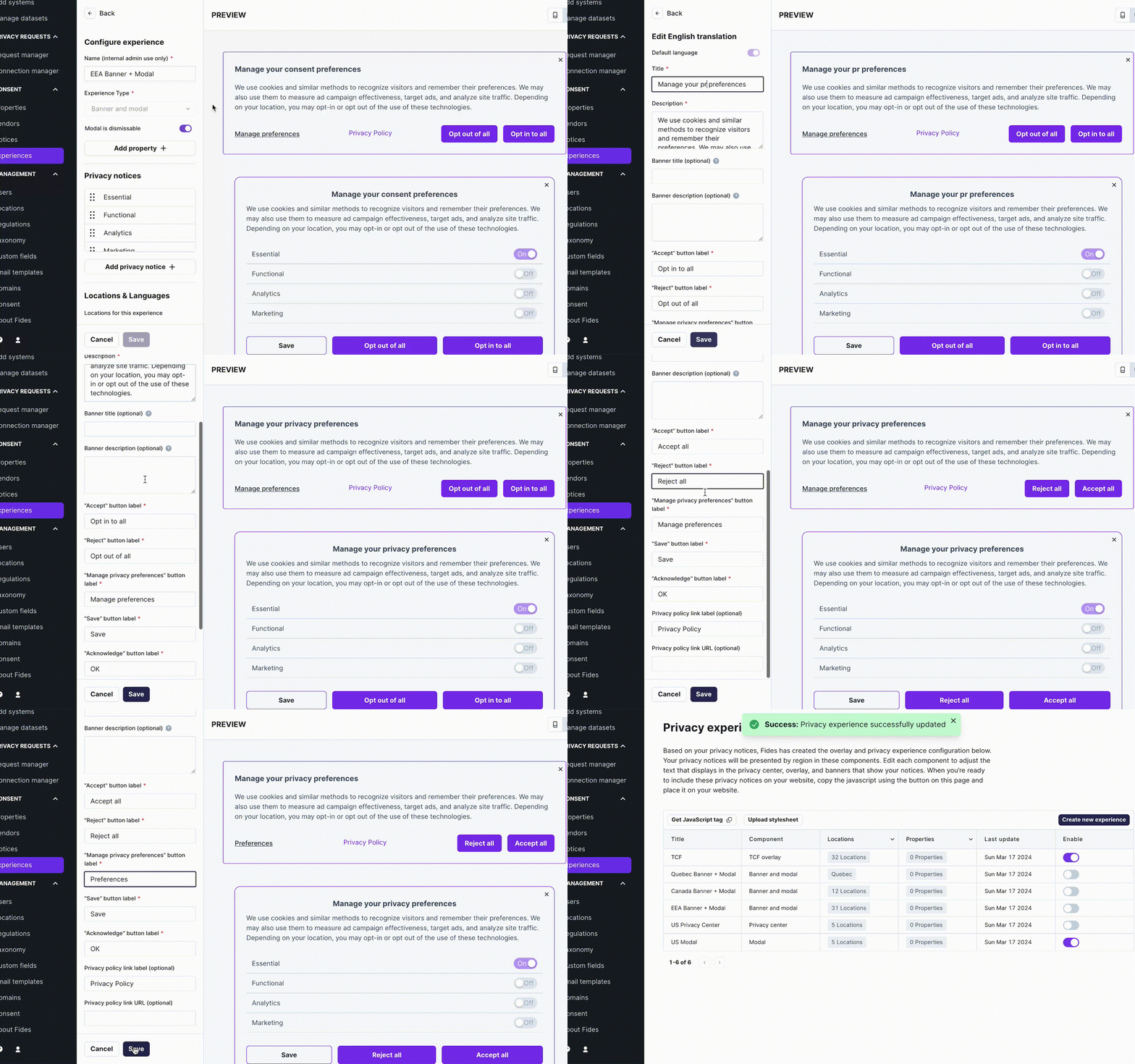
Each privacy experience allows you to provide custom copy for all titles, descriptions, links, and buttons that are part of the experience. While you are editing most experience types, Astralis provides a live preview of the text changes so that you can see what will appear on your experience before you publish the changes to your site.
As shown in the GIF below, you can configure:
- Title: the title of the privacy center consent page displayed to the visitor.
- Description: the detailed text of the privacy center displayed to the visitor.
- Banner title: optional field for the Banner+Modal experience that allows you to configure a different title for the banner.
- Banner description: optional field for the Banner+Modal experience that allows you to configure a different description for the banner.
- "Accept" button label: the label to accept the privacy notice.
- "Reject" button label: the label to reject the privacy notice.
- "Manage privacy preferences" button label: the label to open the preferences pop-up.
- "Save" button label: the label to save preferences in the pop-up.
- "Acknowledge" button label: the label shown on the acknowledge button when serving a notice-only notice.
- Privacy policy link label: optional label for a link that opens a new page. Often used for a privacy policy.
- Privacy policy link URL: optional URL for a link that opens a new page.
When your Astralis license includes multiple languages, you can provide translated text for each of the above options for each supported language.
Previews for the Privacy Center experience and the Headless experience are not available.
Configuring the cookie deletion settings
Each privacy experience includes an option to "Automatically delete subdomain cookies." When enabled, Astralis will automatically delete cookies set on subdomains in addition to the main domain where appropriate. It is recommended to leave this enabled for full consent compliance.