Bidirectional consent
This document provides an overview of the Bidirectional consent feature of Astralis. Learn more in the following sections:
- Introduction to Bidirectional consent
- How Bidirectional consent works
- Configuring Bidirectional consent
- Integration guides
Introduction to Bidirectional consent
Bidirectional consent is a feature of Astralis that acts as a centralized system of record for all consent and privacy preferences. It serves as a universal translator between Astralis' standardized privacy concepts and the specific requirements of various third-party consent management systems. This automation enables two crucial functions:
- Outbound consent propagation: Any consent preference saved directly in Astralis can be automatically propagated to all connected third-party APIs that support consent management.
- Inbound consent synchronization (Consent webhooks): Changes to consent preferences made in third-party systems can be posted to Astralis, processed, and propagated. Ensuring all connected systems remain up-to-date.
The extent of Bidirectional consent functionality in Astralis is dependent on the capabilities of the connected consent management APIs. For example:
- Consent APIs must be able to list their "consentable items" (such as channels or mailing lists) for Astralis to be able to map privacy notices to specific items.
- Consent webhooks are only supported for APIs that provide webhooks capable of posting consent updates to Astralis.
How Bidirectional consent works
Bidirectional consent in Astralis works by acting as a translator between Astralis' standardized privacy concepts and the specific requirements of various third-party systems. This process involves three key steps:
- Standardization: Astralis uses internal concepts of privacy notices and privacy preferences (such as opt-in and opt-out) as standardized way to represent general consent preferences.
- Mapping: These standardized concepts are then mapped to the specific consentable items (such as channels, subscriptions, or mailing lists) used by different third-party systems. This allows Astralis to translate privacy preferences into the specific consent models of each integrated system.
- Conversion: Astralis converts its standardized data to and from the consent models used by each integrated system.
Here's an example of how general Astralis concepts map to a 3rd-party system to illustrate this process:
| Astralis terminology | 3rd-party system |
|---|---|
| Marketing privacy notice | Email Marketing Channel and Push Marketing Channel |
| Opt-in consent preference | Subscribed |
| Opt-out consent preference | Unsubscribed |
In this example:
Astralis uses a single Marketing privacy notice to represent consent for marketing communications. The third-party system separates this into two distinct channels: Email Marketing and Push Marketing. Each channel represents a "consentable item" in this system, it could be subscriptions or mailing lists for other systems.
When a user gives consent (opt-in) in Astralis:
- Astralis maps this consent to the relevant consentable items in the third-party system. In this example, the third-party system sets both the Email Marketing and Push Marketing channels to
Subscribed.
When a user revokes consent (opt-out) in Astralis:
- In this example, the third-party system sets both the Email Marketing and Push Marketing channels to
Unsubscribed.
Conversely, if the third-party system reports an Unsubscribed status for either channel via consent webhook:
- Astralis interprets this as an "opt-out" for the Marketing privacy notice. The preference is stored in Astralis and propagated to other systems.
The Bidirectional consent process handles the translation between these two models, ensuring consistency across systems with varying consentable items and consent models.
Configuring Bidirectional consent
Prerequisites for outbound propagation
Astralis sends a user's preference on to an integration once the privacy notice meets all of the conditions below. Confirm them before you map consentable items.
| Requirement | Where it is configured |
|---|---|
| Consent mechanism is Opt in or Opt out | Privacy notice details |
| Enforcement level is System wide | Privacy notice details |
| Notice data uses overlap the linked system's data uses | System privacy declarations |
Astralis evaluates these conditions each time a user saves a preference, so a notice begins propagating as soon as it meets them. You can map consentable items first and adjust the notice afterwards — Astralis preserves the mapping either way. The Admin UI shows you which mapped notices already meet the conditions; see Confirming a notice can propagate.
The notice must be enforced system wide
Privacy notices have an Enforcement level that controls how far a preference travels:
| Enforcement level | Propagates to integrations |
|---|---|
| System wide | Yes |
| Front end | No — the preference applies in the browser only |
| Not applicable | No |
Only System wide notices reach a bidirectional consent integration. To set it, open the notice under Consent > Notices, and set Enforcement level to System wide in the Privacy notice details section.
Notice-only notices do not propagate
A notice with the Notice only consent mechanism records an acknowledgement rather than an opt in or an opt out, and Astralis sends an integration only an opt in or an opt out. A notice-only notice therefore does not propagate, whatever its enforcement level is — the enforcement level does not change this.
If you need the preference to reach an integration, set the notice's consent mechanism to Opt in or Opt out.
Ensure data use overlap between systems and privacy notices
Before mapping consentable items, each system used for bidirectional consent must have at least one privacy declaration whose data_use matches (or is a child of) a data use on the privacy notices you intend to map. Without this overlap, the system will not be considered applicable to those notices, and outbound consent signals will not be sent to it.
For example, if your privacy notice has data_uses: [marketing.advertising], then the system's privacy declaration must also use marketing.advertising (or a child such as marketing.advertising.first_party).
| Configuration item | Example value |
|---|---|
| Privacy notice data uses | marketing.advertising |
| System privacy declaration data use | marketing.advertising |
To add a privacy declaration to your system:
- In the Admin UI, navigate to Data map > View Systems and select the system.
- Click on the Data uses tab.
- Add a privacy declaration with the appropriate data use that matches your privacy notice.
- Click Save.
Integrations not linked to a system
The data use check applies to the system an integration is linked to. An integration that is linked to no system has no data uses to compare, so this requirement does not apply to it — the consent mechanism and enforcement level requirements still do.
Map consentable items
You can map consentable items from two places, and both produce the same mapping. Map from the integration itself if you are configuring consent for an integration on its own, or from a system if you are also building out your data map.
Whichever you use, the list of items is dynamic and will vary between integrations, or even between accounts on the same integration.
From the integration
- In the Admin UI, navigate to Integrations and select an integration that supports Bidirectional consent (As of Astralis v2.68.0: Iterable, Hubspot, Outreach and Bloomreach. Additional integrations can be added on request).
- On the Connection tab, enter the credentials and click save.
- Open the Bidirectional consent tab and map your consentable items to your privacy notices.
- Once you're done mapping the items click Save.
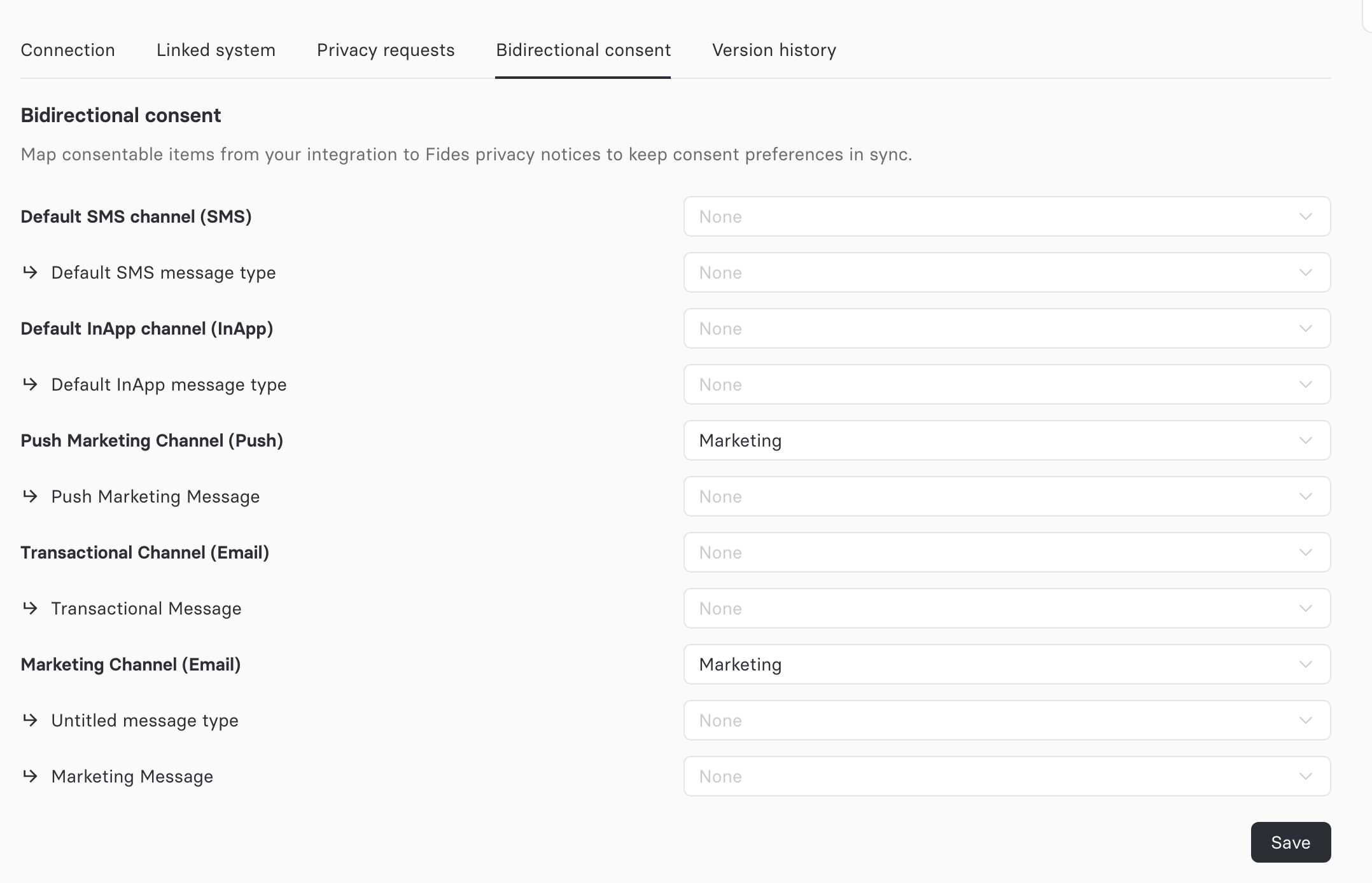
Astralis shows the Bidirectional consent tab once it can list the integration's consentable items, which it reads from the integration itself. If you do not see the tab, check the credentials on the Connection tab.
From a system
- In the Admin UI, navigate to Data inventory > Add Systems.
- Create a new system, click save.
- Navigate to the
Integrationstab for this system and select an integration that supports Bidirectional consent. - Enter the credentials and click save.
- After saving the credentials, the Bidirectional consent accordion will be accessible.
- Expand the accordion and map your consentable items to your privacy notices.
- Once you're done mapping the items click save.
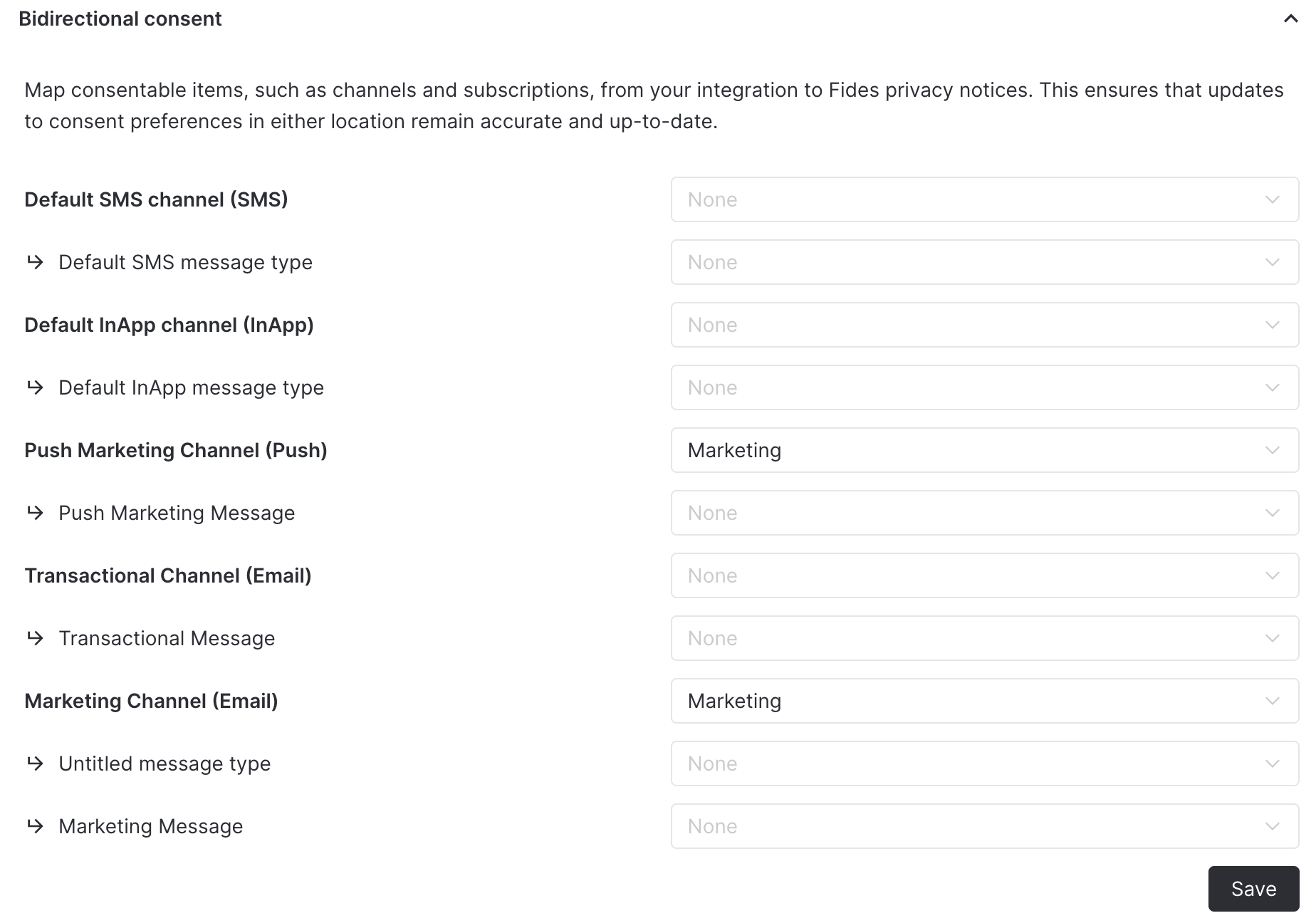
Setting up an integration this way links it to that system, so the data use overlap requirement applies to it. An integration you set up on its own has no linked system until you link one from its Linked system tab.
Confirming a notice can propagate
Once you map a notice, the Admin UI tells you whether it meets the requirements above.
Under Consent > Notices, the Bidirectional consent column lists the integrations each notice is mapped to, and a warning icon beside the notice title marks a mapped notice whose preferences are not yet reaching them. In the example below, Analytics is propagating, while Essential (notice only) and Marketing (not enforced system wide) are not.

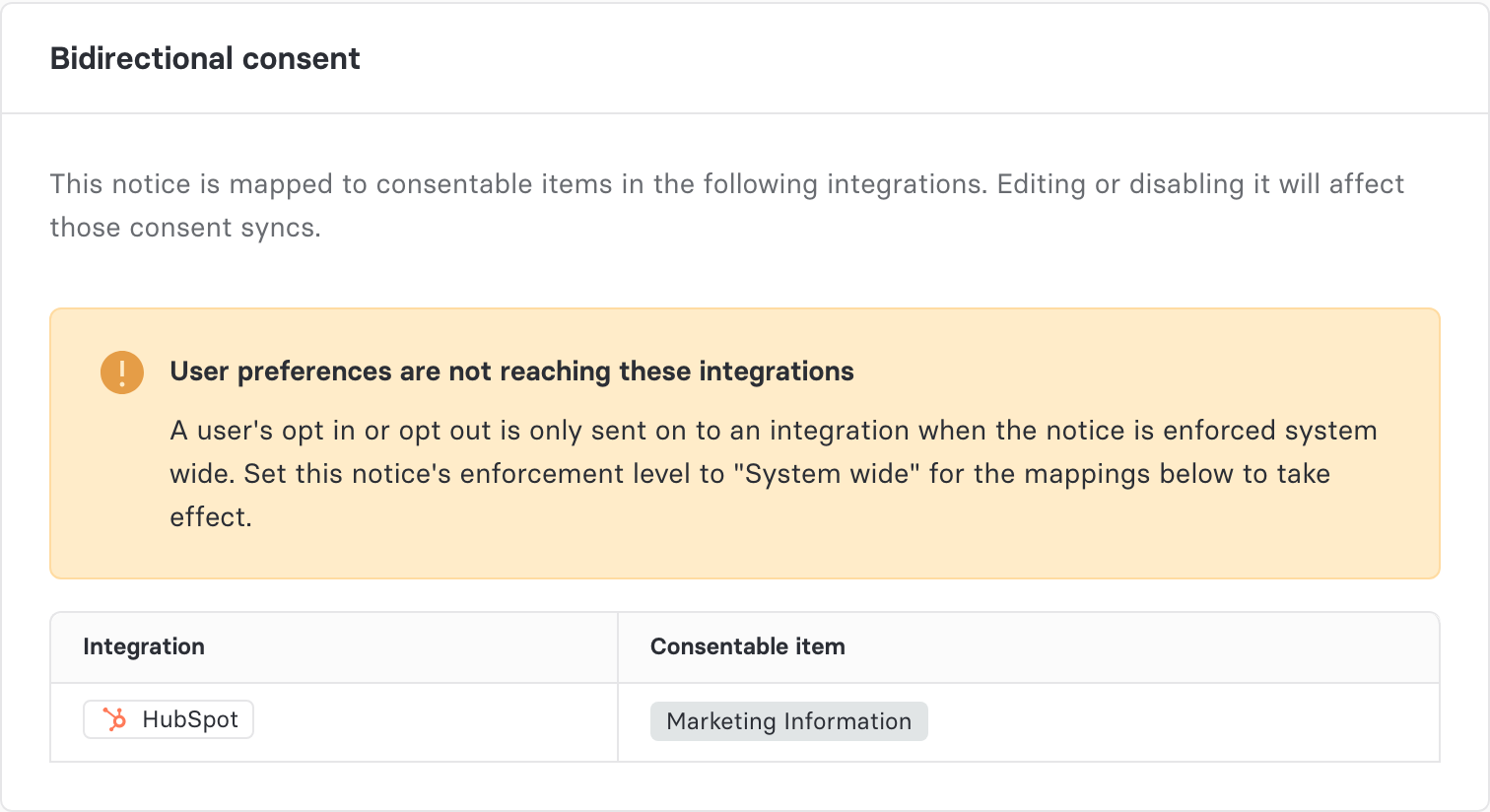
Hovering over the warning icon names the reason. Opening the notice shows the same reason in full, along with the fix, above the list of mapped consentable items.
For a notice that is not enforced system wide:
For a notice-only notice:
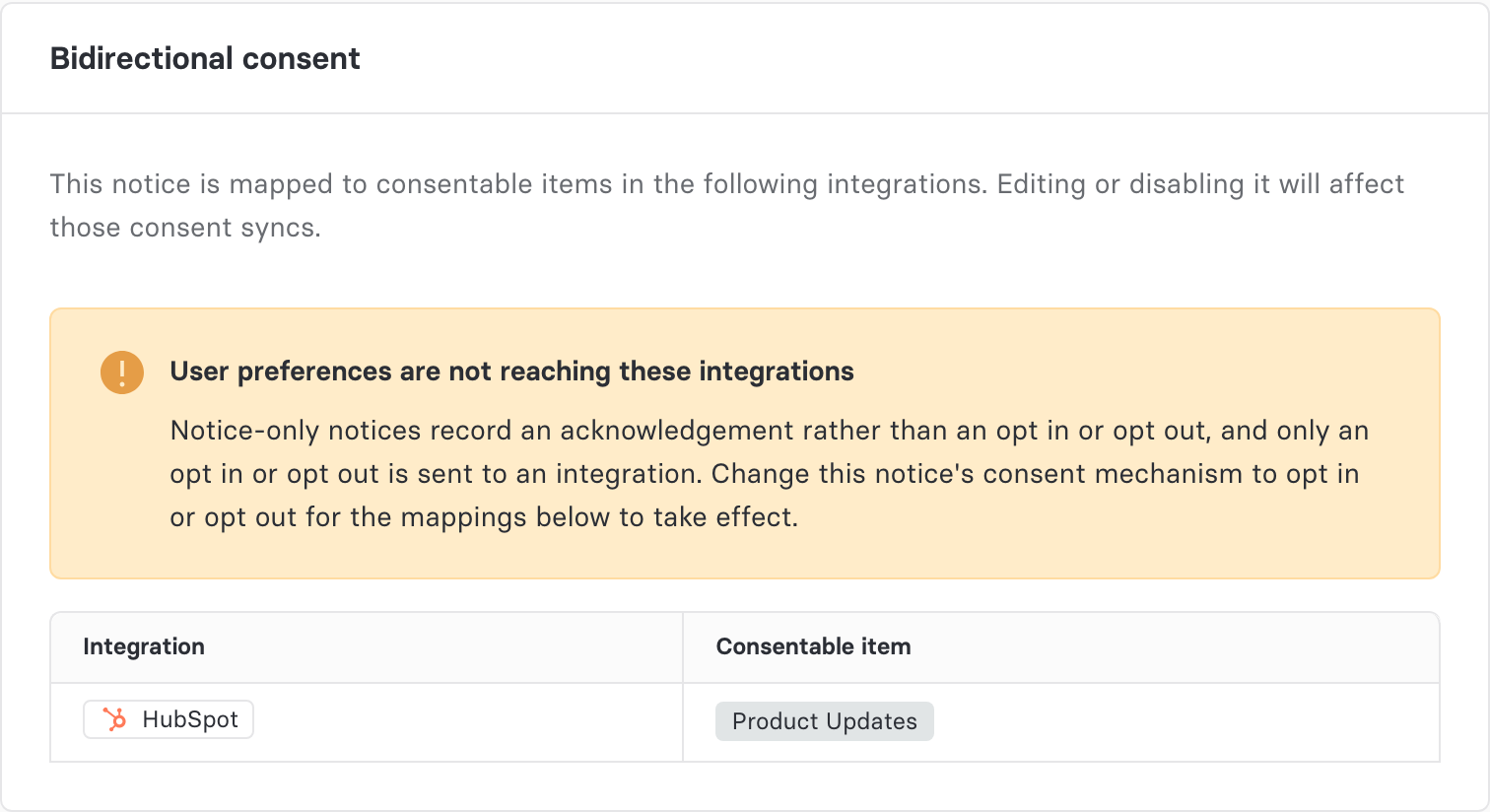
These warnings cover the notice's own configuration — its consent mechanism and enforcement level. Data use overlap is a property of each linked system rather than of the notice, so confirm it on the system itself.
Setting up the consent webhook
If the 3rd-party API supports posting data to other systems when a consent update occurs, then you can configure a consent webhook in Astralis. See Iterable's System Webhooks (opens in a new tab) documentation as an example. This setup will vary between integrations so refer to our integration guides below for more details. Generally speaking, the URL that Astralis exposes for an integrations consent webhook will follow the pattern:
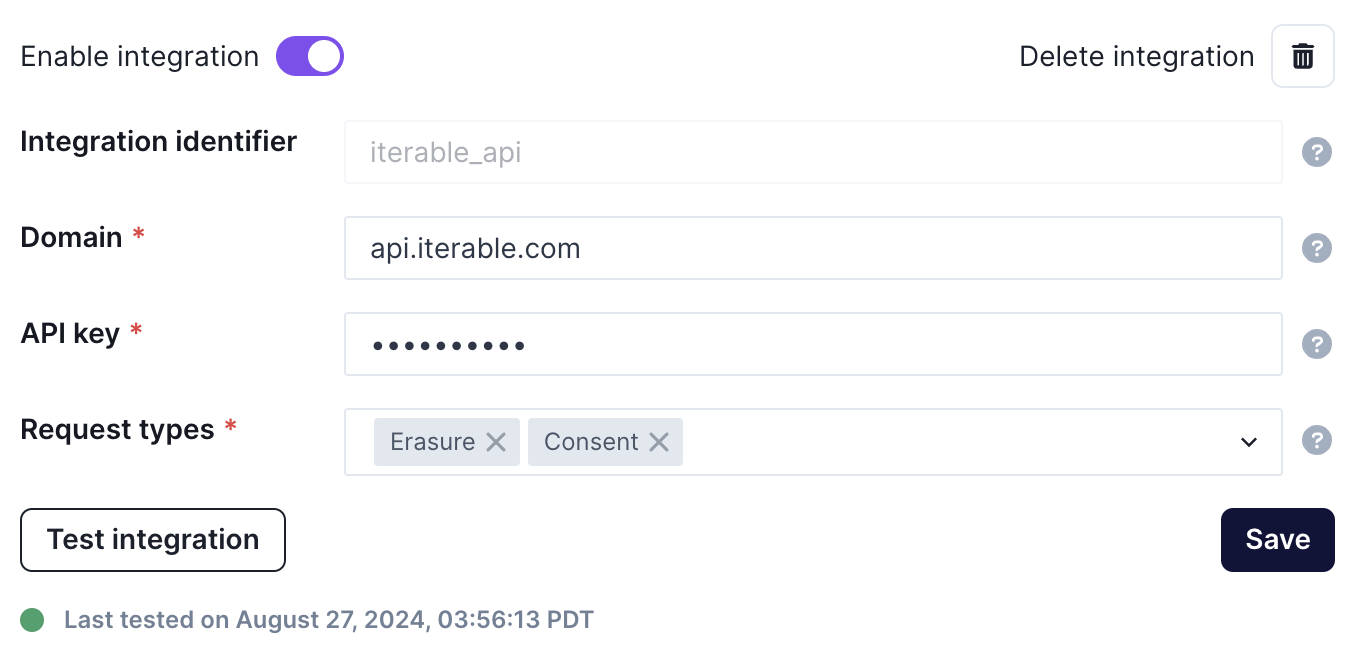
/api/v1/plus/connection/{integration_identifier}/consent-webhookThe integration_identifier refers to the Integration identifier of the consent integration. In this case iterable_api
Generating an access token for consent webhooks
In order to secure the payload from external systems, Astralis allows users with the Owner role to issue long-lived access tokens for use in the consent webhooks. This is currently done via the API.
GET /api/v1/plus/connection/{{integration_identifier}}/consent-webhook/token{
"access_token": "eyJhbGciOiJkaXIiLCJlbmMiOiJBMjU2R0NNIn0..."
}The consent webhook tokens are scoped to an individual integration and expire after 6 months. It is your responsibility to generate a new access token before it expires and update it in your external systems. If you want to change the time-to-live for these settings adjust the value of FIDES__SECURITY__CONSENT_WEBHOOK_ACCESS_TOKEN_EXPIRE_MINUTES
Integration guides
For specific instructions how to set up connectivity to a specific integration or how to setup the consent webhooks, refer to the following integration guides.