Privacy Request Documents
Privacy request documents are the files attached to a privacy request, such as a photo ID, an authorized agent's signed letter, or a completed form. The data subject adds them on the intake form or through a secure upload link after submitting, your team can add its own, and reviewers find every document on the request's Documents tab.
Documents let you collect proof of identity or authority without email attachments. Each document stays on the request it belongs to, and Astralis records every upload, download, and review decision.
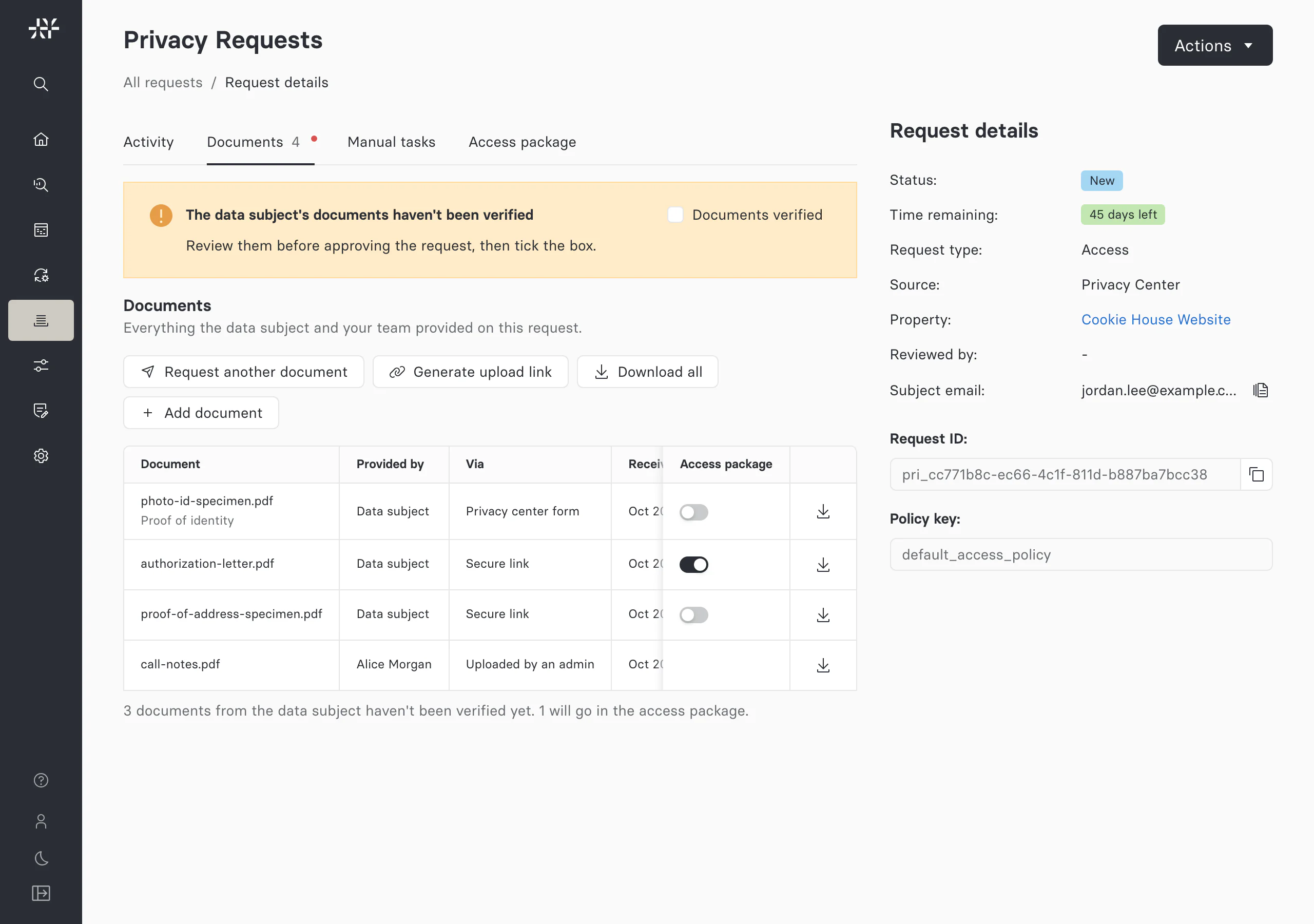
How documents reach a request
Each document records how it arrived. The Via column on the Documents tab shows one of four values.
| Via | How the document arrives | Provided by |
|---|---|---|
| Privacy center form | A File upload field on the intake form, when the data subject submits the request | The data subject |
| Secure link | The upload page that a document request links to, after the request is submitted | The data subject |
| Submitted on the subject's behalf | A file field on the Admin UI's create request form | Your team, for the data subject |
| Uploaded by an admin | Add document on the request's Documents tab | Your team |
To ask for documents at submission, add a File upload field to the request type's form. To ask after submission, turn on document requests for the request type. Collect documents covers both.
How the secure upload link works
A document request sends the data subject a secure link to a Privacy Center page for their request. The page shows the request reference, the submission date, when the link expires, your instructions, and a downloadable form if you set one.
- Each link belongs to one request. It opens only that request's upload page.
- Links last 7 days by default. Set
FIDES__SECURITY__SUBJECT_DOCUMENT_UPLOAD_LINK_TTL_SECONDSto change the lifetime. A link stops working sooner if the request is completed, denied, or canceled. - Links can't be revoked. A new link doesn't cancel earlier ones, which keep working until they expire.
- Each link takes a limited number of files. The request type's document settings set the limit, from 1 to 20 files.
- Files count only once they're submitted. The data subject adds files, then clicks Submit documents. Added files expire after an hour if they aren't submitted.
- The link isn't kept in the address bar. The page removes it on load, so a data subject who reloads the page opens the link from their message again.
Every file is checked against the allowed file types and size limit. Files are also scanned for viruses when attachment scanning is on.
How documents relate to the access package
Documents from the data subject stay out of the access package unless a reviewer includes them. A reviewer switches on Access package for each document to deliver, and included documents arrive in the package under Attachments with their original file names. Documents your team uploads with Add document are internal and are never sent to the data subject. See Include documents in the package.
What Astralis records
Astralis records every document event on the request. Reviewers see the events in one Documents entry on the request's Activity tab, and can export them as a CSV file.
| Event | Recorded when |
|---|---|
| Document uploaded | The data subject or your team adds a document |
| Document downloaded | Someone downloads a document from the Documents tab, including each file in Download all |
| Document included in access package | A reviewer switches a document into the access package |
| Document excluded from access package | A reviewer switches a document out of the access package |
| Document request sent | A document request goes to the data subject at receipt, after identity verification, or from your team |
| Upload link generated | A reviewer generates an upload link to share themselves |
| Documents verified | A reviewer marks the data subject's documents verified |
Who can work with documents
| Task | Permission |
|---|---|
| View the Documents tab, download documents, and view or export document events | attachment:read |
| Add a document | attachment:create |
| Mark documents verified, change what goes in the access package, request another document, or generate an upload link | privacy-request:review |
| Change a request type's document settings | property:update |
| Edit the document request message | messaging-template:update |
Prepare your deployment
Documents need a few deployment settings in place before data subjects can send them.
- A storage destination. Documents are stored in your active storage destination: S3, GCS, or local storage for development.
- The Privacy Center URL. Set
FIDES__PRIVACY_CENTER__URLto your Privacy Center's public address. Astralis can't generate or send upload links without it. - A messaging provider. Document requests reach the data subject by email or SMS through your messaging provider.
- Attachment scanning. Scanning is optional and strongly recommended. See Enable file uploads.
- Retention, if you need it. Set
FIDESPLUS__ATTACHMENT_RETENTION__DAYSto delete documents a set number of days after their request closes.