Website consent compliance
Website consent compliance is the website monitor's check of whether each asset on a page loads in line with the visitor's consent choice. The monitor compares when an asset loaded with what your privacy notices allow, and gives every asset a status with the evidence behind it.
The monitor judges assets against the privacy notices that FidesJS serves on the page when you're managing consent with Astralis, including whether each notice is opt-in, opt-out, or notice-only, and whether the page serves a TCF experience.
- Sites managing consent with Astralis get a status for every asset that has a category of consent.
- Assets without a category of consent read Unknown until you assign one.
How the monitor tests consent
On every page, from every country you select, the monitor makes three visits.
- Before any choice. A first-time visitor who hasn't touched the banner.
- After Accept all. The monitor accepts every notice through FidesJS, then reloads the page as a returning visitor.
- After Reject all. The monitor rejects every notice except notice-only ones, then reloads the page as a returning visitor.
The monitor records which assets load on each visit, and any Google Consent Mode signals they send, then compares them with the notices covering each asset's categories of consent.
Consent statuses
| Status | Meaning |
|---|---|
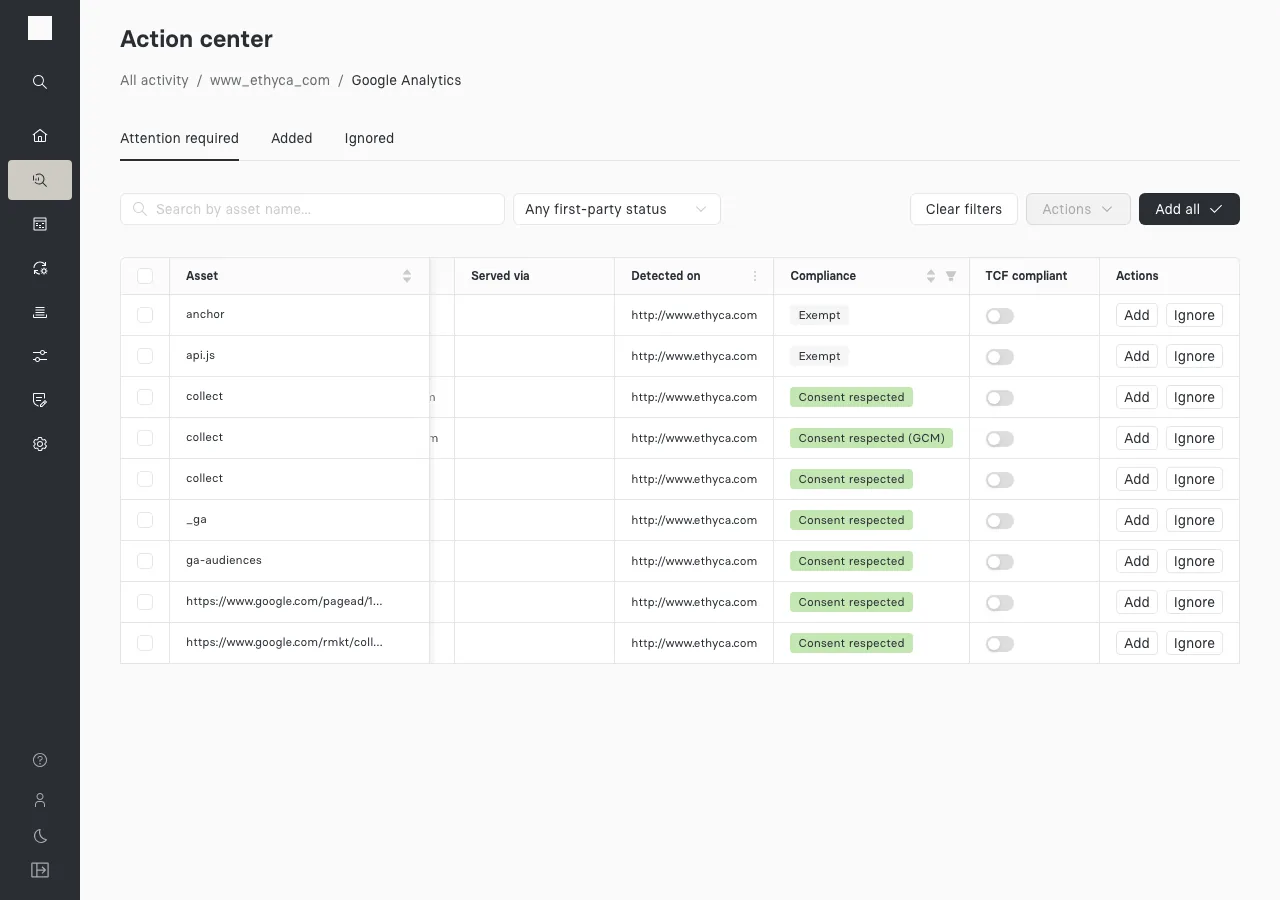
| Consent respected | The asset loaded only when the visitor's choice allowed it. |
| Consent respected (GCM) | The asset loaded after the visitor opted out, but its Google Consent Mode signal reported advertising and analytics storage as denied, so it honored the choice. |
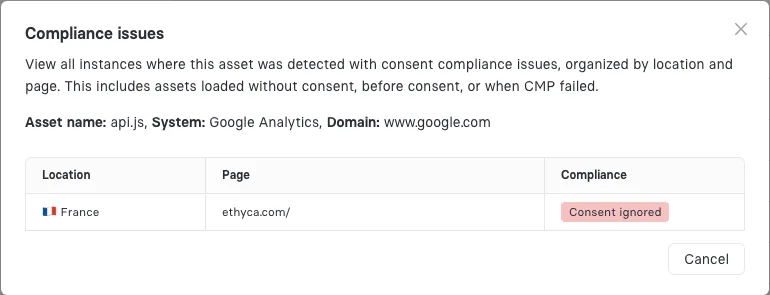
| Consent ignored | The asset loaded after the visitor opted out. |
| Pre-Consent | The asset loaded before the visitor chose, where its notice requires opt-in first, or where its Google Consent Mode signal granted storage by default in a region that requires prior consent. |
| CMP failure | The consent banner failed to load, so the asset loaded with no consent check at all. |
| Exempt | A notice-only notice covers the asset, so it needs no consent. |
| Exempt (TCF) | A reviewer marked the asset TCF compliant, and the page serves a TCF experience. |
| Unknown | The asset has no category of consent yet, or the scan found no consent data for it. Add a category of consent, or rescan. |
| Not applicable | No privacy notice covers the asset's categories of consent, for example on a site that isn't managing consent with Astralis. The Action Center leaves the Compliance cell blank. The Asset report shows Not applicable. |
Consent ignored, Pre-Consent, and CMP failure are potential compliance issues. A finding depends on the asset's categories of consent, so confirm them before acting on it. Each one puts a red warning icon next to the vendor in the Action Center and adds the asset to the PDF report's Findings chapter.
How the monitor decides a status
The monitor checks each asset in this order and stops at the first rule that applies.
- The consent banner failed to load: CMP failure.
- A reviewer marked the asset TCF compliant, and the page serves a TCF experience: Exempt (TCF).
- The asset has no category of consent: Unknown.
- No privacy notice covers its categories of consent: Not applicable.
- The strictest notice covering it is notice-only: Exempt.
- It loaded after Reject all: Consent ignored, unless its Google Consent Mode signal reported storage as denied, which makes it Consent respected (GCM). If that tag also granted storage by default before the visitor chose, in a region that requires opt-in, it's Pre-Consent instead.
- It loaded before any choice: Pre-Consent under an opt-in notice, or when Google Consent Mode granted storage by default in a GDPR, UK GDPR, Swiss, or EEA region. Under an opt-out notice, a default load is Consent respected.
- It loaded only after Accept all: Consent respected.
When an asset appears on several pages or in several countries, it takes the strictest of their statuses.
Google Consent Mode signals
Google tags report their consent state in a Google Consent Mode signal sent with each request. The monitor keeps that signal as evidence.
- A Google tag that loads after Reject all but reports storage as denied is honoring the choice: it sends cookieless pings, which Google designed for refused consent. Its status is Consent respected (GCM).
- A Google tag that reports storage as granted by default in a region that requires opt-in is setting consent on the visitor's behalf. Its status is Pre-Consent.
The TCF exemption
The IAB Transparency and Consent Framework (TCF) lets a vendor read the visitor's choices from a consent string and act on them itself. A TCF vendor can load before or after a refusal and still respect it, for example by serving non-personalized ads.
When you mark an asset TCF compliant, its status becomes Exempt (TCF) on every page that serves a TCF experience. On pages without a TCF experience, the mark changes nothing. If the asset wasn't found on any TCF page, the TCF compliant switch is disabled.
See the evidence for a finding
Every asset with a potential compliance issue opens a Potential compliance issues view that lists each location and page where the issue occurred, its status, and any Google Consent Mode signals.
Statuses also appear in the Compliance column of each vendor's assets, the Consent status column of the Asset report, and the Findings chapter of the PDF report.
Review a finding
Reviewing a finding means confirming its cause, resolving it, and proving the fix with a new scan. You need permission to edit assets in the Action Center.
- Find vendors with compliance issues. In the Action Center, open the website monitor. A red warning icon next to a vendor in the System column means at least one of its assets has a compliance issue.
- Open the evidence. Select the vendor to open its assets, then select the warning icon in the asset's Actions column to open the Compliance issues view.
- Identify the cause. Decide whether the vendor reads the TCF consent string, whether the asset's categories of consent are wrong, or whether the tag loads regardless of the visitor's choice.
- Resolve the finding. Mark TCF vendors' assets TCF compliant with Actions > Mark TCF compliant, change wrong categories of consent, or send the PDF report to the team that owns the tag manager so it can fix the tag.
- Rescan the website. On the integration's Data discovery tab, select Scan in the monitor's row.
- Verify the result. Open the vendor's assets again. Confirm the Compliance column shows Consent respected, Exempt, or Exempt (TCF), and the red warning icon next to the vendor is gone.