Read an integration's credentials from a manager
Pointing an integration at a secrets manager replaces the credentials stored in Astralis with a reference to a secret in your AWS Secrets Manager or HashiCorp Vault, which Astralis reads each time the integration connects.
Secrets manager integrations are part of Astralis Enterprise. Add a manager first: AWS Secrets Manager or HashiCorp Vault.
Prerequisites
- A manager that reads as Healthy on Settings → Secrets managers.
- Permissions:
connection:create_or_updateandsecrets_manager:read, both held by the Owner and Contributor roles. - An existing integration. The credentials panel appears when you edit an integration, not while creating it from a template.
Store the credentials in your manager
- Navigate to Integrations and open the integration.
- Next to Credentials, click Manage credentials.
- Choose Read from a manager.
- Under What this secret must contain, click the copy button to copy the payload template.
- In your manager, store that JSON as the secret's value, with the placeholders replaced by real values.
Only the keys marked Required must be present. What happens to other keys depends on the integration type: most types ignore them, SaaS integrations pass them to the integration, and email integrations refuse them.
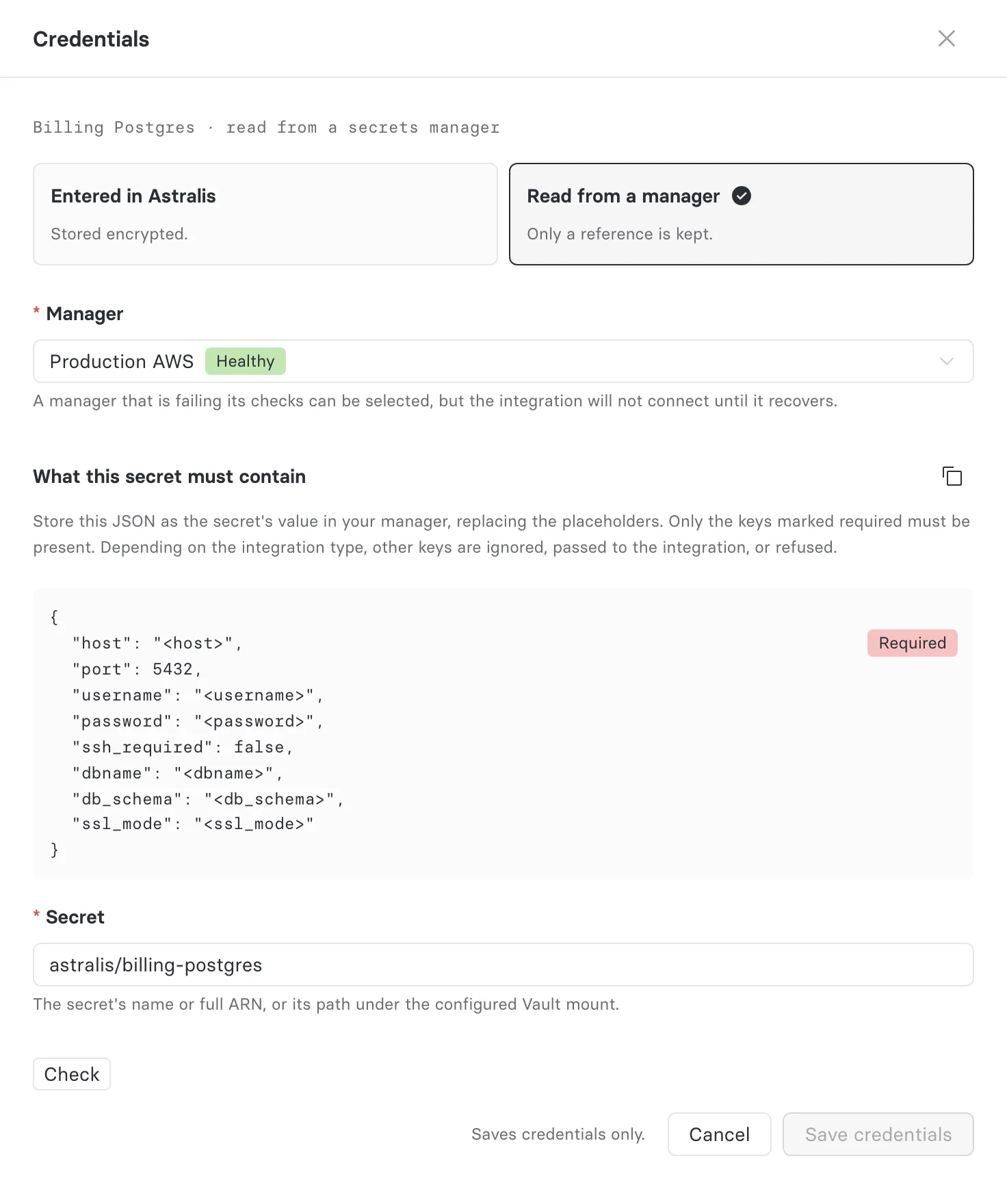
Some integration types keep part of their configuration in Astralis rather than in the secret. The payload template leaves those keys out, and Astralis ignores them if the secret includes them:
| Integration type | Kept in Astralis |
|---|---|
| DataHub | frequency, glossary_node |
| Jira ticket | Everything except domain, username, and api_key. Only API key authentication can be read from a manager, and OAuth keys in the secret are refused. See Jira ticket integrations. |
| California DROP | list_types, policy_key, backfill, property_id, multi_link_threshold |
| Website monitor | url, its only setting, so website monitors cannot read from a manager |
Do not put tokens Astralis refreshes, such as OAuth access and refresh tokens, in the secret. Astralis stores a refreshed token on the integration, but the value in the secret wins at the next read. A provider that invalidates the old refresh token then refuses the next refresh.
Choose the manager and secret
- Select the Manager. A manager that is failing its checks can be selected, but the integration will not connect until it recovers.
- Enter the Secret: the secret's name or full ARN in AWS, or its path under the configured mount in Vault.
Check the secret
Click Check. Astralis reads the secret, bypassing its cache, and lists each key the integration needs:
| State | Meaning |
|---|---|
| Present | The key is in the secret with a value. |
| Missing | A required key is absent, empty, or null. The integration cannot connect until you add it. |
| Optional | The key is optional and not set. |
The check never shows values. If the secret does not resolve, the drawer explains why; see troubleshooting secrets managers.
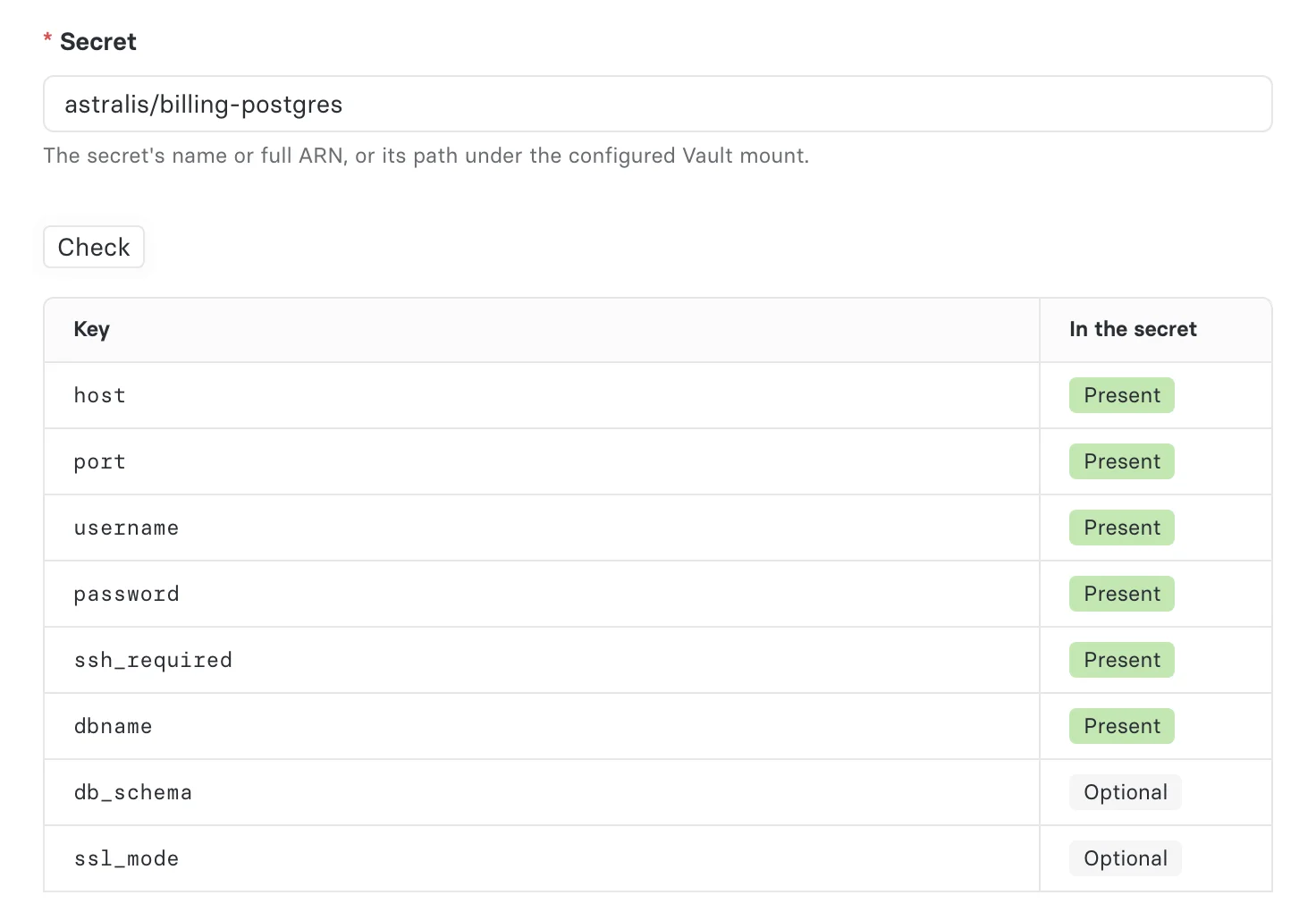
You can save without checking, or after a check that found a problem; the integration then does not connect until the secret is fixed.
Save and test the integration
- Click Save credentials. Any credentials Astralis had stored for this integration are erased.
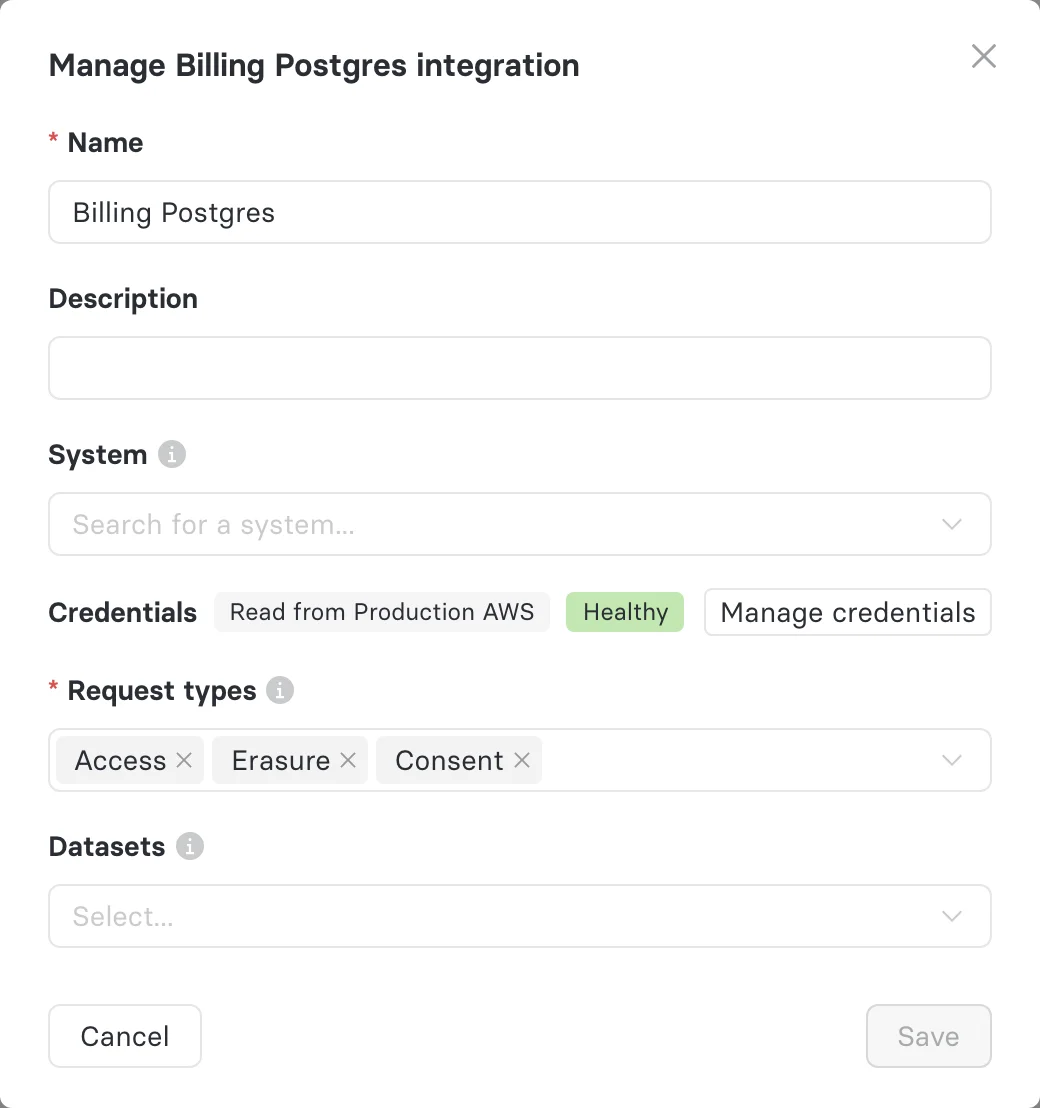
- Back on the integration, the Credentials row reads Read from the manager's name, with the manager's health.
- Click Test connection. The result reports three stages: Secrets manager reachable, Secret fetched and validated, and Downstream connection.
Rotate a credential
Update the secret in your manager. Astralis picks up the new value within 15 minutes, when its cached copy expires. If the target system rejects a connection first, Astralis fetches the secret again once and retries.
Switch back to credentials entered in Astralis
- Click Manage credentials and choose Entered in Astralis.
- Enter the credentials and click Save credentials.
Switching removes the reference. Settings Astralis keeps for the integration type are preserved; the integration has no credentials until you enter them.
Jira ticket integrations
A Jira ticket integration has no Read from a manager option. It reads from a manager through a Jira integration:
- Point the Jira integration at the manager, as above.
- Open the Jira ticket integration's Credentials tab.
- Under Link from existing connector, select the Jira integration and click Link credentials.
The Jira ticket integration then reads the Jira integration's secret, and follows that integration when it changes secret or manager, or switches back to credentials entered in Astralis. Its form shows the manager with a note to unlink in the Credentials tab, and no Manage credentials button.
To switch it back to manual credentials:
- In its Credentials tab, click Unlink credentials. The integration stays on the manager, now linked to it directly.
- In its form, click Manage credentials, then Switch to manual.
- Click Authorize with Jira, or link a Jira integration that does not read from a manager. Until then it has no credentials.
A Jira ticket integration linked to a manager through the API, rather than through a Jira integration, starts at step 2.
What changes for a managed integration
| Action | Behavior |
|---|---|
| Editing credential fields directly | Refused. Switch the integration to credentials entered in Astralis first. Settings Astralis keeps for the type stay editable. |
| OAuth client configuration | Refused while the integration reads from a manager. |
| Sending credentials and a reference in one request | Refused. |
| Linking while creating a SaaS integration from a template | Not supported. Create the integration, then point it at the manager. |
| Error messages | Reduced to the error class, so values from the secret never appear in logs or test results. |
Link through the API
Send PATCH /api/v1/connection with the manager's id (not its key) and the reference:
[
  {
    "key": "billing_postgres",
    "connection_type": "postgres",
    "access": "write",
    "secrets_manager_config_id": "sec_9f2c1b7e-...",
    "secrets_manager_reference": "astralis/billing-postgres"
  }
]
An omitted field keeps its stored value. Set secrets_manager_config_id to null to switch the integration back to credentials entered in Astralis. The response reports failures per integration under failed.
To switch only if nothing changed since you read the integration, send POST /api/v1/connection/{key}/switch-to-manual with the manager's id you read:
{ "expected_secrets_manager_config_id": "sec_9f2c1b7e-..." }It returns 204 on success, 409 if the integration now reads from another manager or none, and 404 if the integration no longer exists. It changes only the manager link and never creates an integration. It requires connection:create_or_update.