Connect Microsoft Teams to Astralis
The Microsoft Teams chat provider runs assessment interviews in Teams and lets people start assessments by messaging the Astralis app. This guide uses a single-tenant Azure Bot with a federated credential, so no client secret is stored in Astralis or Azure.
Astralis Assessments is an alpha feature for Astralis Enterprise, turned on with the alphaAssessmentsV2 feature flag. The Chat providers settings also need the privacyAssessments flag.
How the connection works
Astralis connects to Teams through the Microsoft Bot Framework:
- Outbound: Astralis signs a short-lived token with its private key. Microsoft Entra exchanges it for a Bot Framework token through a federated identity credential on the bot's app registration. Astralis publishes the public key at
https://<your Astralis host>/api/v1/chat/teams/oidc. - Inbound: Teams sends messages to the bot's messaging endpoint,
https://<your Astralis host>/api/v1/chat/teams/messages. Astralis accepts only Bot Framework tokens for your App ID and only activities from your tenant. - People: Astralis finds people in the rosters of teams the Astralis app is installed in. It matches each user's Astralis email address to their Teams sign-in name (UPN).
Use an Azure Bot resource with Single Tenant as its app type. A bot registered through the Teams Developer Portal is a multi-tenant, Teams-managed bot. Tenant policies can block those bots from personal chats, which stops people from messaging the app directly.
Prerequisites
- Astralis is reachable from the internet over HTTPS at a stable hostname. Microsoft calls the messaging endpoint and reads the credential's public key from it.
- An Azure subscription and resource group where you can create an Azure Bot, and permission to manage app registrations in your Microsoft Entra tenant.
- A Teams administrator who can upload a custom app to your tenant, or a tenant policy that allows you to upload custom apps.
- An Astralis role that can manage chat providers, such as Owner.
- Interview respondents have Astralis accounts whose email addresses match their Teams sign-in names.
Create the Azure Bot
- In the Azure portal, click Create a resource and choose Azure Bot.
- Enter a bot handle and choose your subscription, resource group and pricing tier.
- Under Microsoft App ID, set Type of App to Single Tenant and Creation type to Create new Microsoft App ID.
- Click Review + create, then Create.
- After deployment, open the bot and go to Configuration. Note the Microsoft App ID and the App Tenant ID.
The bot's Microsoft App ID is also the Application (client) ID of its app registration in Microsoft Entra.
Turn on the Teams channel
On the bot, go to Channels, choose Microsoft Teams, accept the terms of service and click Apply. Keep the messaging option set to Microsoft Teams Commercial.
Add Teams as a chat provider in Astralis
Open Astralis at its public address before you save the provider. Astralis sets the messaging endpoint and issuer from the host you save the provider from, and they can't be changed later. If you save from localhost or an internal address, Microsoft can't reach it.
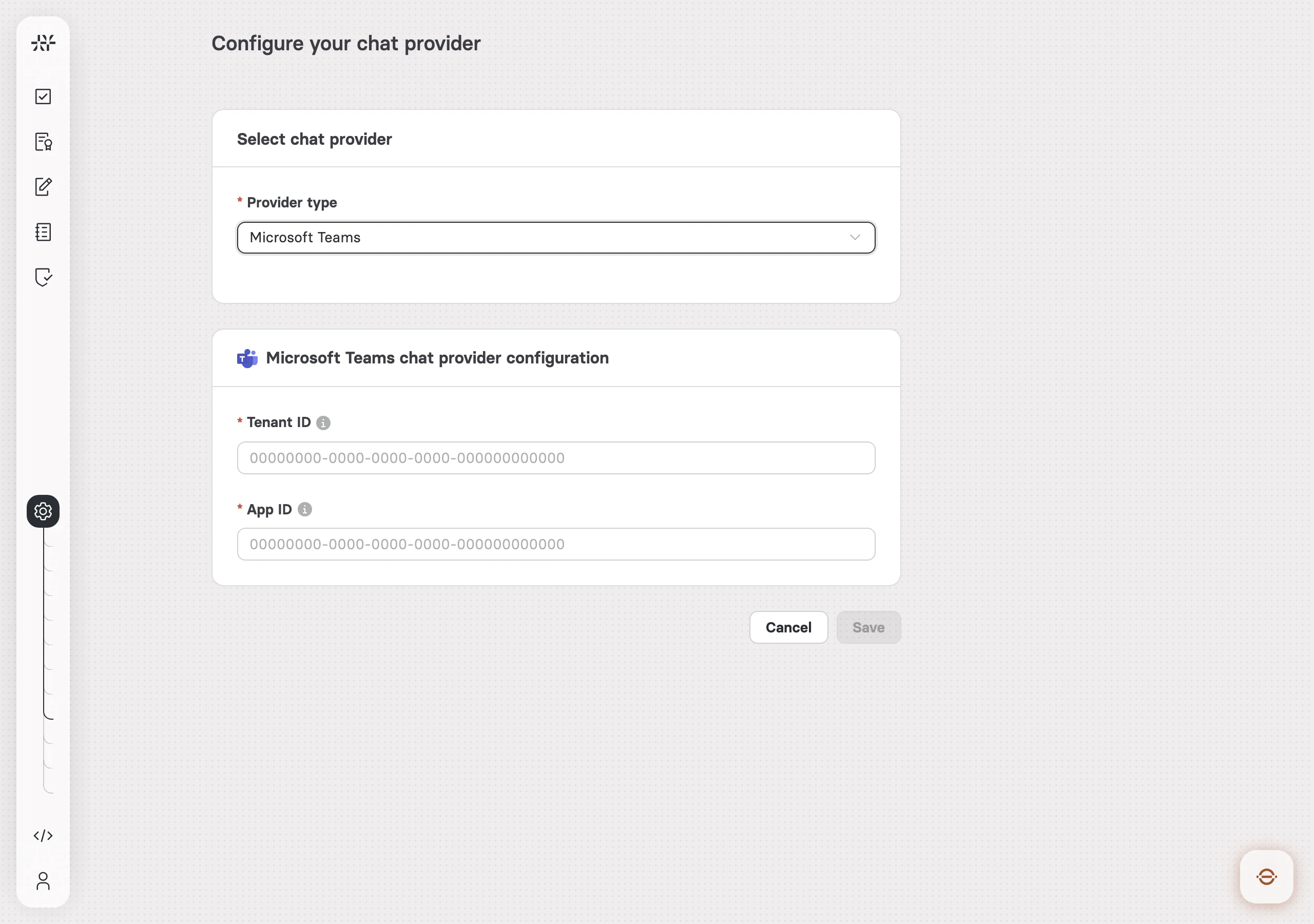
- Go to Settings > Notifications. Under Chat providers, click Add a chat provider.
- Set Provider type to Microsoft Teams.
- Enter the Tenant ID (the Microsoft Entra tenant the bot is registered in) and the App ID (the bot's Microsoft App ID).
- Click Save.
After you save, the page shows a Connect your Microsoft tenant card with four values to enter in Microsoft, each with a copy button:
| Value | Format | Where it goes |
|---|---|---|
| Messaging endpoint | https://<host>/api/v1/chat/teams/messages | The Azure Bot's messaging endpoint |
| Issuer | https://<host>/api/v1/chat/teams/oidc | The federated credential's issuer |
| Subject identifier | chat-config:<provider ID> | The federated credential's subject |
| Audience | api://AzureADTokenExchange | The federated credential's audience, which is the Entra default |
The card's Messaging endpoint tooltip refers to the Teams Developer Portal. For an Azure Bot, enter the endpoint on the bot's Configuration page, as described in the next section.
Set the bot's messaging endpoint
- In the Azure portal, open the bot and go to Configuration.
- Paste the Messaging endpoint from Astralis and click Apply.
- Reload the bot's Overview page and check that the messaging endpoint is saved. The portal sometimes closes the page without saving.
Add the federated credential
- In the Microsoft Entra admin center, go to App registrations and open the app with the bot's App ID.
- Go to Certificates & secrets > Federated credentials and click Add credential.
- For Federated credential scenario, choose Other issuer.
- Paste the Issuer from Astralis.
- Set Type to Explicit subject identifier and paste the Subject identifier from Astralis as its value.
- Name the credential, keep Audience as
api://AzureADTokenExchange, and click Add.
The app registration doesn't need a client secret, a certificate or Microsoft Graph permissions.
Install the Astralis app in Teams
- In Astralis, click Download Teams app package. Astralis downloads
astralis-teams.zip, a Teams app manifest for your bot with its icons. - Upload the package to your tenant. A Teams administrator can upload it in the Teams admin center under Teams apps > Manage apps > Upload new app. If custom app upload is allowed, you can also upload it in Teams under Apps > Manage your apps > Upload an app.
- Add the app to each team whose members answer interviews. Astralis looks up people only in teams where the app is installed.
The app is named Astralis ("Astralis by Ethyca") and requests these Teams permissions:
| Permission | Reason |
|---|---|
| Bot in personal, team and group chat scopes | Interviews run in team channels, and people can message the app directly |
identity, messageTeamMembers | Astralis finds people in the team roster and messages them directly |
ChannelMessage.Read.Group (resource-specific consent) | Astralis reads replies in an interview's channel thread that don't mention it |
When the app is added to a team, Teams asks a team owner to consent to the resource-specific permission. If your tenant restricts custom apps or resource-specific consent, a Teams administrator must allow the app first.
Enable the provider and check the connection
- Go to Settings > Notifications. In the chat providers list, turn on Enabled for Microsoft Teams. Only one chat provider can be enabled at a time.
- Open the Teams provider and click Check connection.
If the credential works, Astralis shows "Connected to Microsoft Teams. The app is installed in N team(s)." The check confirms that Astralis can authenticate to Microsoft. It doesn't test the messaging endpoint.
Verify the result
- The provider page shows Installed in one or more teams. Astralis records a team when the app is added to it. If a team isn't counted, mention the Astralis app in one of that team's channels.
- In a team channel or a direct message, send the app
start an assessment for <activity name>. Astralis replies in the thread. See starting assessments.
Link Astralis users to Teams accounts
Astralis matches a user to Teams by looking up their Astralis email address as a sign-in name (UPN) in the rosters of teams where the app is installed. Guest accounts aren't matched by email.
If a user's Teams sign-in name is different from their Astralis email address, set an override through the API. The handle is the user's Teams UPN or member ID. The request needs the user:update scope:
PUT /api/v1/plus/chat/users/{user_id}/identity/teams
{
  "handle": "dana.whitfield@acmefinancial.onmicrosoft.com"
}
To remove the override, send DELETE to the same path.
Run interviews in a Teams channel
Each interview runs as a thread in a Teams channel and tags the activity's stewards. To choose the channel:
- Add the Astralis app to the team that owns the channel.
- In Astralis, go to Settings > Notifications and find Assessment interview channel, below Chat providers.
- In Interview channel, choose the channel. Teams channels are listed as Team / Channel.
- Click Save. Astralis shows "Interview channel saved".
See the interview channel setting for who can change it.
Astralis won't start an interview, and says why, if no Teams channel is selected, the app isn't in the channel's team, or a participant isn't in that team. An assessment started by tagging Astralis in a channel thread keeps its interview in that thread. See channel threads.
Troubleshoot the connection
| Symptom | Cause and fix |
|---|---|
| Check connection shows "Entra token request failed" | The federated credential doesn't match. Check that its issuer, subject and audience match the values on the Astralis provider page, and that the Tenant ID and App ID in Astralis match the bot. |
Microsoft can't reach the bot, or the issuer is a localhost address | The provider was saved from an address Microsoft can't reach. Delete the provider, open Astralis at its public address and add it again. Then update the bot's messaging endpoint and the credential's subject, which includes the new provider ID. |
| "The Teams app isn't installed in any team, so nobody can be looked up." | No team is recorded. Add the app to a team, or mention it in a channel of a team it is already in. |
| "This person isn't in any team the Teams app is installed in." | Add the app to one of that person's teams. |
| "Teams wouldn't open a chat with this person." | The person blocked or removed the app, or a tenant policy blocks the bot from personal chat. Add the app to one of their teams, and check that the bot is a single-tenant Azure Bot. |
| Starting an interview reports that Astralis "can't find" a participant in Teams | The participant's Astralis email address doesn't match their Teams sign-in name. Correct the address, or set an identity override. |
| Messages to the app get no reply | Check that the Teams provider is Enabled in Astralis and that the bot's messaging endpoint is saved. Changing the App ID or Tenant ID in Astralis clears its recorded teams, so add or mention the app again. |
Next steps
- Starting assessments: start an assessment by messaging the Astralis app
- Answering interviews: what respondents see in Teams
- Configuration reference: chat provider and channel thread settings