Manage processes
A process is a processing activity recorded in the data map, such as "Payroll in United Kingdom". Astralis Assessments assesses processes: screening reads a process's facts, the interview goes to its data stewards, and each assessment is pinned to one version of it. This guide covers the Processes page, editing a process, assigning stewards and following its assessments.
The Processes page needs the alphaProcessOntology feature flag. Assessment statuses on the page also need alphaAssessmentsV2. See the configuration reference.
Prerequisites
| To | Permission |
|---|---|
| View processes | process:read and taxonomy:read |
| Create a process | process:create |
| Edit a process, save versions and change stewards | process:update. Choosing a steward also needs user:read. |
| See assessment statuses on the page | privacy_assessment:read |
What a process records
| Part | Contents |
|---|---|
| Data uses | The data uses the process carries out. An approved or active process serves at least one. |
| Data categories and Data subjects | The data the process handles, and whose data it is |
| Legal bases | The legal bases it relies on. A legal basis can name the data uses it covers, or cover every data use. |
| Geographies | Where the processing takes place, where the people it concerns are, and where it transfers personal data to |
| Regulations | The regulations in scope, derived from its geographies. You don't set these. |
| Systems | The systems that perform it |
| Process details | Values such as its retention period |
| Data stewards | The people Astralis interviews about it |
| Custom fields | Your organization's own fields |
Screening reads these facts to decide which assessment plans apply, and the interview asks only for facts that are missing. The more a process records, the less Astralis asks.
Process statuses
| Status | Meaning |
|---|---|
| Proposed | Suggested and not yet accepted, for example an activity added when someone started an assessment for it from Slack or Teams |
| Approved | Approved and in force |
| Active | In production and in force |
| Withdrawn, Retired, Rejected | Ended. An ended process keeps its versions but has no current links, can't take new stewards and isn't counted on the page. |
Use the Processes page
Go to Data Governance > Processes. Before any assessments exist, the chart shows every process as a hollow dot under its data use, and each data use shows how many processes need attention.
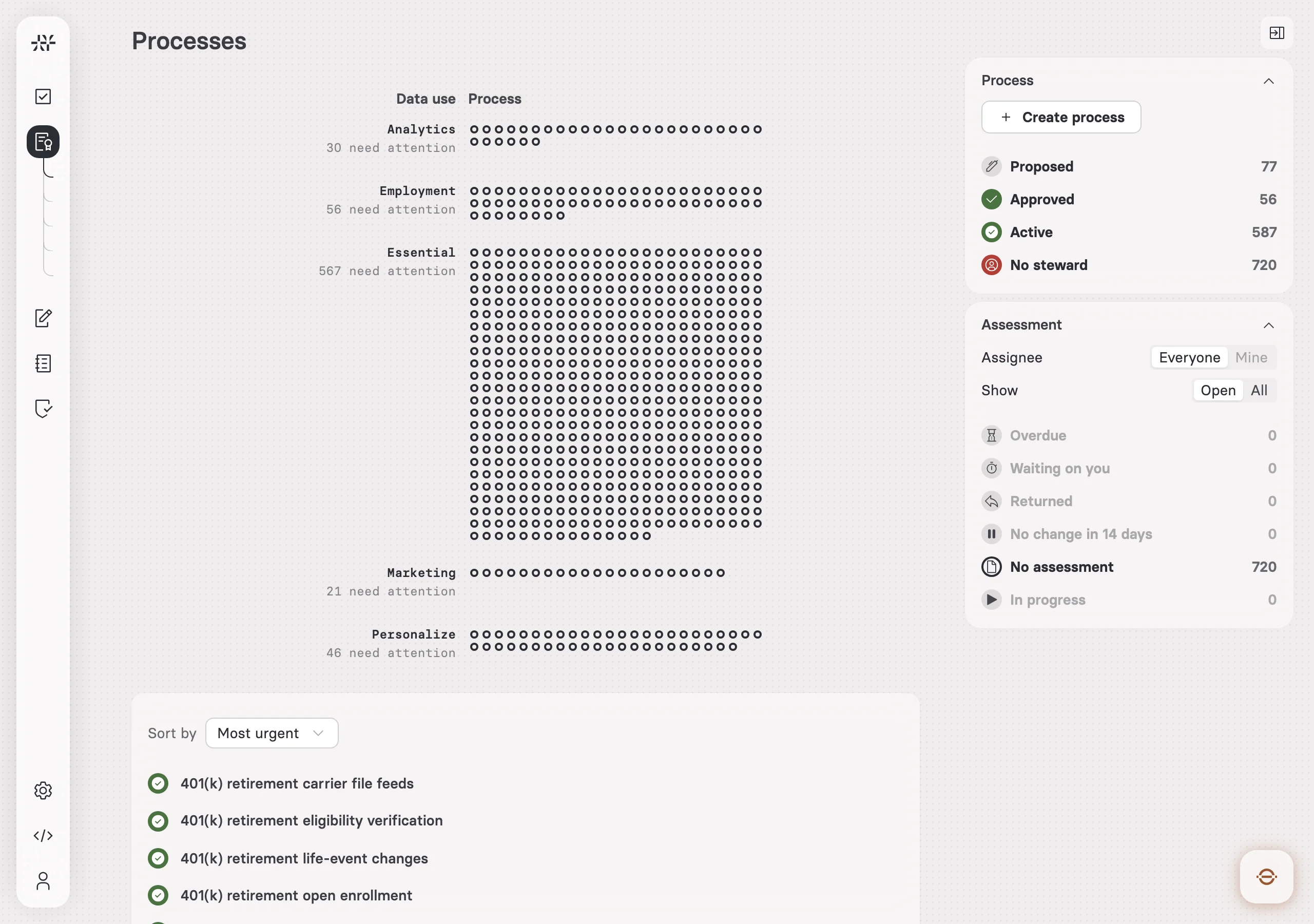
The page has three parts:
- Chart. Processes grouped by data use. Click a data use to show only its processes. The breadcrumb then shows the data use, with a menu to switch to another. When assessments exist, a third column groups them by assessment type, such as DPIA.
- List. One row per process, with its status icon, data stewards and next due date. A due date that has passed is red. Sort by Most urgent, Name A to Z or Name Z to A. Click a row to open the process.
- Side panel. The Process card has Create process and counts by process status, plus No steward. The Assessment card filters by assessment status. Click any count to filter the chart and list. Click the panel icon in the top corner to hide the panel.
Filter by assessment status
The Assessment card counts processes by the status of their most urgent assessment:
| Status | Meaning |
|---|---|
| Overdue | An assessment is past its due date |
| Waiting on you | An assessment is waiting for your approval |
| Returned | An approver requested changes |
| No change in 14 days | An open assessment hasn't changed in 14 days or more |
| No assessment | The process has no assessment |
| In progress | An assessment is open and nothing needs action |
| Approved | The assessment is approved. Shown only with All. |
In the chart, a process's dot is red for overdue, amber for returned or no change, dark for in progress, green for approved and hollow for no assessment.
"Need attention" counts processes with any status from Overdue to No assessment. Most urgent sorts the list in the order of the table, and longer waits sort first within a status.
Two switches change what the card counts:
- Assignee: Everyone shows all assessments. Mine shows only assessments waiting on you. The page opens on Mine when something is waiting on you, and on Everyone otherwise.
- Show: Open hides approved assessments. All includes them, and adds the Approved count.
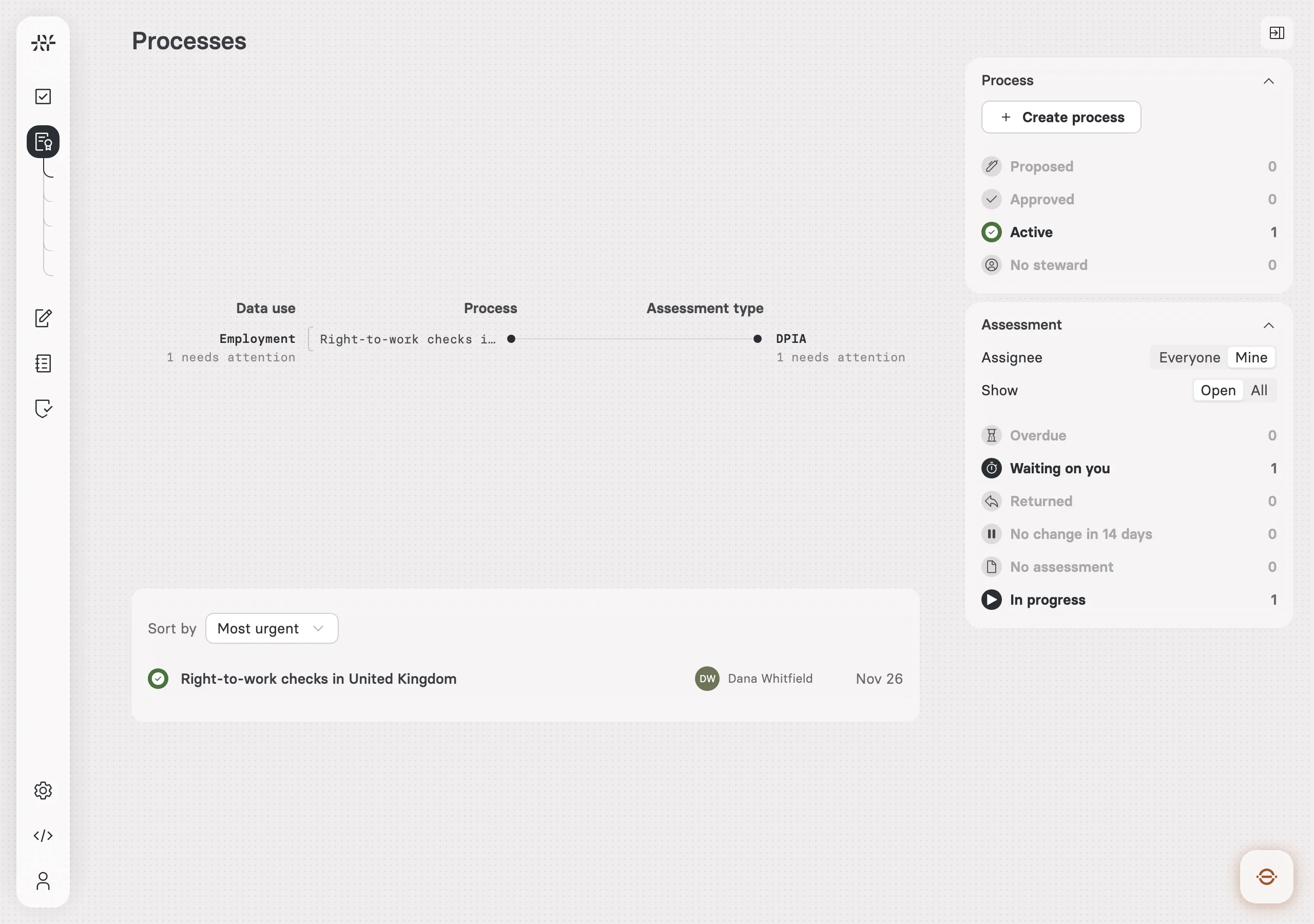
With Everyone and All, the chart colors each process by its assessment status and links it to its assessment type:
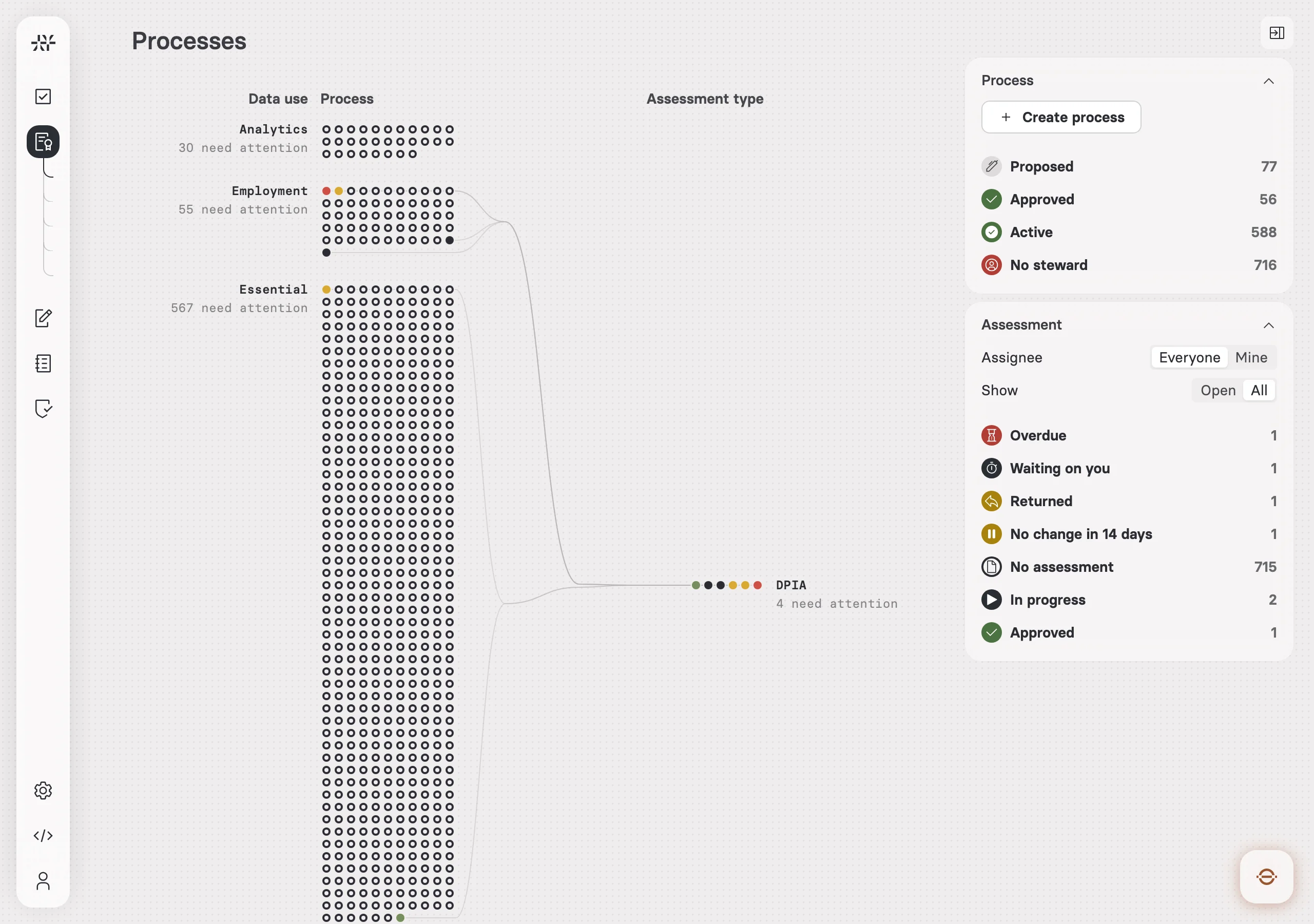
Click a status to show only those processes. For example, Overdue lists each process with an overdue assessment and its due date in red:
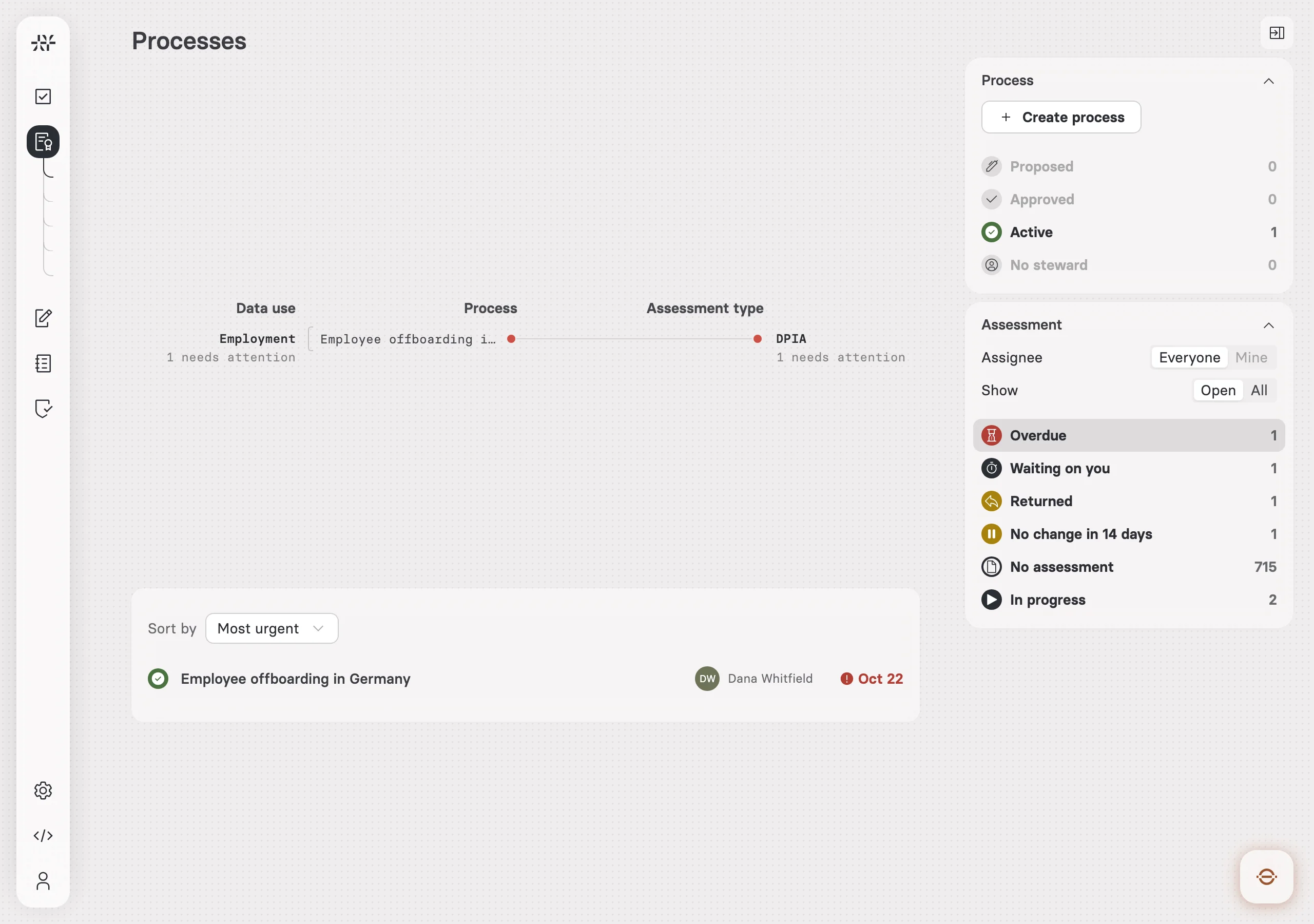
The filters are kept in the page URL, so you can share a filtered view.
Create a process
- In the Process card, click Create process.
- Enter a Name and choose a Data use.
- Click Create.
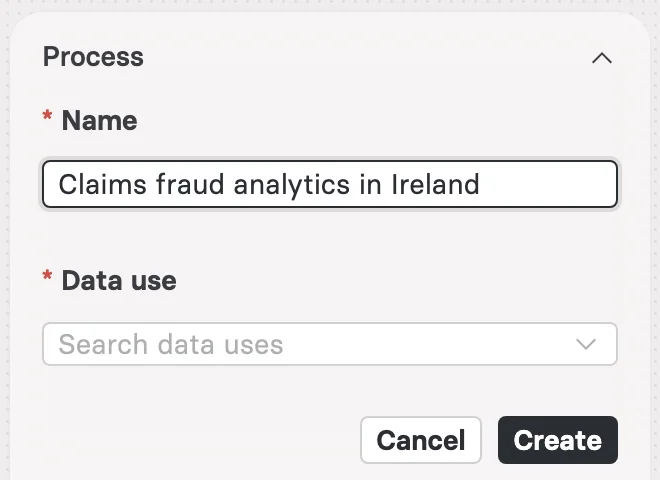
Then open the process and fill in what it records.
Edit a process
Click a process to open it. The page shows its graph, Process details, and its links grouped under Data, Legal and Systems. The side panel shows Details, Assessments and Versions.
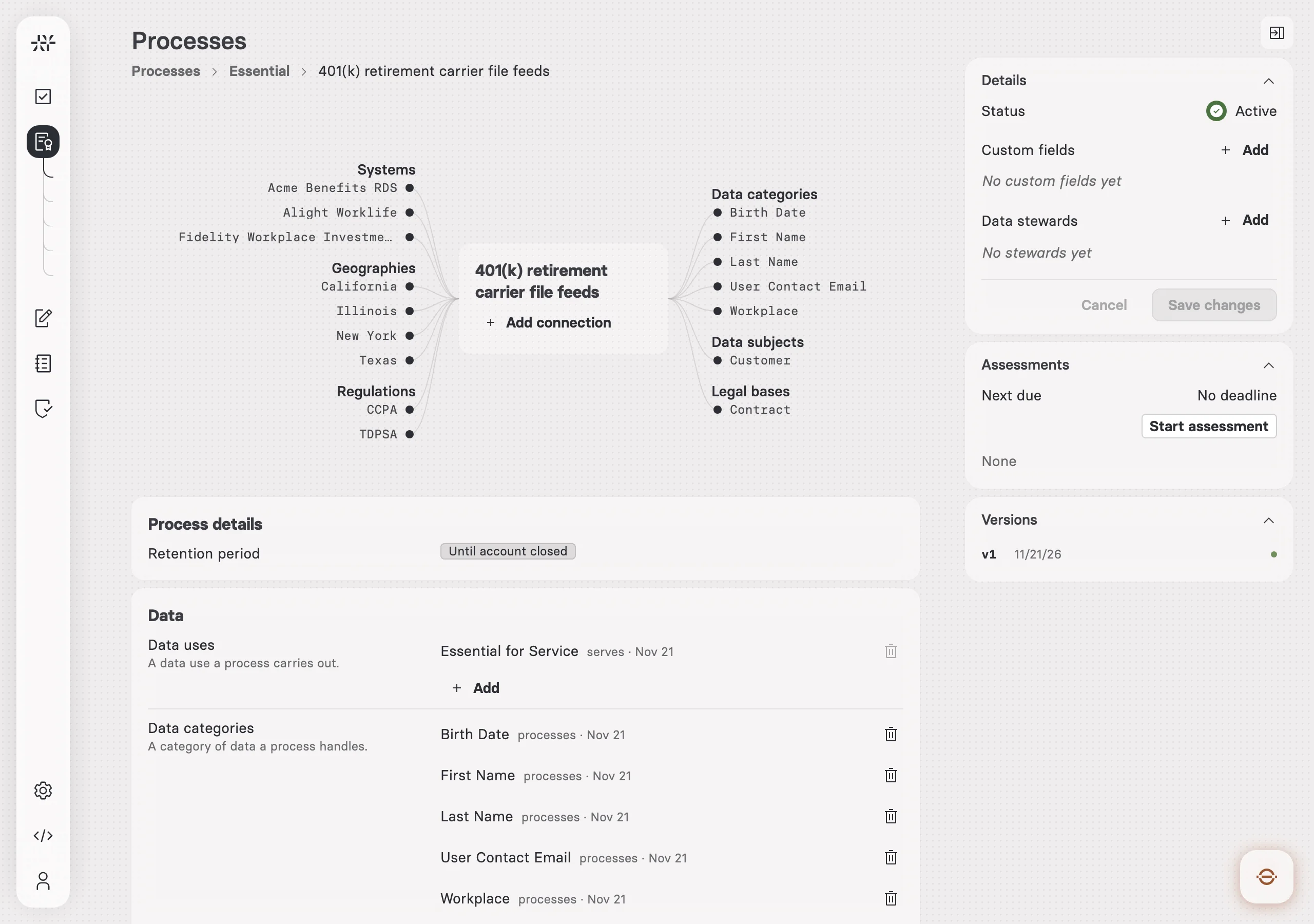
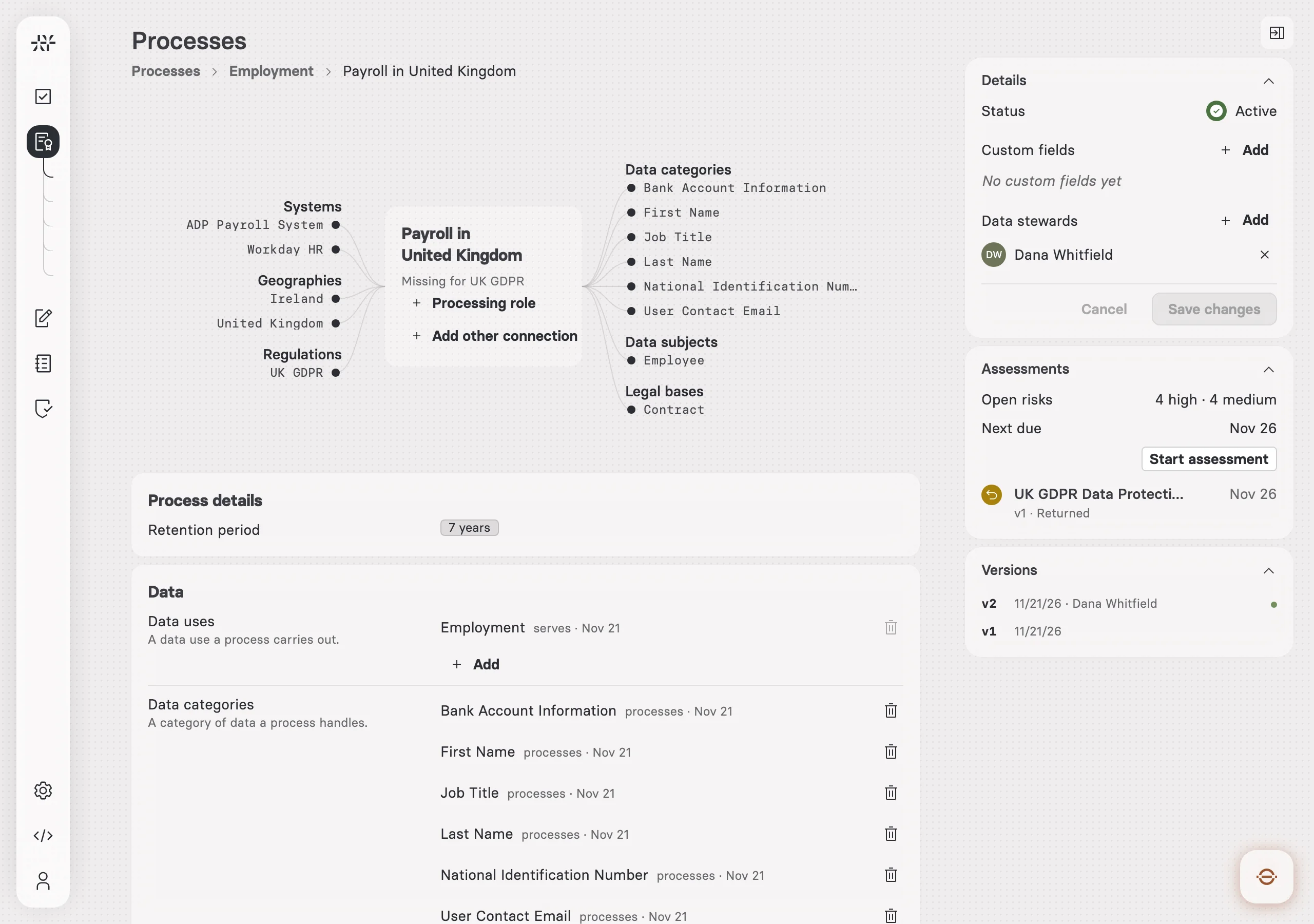
The process card in the graph lists up to three facts the process is missing for a regulation in scope, under Missing for and the regulation's name, such as "Missing for UK GDPR". Hover over a fact to see the provision that requires it.
To add a link:
- Click a missing fact on the process card, Add other connection, or Add next to a link in the Data or Legal section.
- Choose the relationship, such as Is transferred to for a geography, search for the values and check them.
- Click Add with the number of values.
- Click Save changes in the Details card. Cancel discards the staged changes.
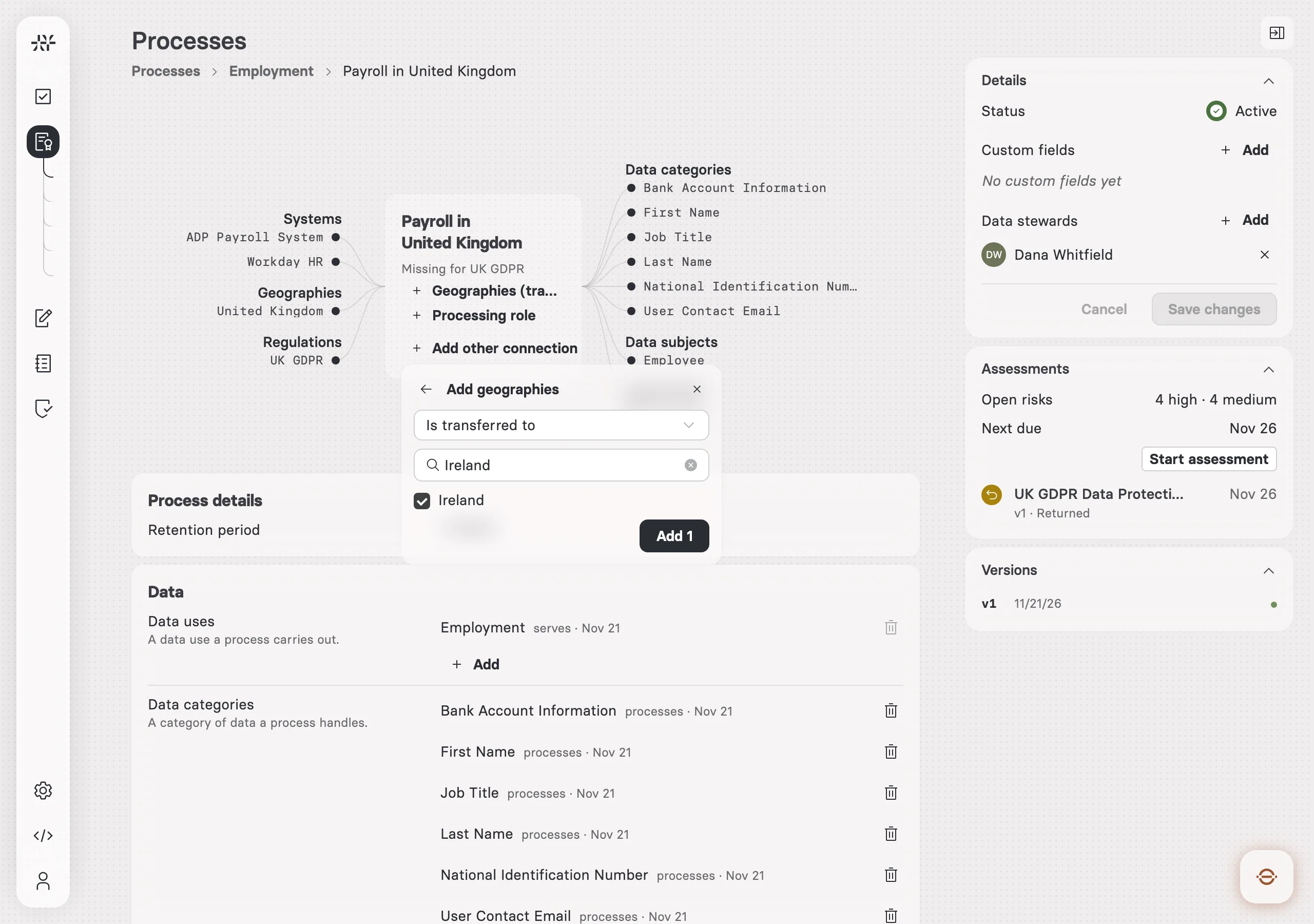
To remove a link, click its trash icon, then Save changes.
Saving creates a new version of the process, recorded with your name. Data stewards and custom fields aren't versioned, and changes to them apply right away.
Add data stewards
Data stewards answer the process's assessment interviews. Without one, an automatic assessment waits and shows Unassigned, and an assessment you start interviews you instead.
- In the Details card, click Add next to Data stewards.
- Search for a person and select them. The change applies right away.
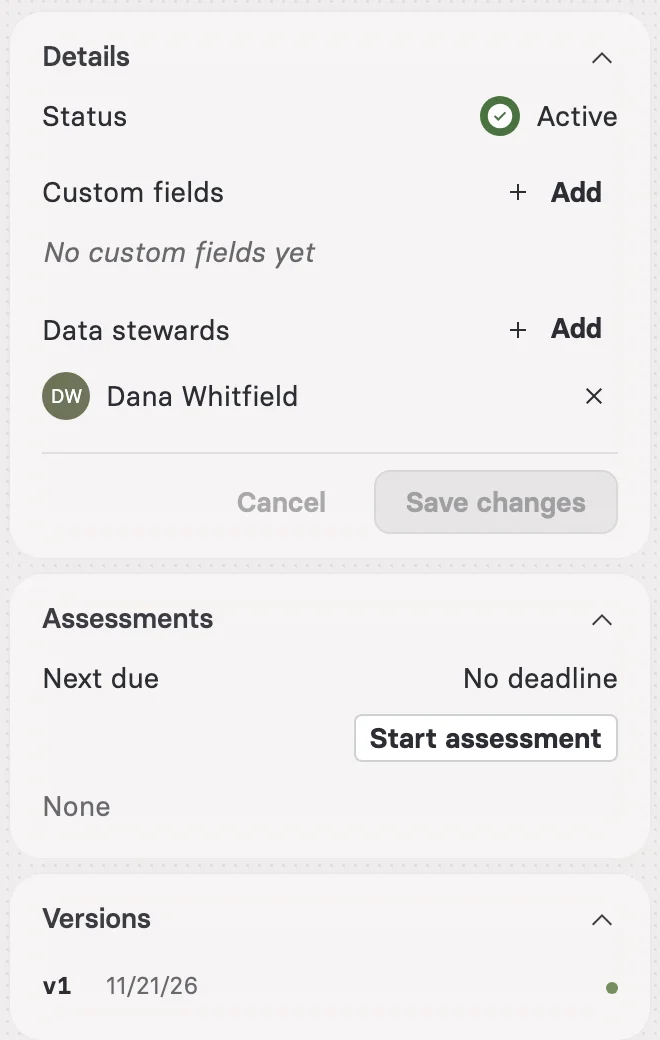
To remove a steward, click the × next to their name and confirm Remove steward.
Only people who can answer interviews can be stewards. They need an active account with an email address and privacy_assessment:respond in the process's organization. The search lists only those people, and anyone else can't be added. The Data Steward role doesn't include privacy_assessment:respond. See statuses, roles and permissions.
Add custom fields
In the Details card, click Add next to Custom fields, choose a Field name, enter a Value and click Add. Only fields that already exist in your organization can be added. The change applies right away.
Start an assessment for a process
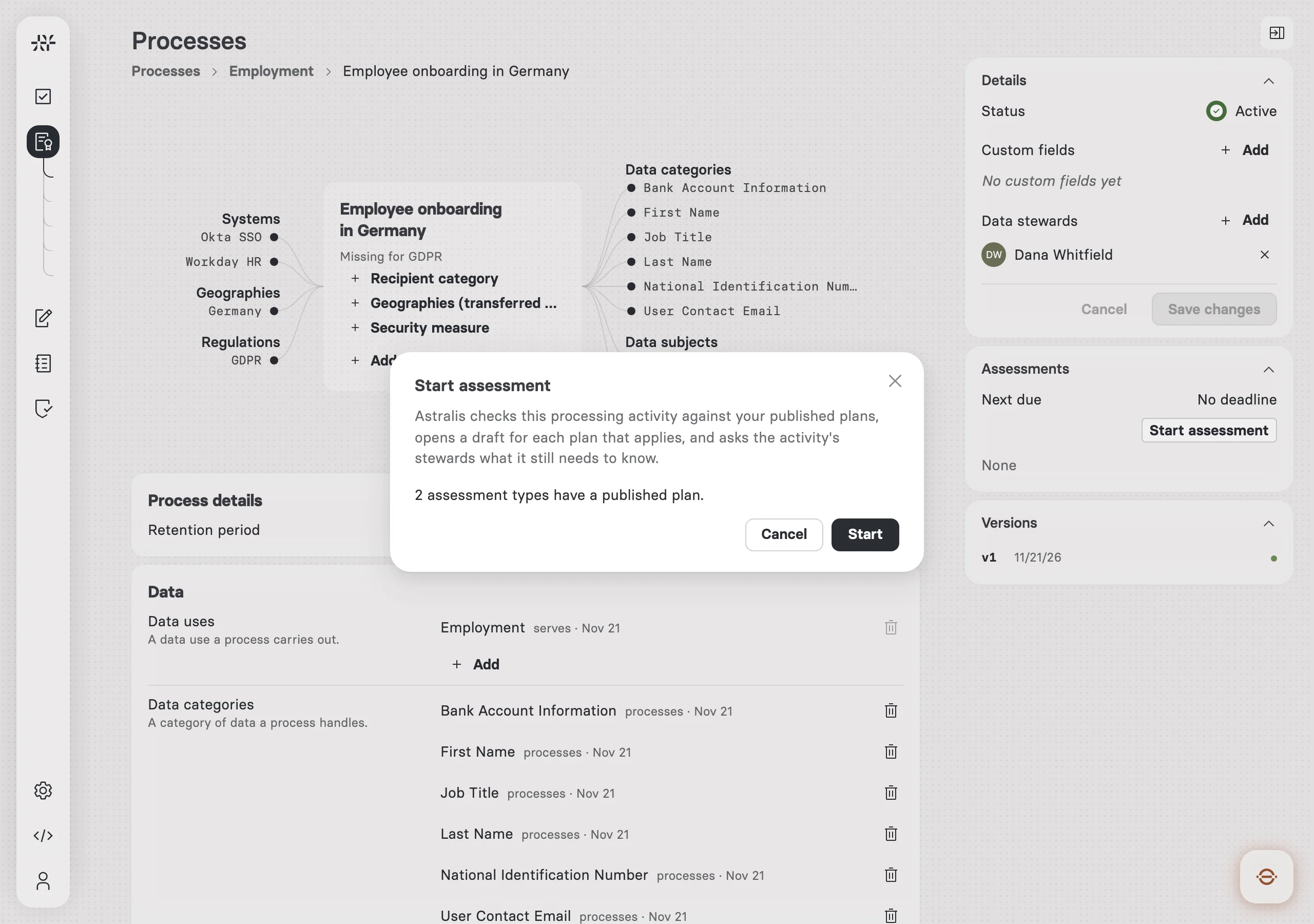
In the Assessments card, click Start assessment, then Start. Astralis screens the process against every published plan and starts the interview with its stewards. See starting assessments.
Follow a process's assessments
The Assessments card lists each assessment of the process with its type, the process version it is pinned to, its status and its due date. It also shows the Open risks by level and the Next due date. Click an assessment to open it.
An assessment is marked Out of date when the process changed after the version it is pinned to in a way the assessment depends on:
- different systems now perform the process, or
- a later version changed facts the assessment reads, or the geographies screening reads.
A rename or a status change alone doesn't make an assessment out of date. May be out of date means Astralis couldn't compare the assessment with the latest changes.
View an older version
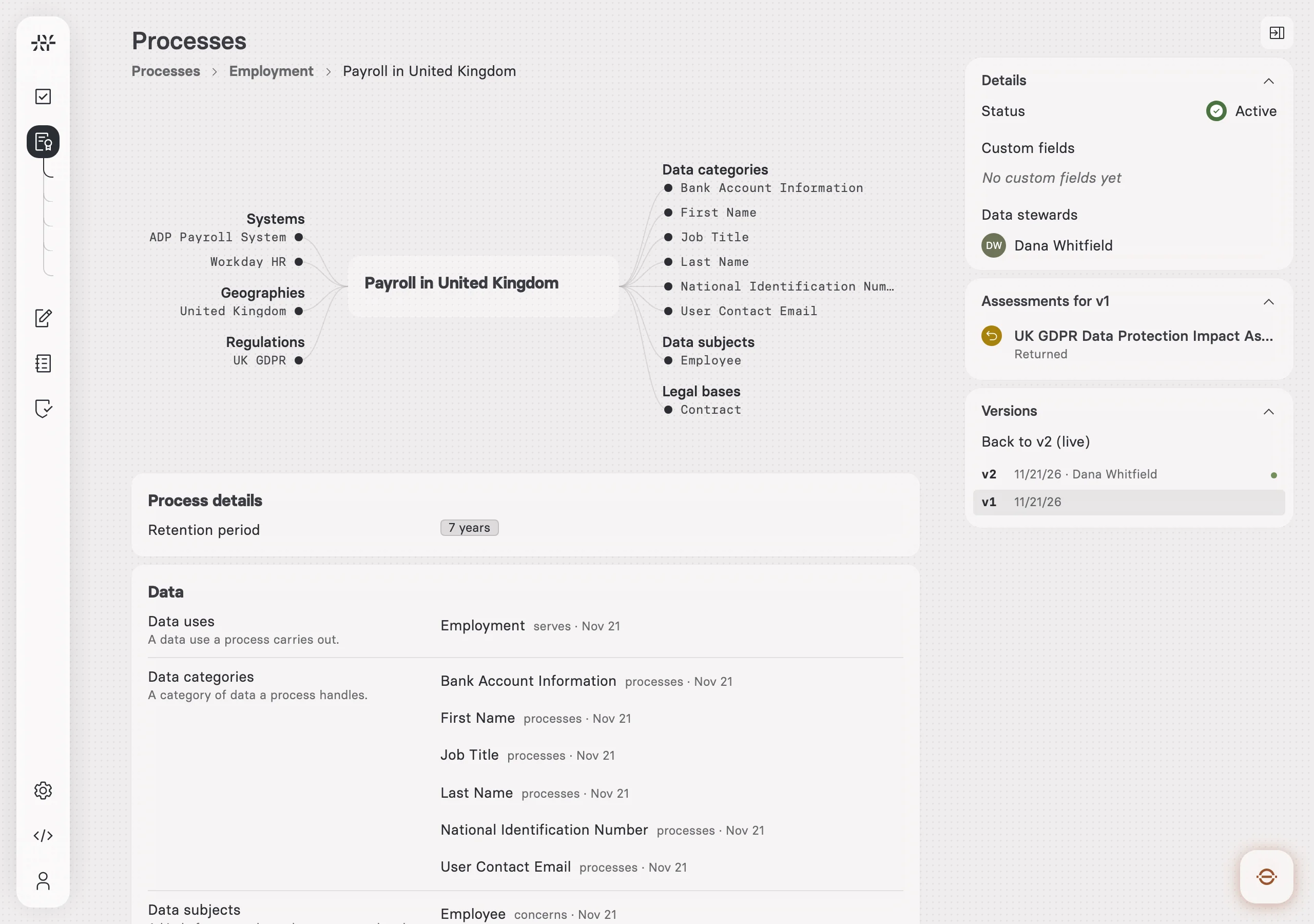
The Versions card lists every version with its date and who saved it. The live version has a green dot. Click a version to view it read-only. The Assessments card then lists the assessments pinned to that version. Versions don't record systems or regulations, so an older version shows the current ones, marked Live. Click Back to the live version to return.
Next steps
- How Astralis Assessments work: how screening and versions use processes
- Starting assessments: start an assessment for a process
- Answering interviews: what a process's stewards see