Connect Slack to Astralis
The Slack chat provider runs assessment interviews in Slack and lets people start assessments by messaging the Astralis app. This guide covers creating the Slack app, connecting it to Astralis and enabling it.
The Chat providers settings need the privacyAssessments feature flag. Astralis Assessments needs alphaAssessmentsV2. See the configuration reference.
Prerequisites
- Astralis is reachable from the internet over HTTPS. Slack sends events to it.
- You can create apps in your Slack workspace.
- An Astralis role that can manage chat providers, such as Owner.
- The people who answer interviews have Astralis accounts with the same email addresses as their Slack accounts.
Create the Astralis Slack app
Each Astralis instance needs its own Slack app, because the app's event and OAuth URLs point to one instance. You can create several apps in one workspace, for example one for staging and one for production.
- Go to Slack's app management page (opens in a new tab) and click Create New App.
- Choose From a manifest and select your workspace.
- Paste the manifest below. Replace
your-instance.example.comin both URLs with your Astralis domain. - Click Create.
display_information:
  name: Astralis
  description: Powered by Astralis
  background_color: "#2b2e35"
features:
  bot_user:
    display_name: Astralis
    always_online: true
oauth_config:
  redirect_urls:
    - https://your-instance.example.com/api/v1/plus/chat/slack/callback
  scopes:
    bot:
      - app_mentions:read
      - channels:history
      - channels:join
      - channels:read
      - chat:write
      - groups:history
      - groups:read
      - im:history
      - im:write
      - users:read
      - users:read.email
settings:
  event_subscriptions:
    request_url: https://your-instance.example.com/api/v1/plus/chat/slack/events
    bot_events:
      - app_mention
      - message.channels
      - message.groups
      - message.im
  org_deploy_enabled: false
  socket_mode_enabled: false
  token_rotation_enabled: false
Slack checks the event request URL when you create the app, so Astralis must be reachable at that address. If the check fails, retry it later under Event Subscriptions in the app's settings.
On the app's Basic Information page, note the Client ID, Client Secret and Signing Secret.
The manifest grants these bot scopes:
| Scope | Used to |
|---|---|
app_mentions:read | Receive mentions of Astralis in channels |
chat:write | Post messages |
channels:join, channels:read | List and join public channels |
channels:history, groups:history | Read thread replies in public and private channels |
groups:read | List private channels Astralis was invited to |
im:history, im:write | Read and send direct messages |
users:read, users:read.email | Match Slack users to Astralis users by name and email |
Add Slack as a chat provider
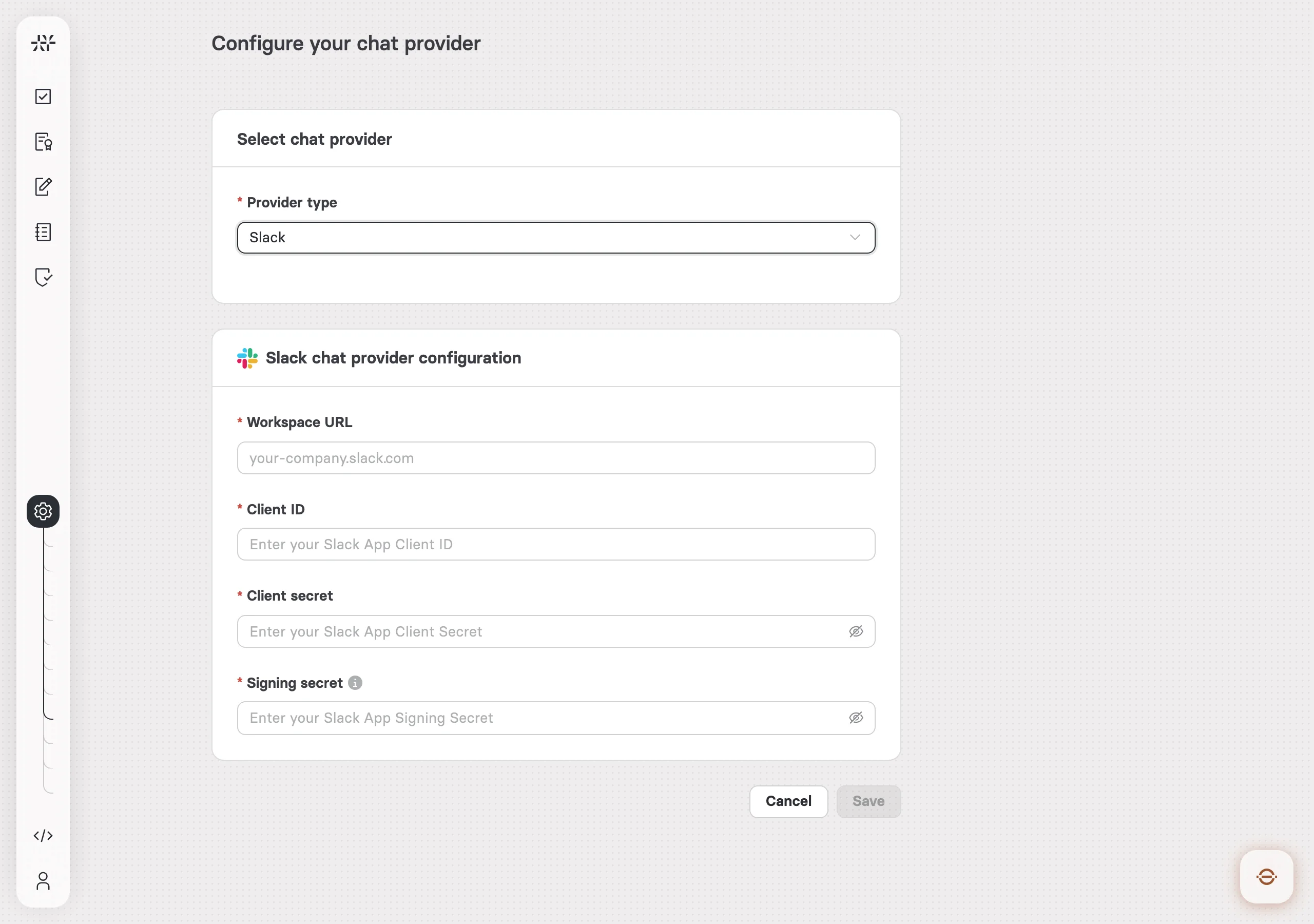
- Go to Settings > Notifications. Under Chat providers, click Add a chat provider.
- Set Provider type to Slack.
- Enter the Workspace URL, such as
your-company.slack.com, and the app's Client ID, Client secret and Signing secret. - Click Save.
Authorize the app
Open the Slack provider and click Authorize with Slack. Slack asks you to approve the app's permissions. After you approve, Astralis shows "Slack authorization successful!" and the provider shows as authorized.
Enable the provider
In the chat providers list, turn on Enabled for Slack. Only one chat provider can be enabled at a time.
Verify the result
Mention the app in a channel, or send it a direct message, with start an assessment for <activity name>. Astralis replies in the thread. See starting assessments.
Run interviews in a Slack channel
Each interview runs as a thread in the interview channel and tags the activity's stewards. To choose the channel, go to Settings > Notifications, find Assessment interview channel, choose a channel in Interview channel and click Save. Slack channels are listed as #channel. See the interview channel setting. An assessment started by tagging Astralis in a channel thread keeps its interview in that thread. For a private channel, invite Astralis with /invite @Astralis. Slack connections made before groups:read was added must be authorized again to list private channels. See channel threads.
Next steps
- Starting assessments: start an assessment by messaging the Astralis app
- Answering interviews: what respondents see in Slack
- Connecting Microsoft Teams: use Teams instead of Slack