Review and approve an assessment
Approving an assessment records your sign-off on the draft. When every approver named in the plan has approved, the assessment is locked. This guide covers finding assessments that need your approval, checking their content and evidence, and approving them or sending them back.
Astralis Assessments is an alpha feature for Astralis Enterprise, turned on with the alphaAssessmentsV2 feature flag.
Prerequisites
- You are an approver in the assessment's plan. See setting up assessment plans.
- Your role includes
privacy_assessment:review. Requesting changes also needscomment:create.
Find the assessments waiting on you
Risk > All assessments lists every assessment. Each row shows its status icon, who it is waiting on (the hourglass), its framework, its due date and when it was last updated. Overdue dates are red.
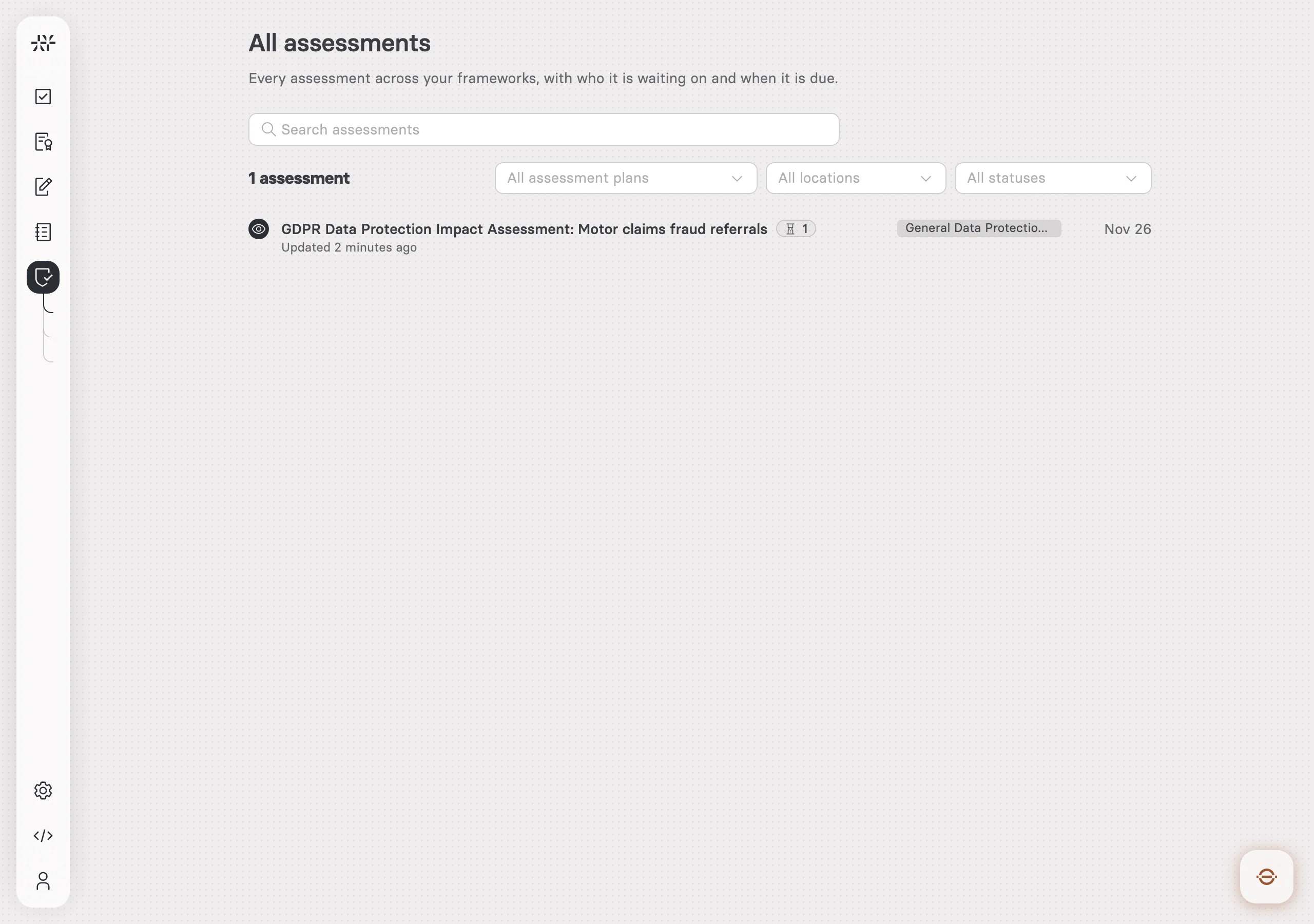
Filter the list with the search box and the All assessment plans, All locations and All statuses filters. The status filter options are Needs your sign-off, In review, In progress (including returned assessments) and Approved. Rows tagged Imported came from another tool.
Read the assessment
Open an assessment. The title is the processing activity. The breadcrumb reads All assessments › the activity › the assessment type. If the activity has more than one assessment, use the last breadcrumb to switch between them. A plan that hasn't started for the activity shows as Not started.
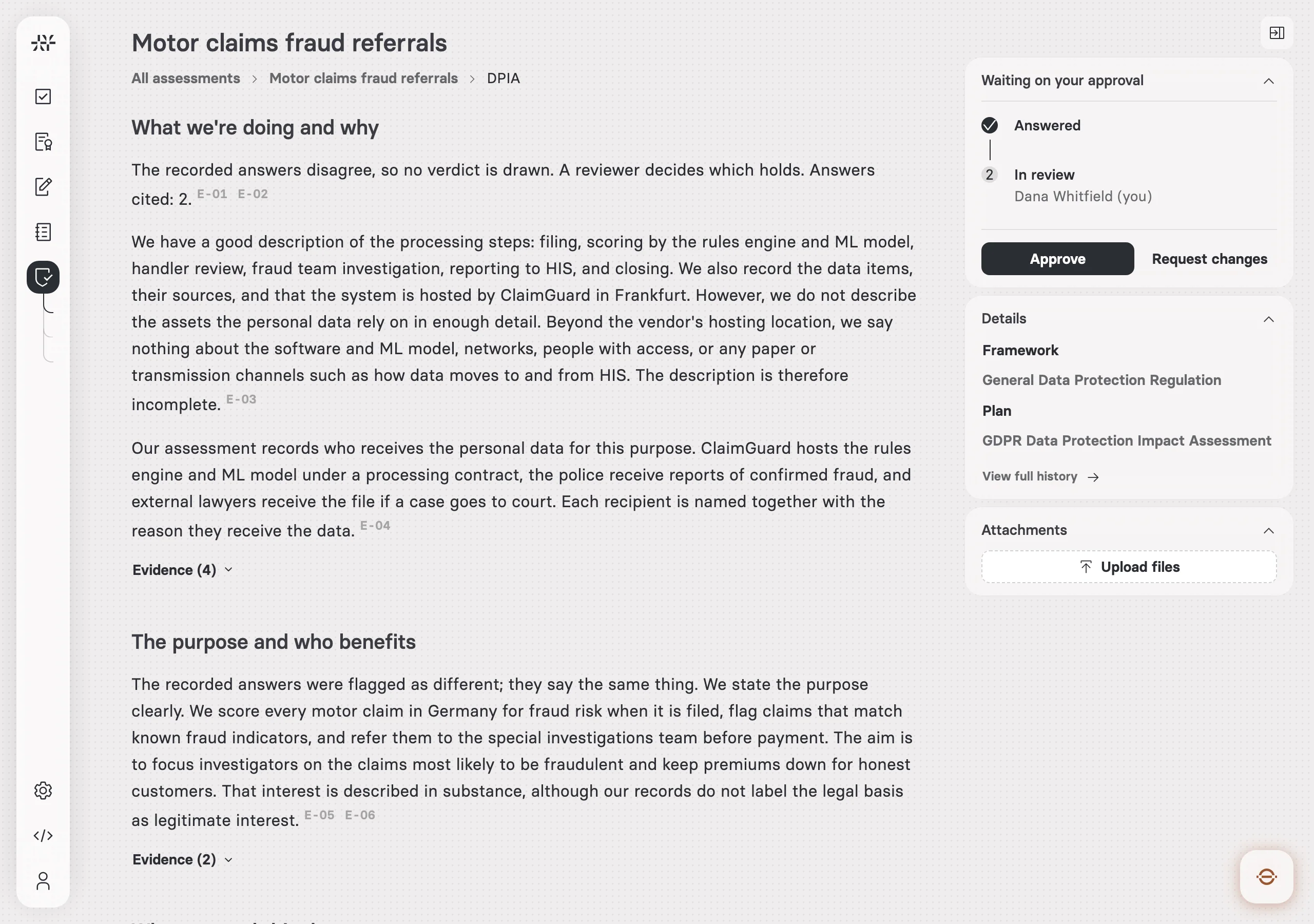
- Sections match the plan's topics. Each drafted statement ends with its citations. When two answers disagree, the statement says so and leaves the decision to you.
- The side panel shows the Answering step with its respondents and the Review step with each approver and their state. Its title is a headline such as Waiting on your approval or Waiting on another approver's name.
- Details links to the framework and shows the plan version the assessment uses.
- Attachments lists supporting files. Click Upload files to add one.
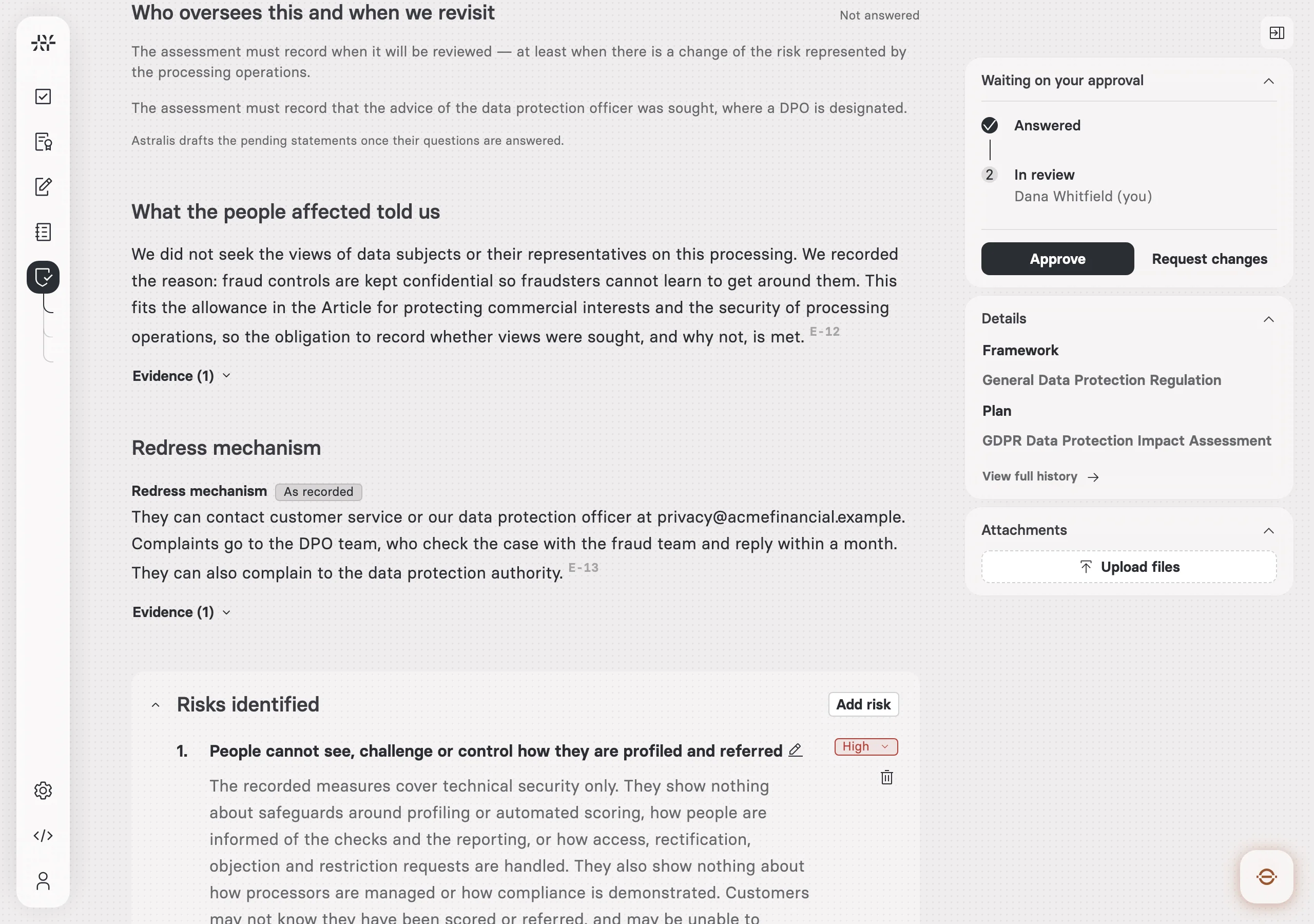
A section marked Not answered lists, in grey, the obligations it still needs to meet. Astralis drafts those statements after their questions are answered.
Check the evidence
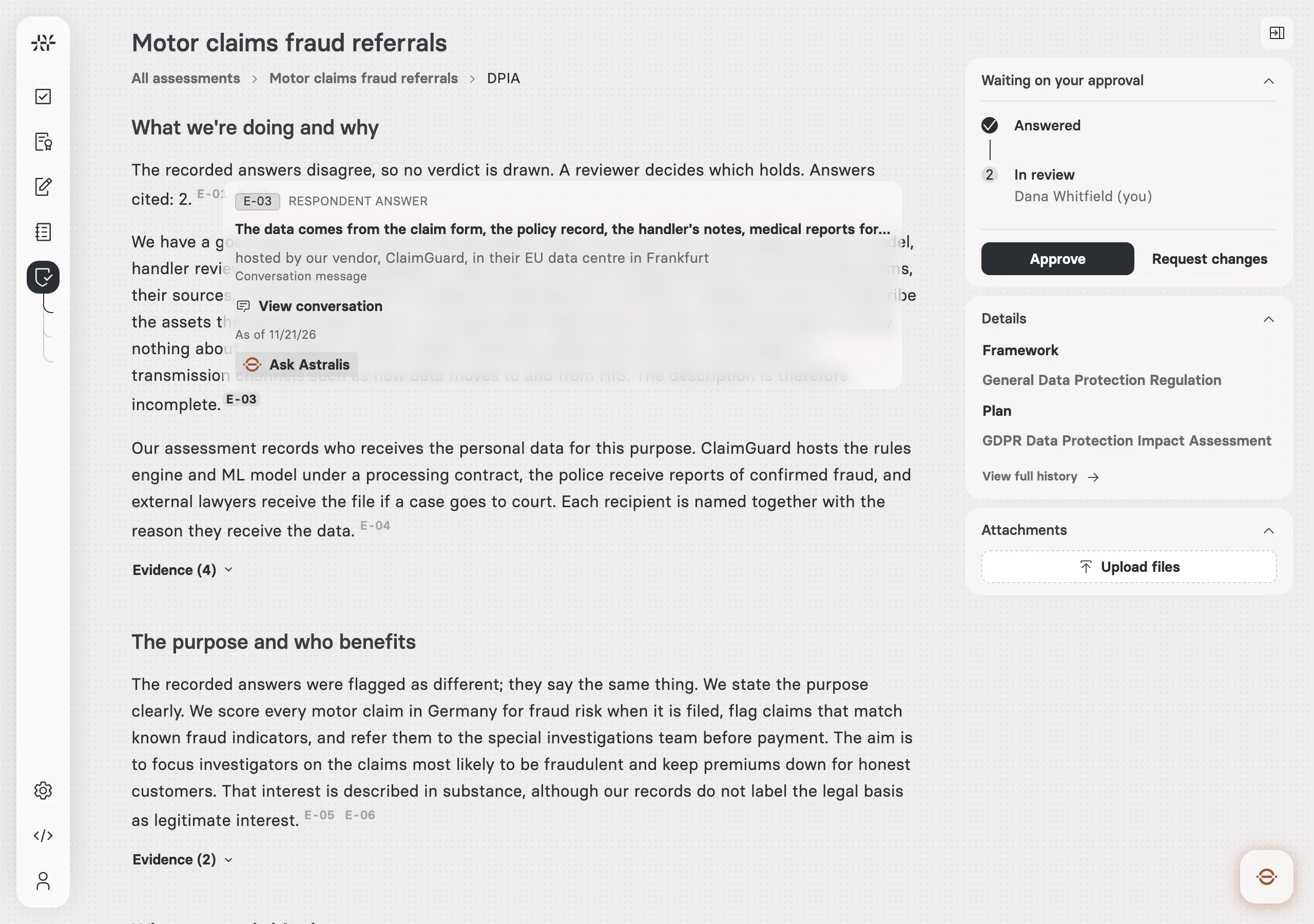
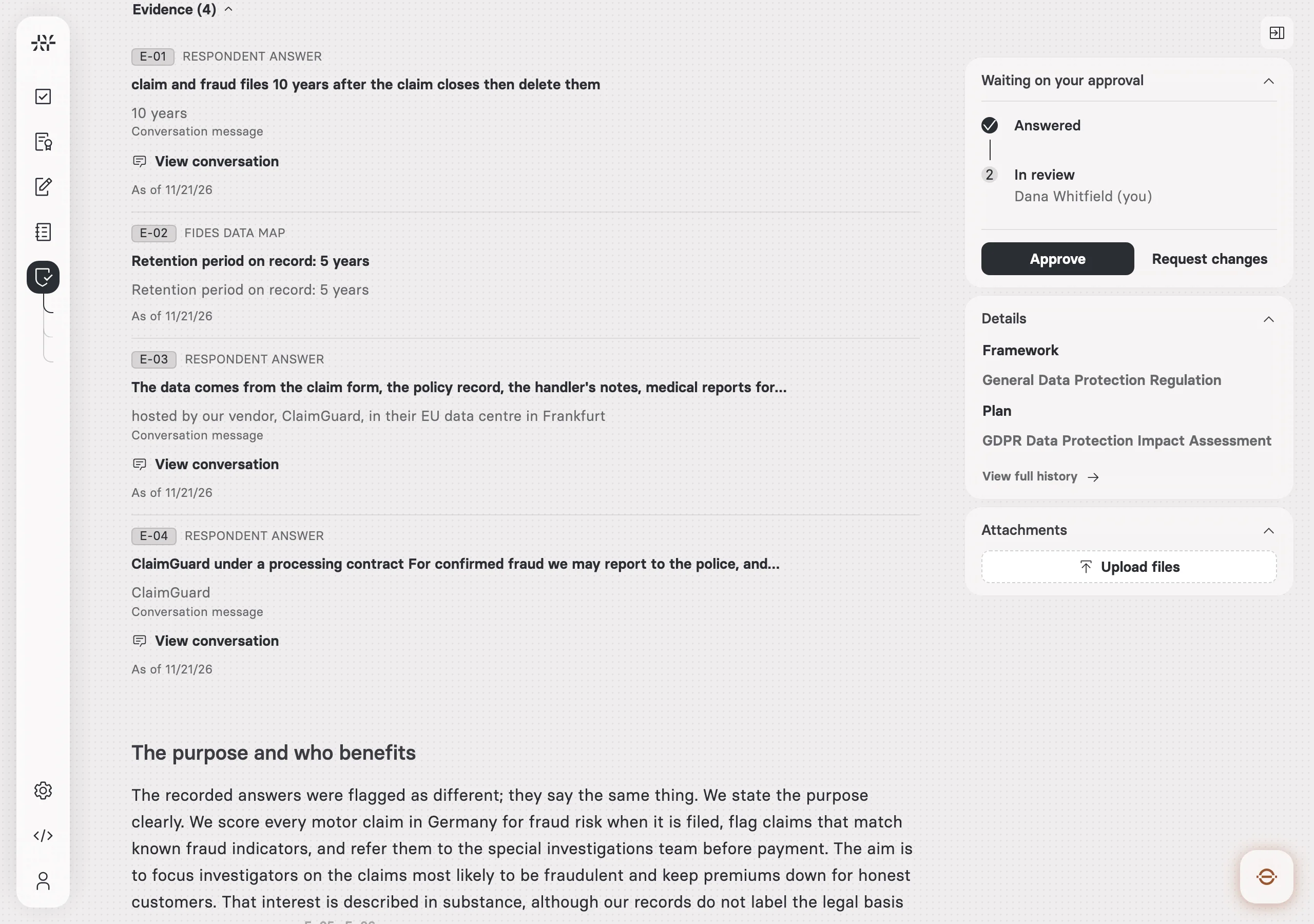
Click a citation such as E-03 to see its record: the source, the cited text, the date it was true, and a link to the source. Click Ask Astralis to ask the assistant about it.
To see every record a section cites, expand its Evidence list. Each record shows its source label, such as Respondent answer or Fides data map, the excerpt, the date and a link: View conversation for an interview answer or Download file for an imported document.
View the history
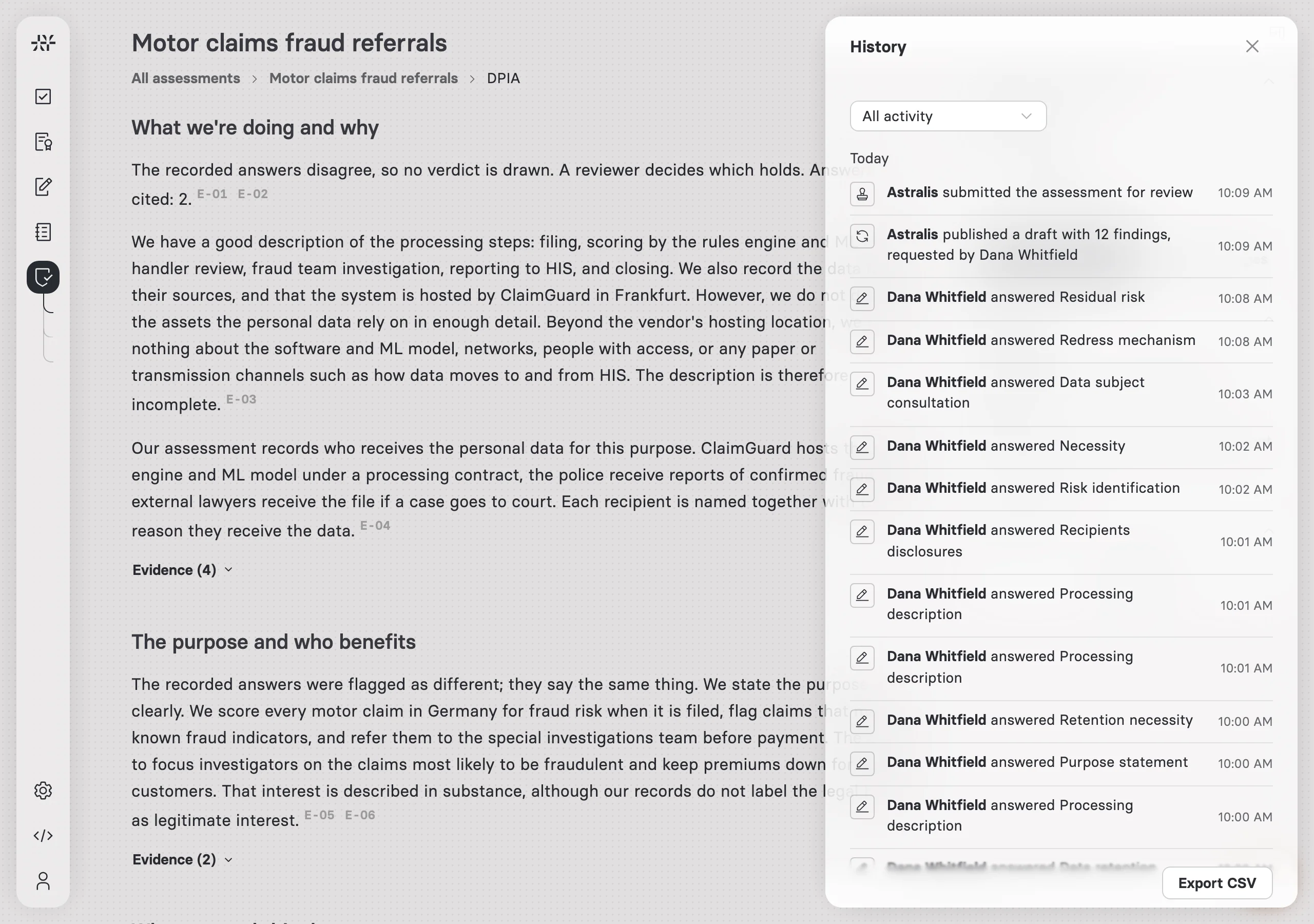
In Details, click View full history to see every event on the assessment: why Astralis opened it, each answer and who gave it, published drafts, review decisions, evidence and comments. Filter by All activity, Lifecycle, Review, Answers, Drafts, Evidence or Comments. Click Export CSV to download the log.
Edit an answer
While an assessment is In progress or Returned, anyone with privacy_assessment:update can edit a drafted statement. Click the statement or its pencil icon, change the text and save. Answers are read-only while the assessment is in review. An edited section shows "Last edited by" with a name and a link to its history.
If someone else changed the same statement after you opened it, your edit isn't saved and your text stays in the editor. Save again to replace their version.
When the assessment is ready, click Submit for review, or Resubmit after changes, and confirm. Astralis submits the first draft for review automatically when the interview ends.
Review the risks
Before approving, review the Risks identified card below the sections. Change levels, add risks and dismiss risks that don't apply. See managing risks.
Request changes
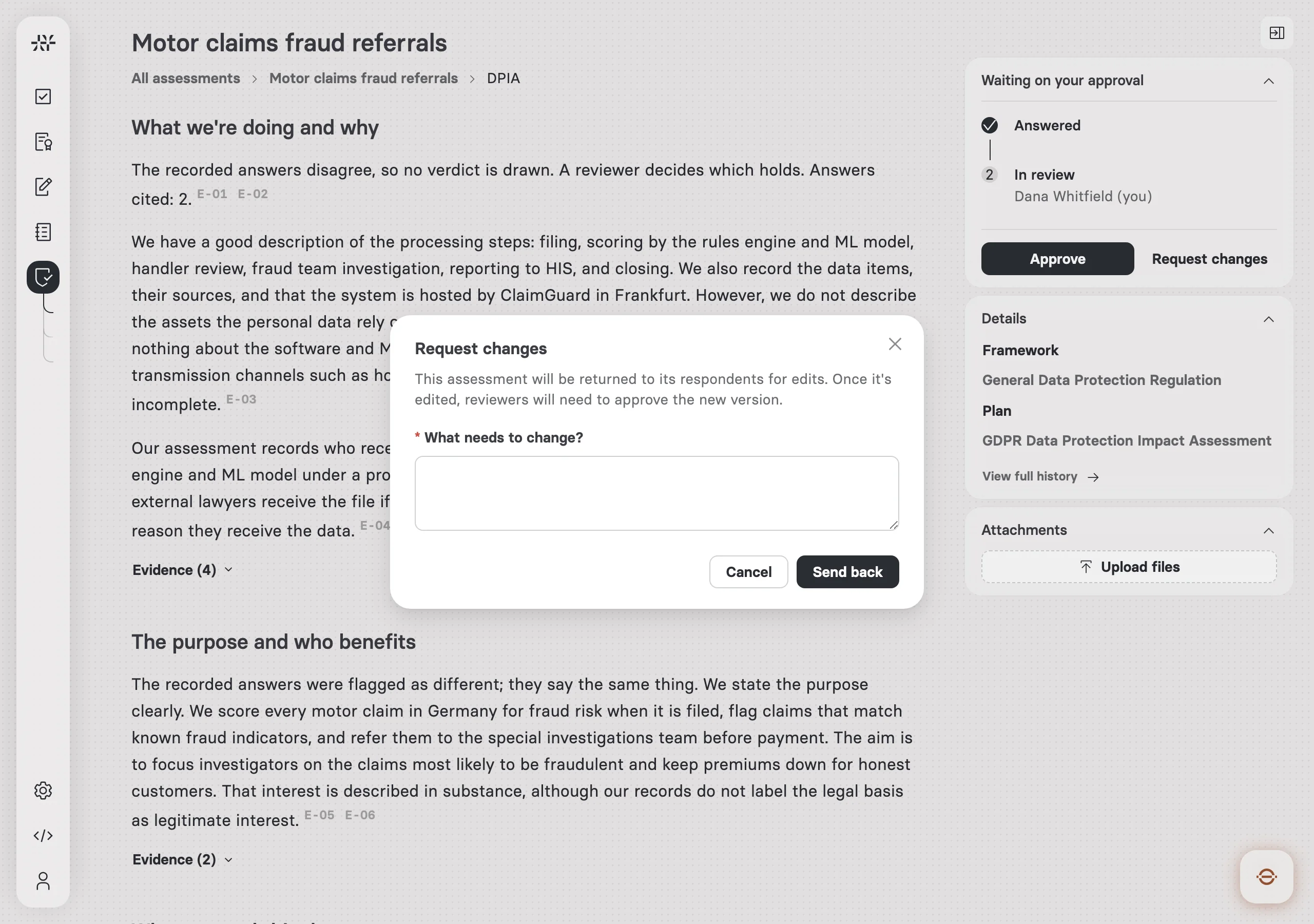
Click Request changes, enter What needs to change? and click Send back. The assessment becomes Returned, with a Changes requested banner showing your reason. Your reason is also saved in the assessment's History.
Astralis doesn't notify the activity's stewards in Slack or Teams. To act on the request, either:
- edit the drafted statements in Astralis and click Resubmit, which needs
privacy_assessment:update, or - start an assessment for the process again, which lets the returned assessment take interview answers from its stewards. Astralis doesn't pass on your reason, so tell them what needs to change.
After it is resubmitted, every approver must approve the new version.
Approve the assessment
When the side panel reads Waiting on your approval, click Approve and confirm.
- If other approvers come after you, the dialog says how many. Your approval is recorded and the assessment waits for them.
- If you're the last approver, the dialog reads "You're the last reviewer to approve. The assessment locks, and its answers can't be changed unless it's reopened." Click Approve and lock.
- If the plan sets an approval order, the button is disabled until earlier approvers have approved. Its tooltip says why.
To take back your approval before the assessment locks, click Withdraw approval and confirm. Your review goes back to pending. Other approvals don't change.
Verify the result
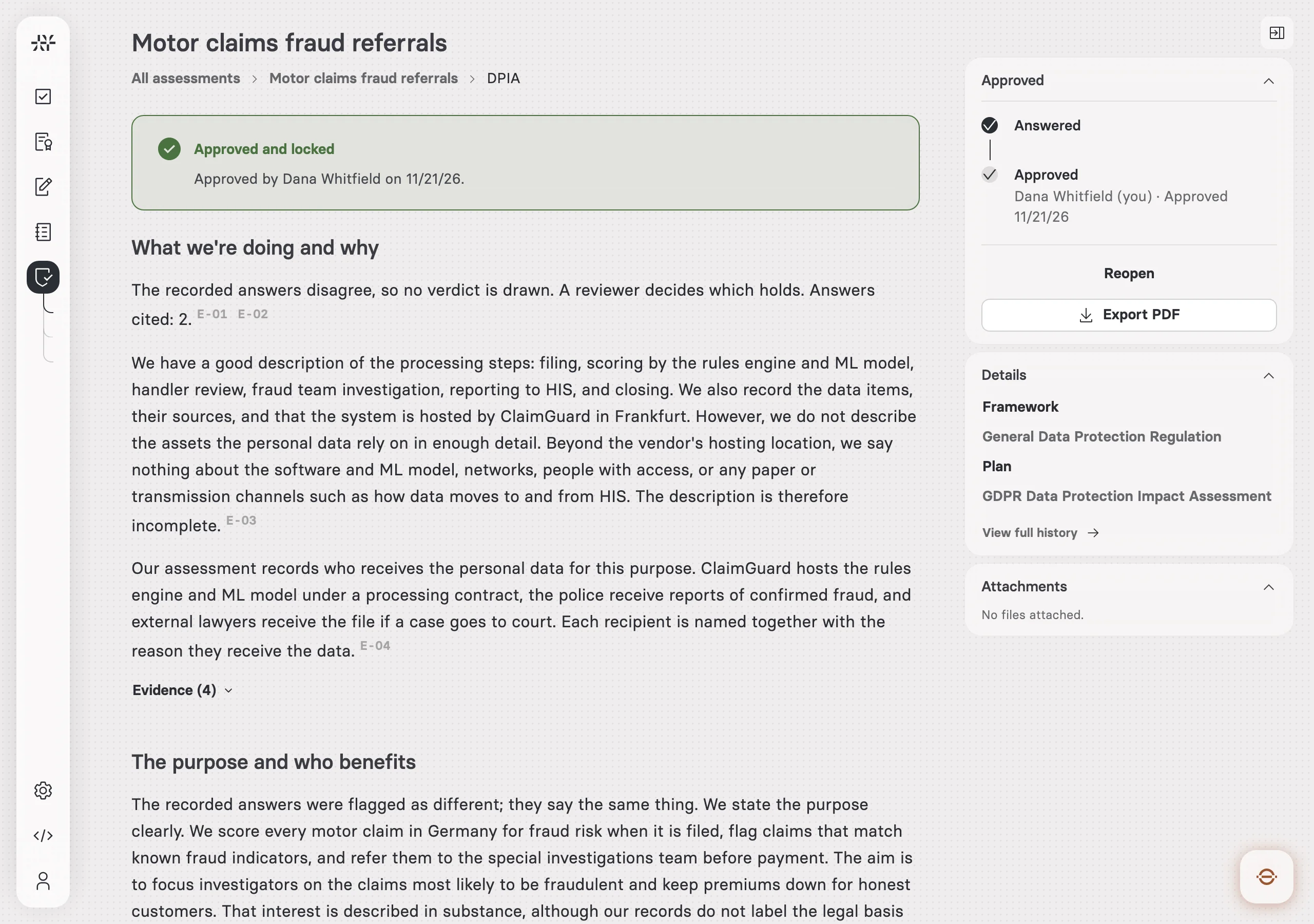
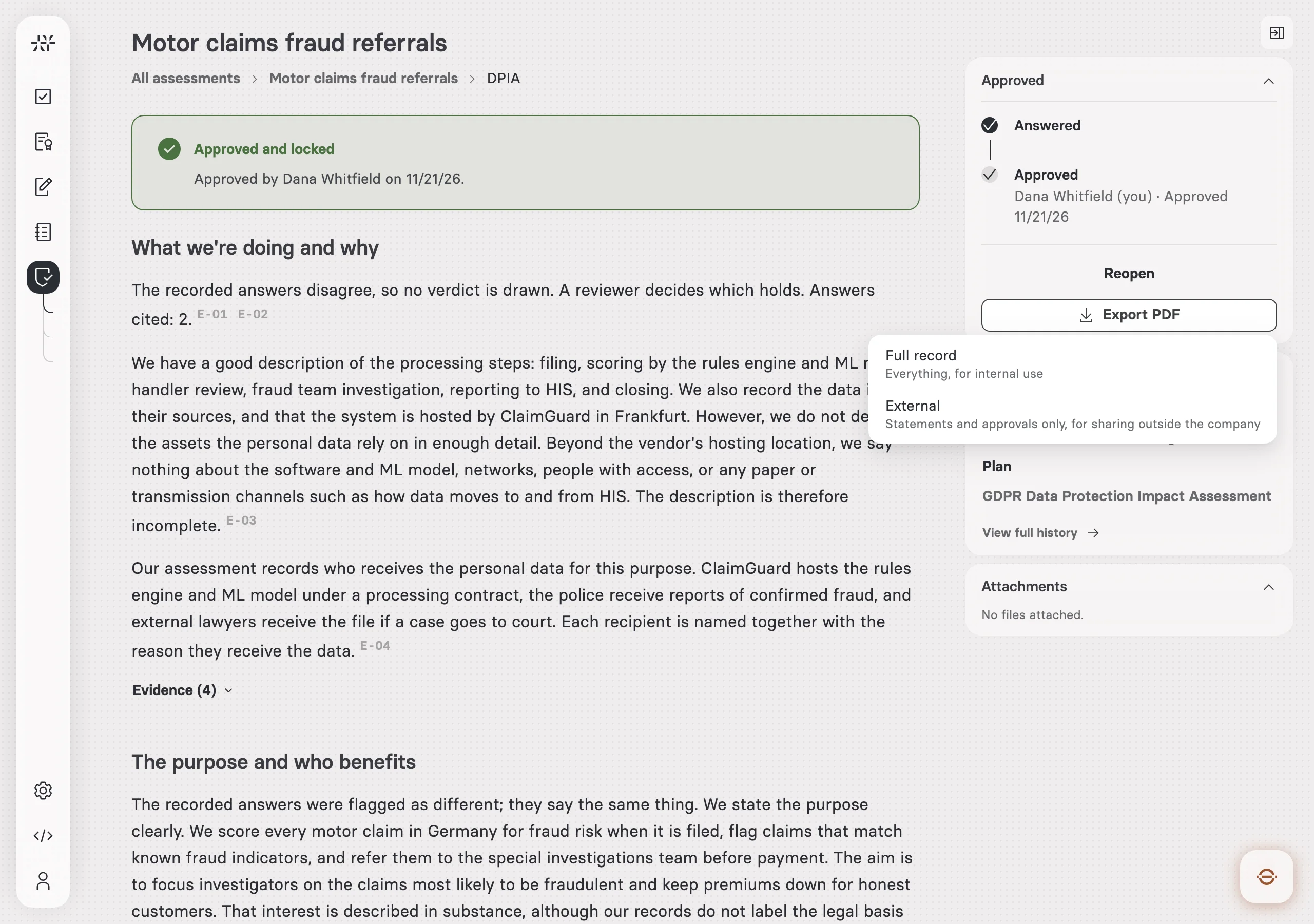
After the last approval, the assessment shows an Approved and locked banner with the approvers and the date. The side panel reads Approved with each approval date, and the assessment's row in All assessments shows the approved icon.
The plan's timeframe sets when the assessment is due for re-evaluation.
Export an approved assessment
Click Export PDF and choose a version:
| Option | Contents |
|---|---|
| Full record | Everything, for internal use |
| External | Statements and approvals only, for sharing outside the company |
Reopen an approved assessment
Click Reopen, enter Why are you reopening it? and confirm. The assessment is unlocked and becomes Returned, with a Reopened banner. As with a change request, Astralis doesn't notify the stewards. Existing approvals are marked Re-approval required, and every approver must approve it again.
Next steps
- Managing risks: work with an assessment's risks
- Statuses, roles and permissions: statuses and who can act at each one