Manage assessment risks
Astralis identifies risks to people for each assessment, rates them and lists them on the assessment. This guide covers changing, adding, dismissing and restoring risks.
Astralis Assessments is an alpha feature for Astralis Enterprise, turned on with the alphaAssessmentsV2 feature flag.
Prerequisites
- To change risks, you are an approver in the assessment's plan and your role includes
privacy_assessment:review. - Risks can be changed while the assessment is In progress, In review or Returned. They can't be changed on an approved or imported assessment.
- Anyone with
privacy_assessment:readcan view risks.
How Astralis identifies risks
Astralis identifies risks from the assessment's answers and from gaps in them. A missing answer counts as a risk. For example, if nothing records a retention limit, Astralis raises a risk.
Each risk has a title, a description of who could be harmed and how, and a level: High, Medium or Low. Hover over a level to see the likelihood and impact behind it. Risks Astralis raised are marked Identified by Astralis.
If some requirements are unanswered, the card reads "Risks are assessed once every requirement has an answer," with the number still open.
Work with risks on an assessment
Open an assessment and scroll to Risks identified, below the drafted sections. If there are no risks, the card reads "No risks identified yet."
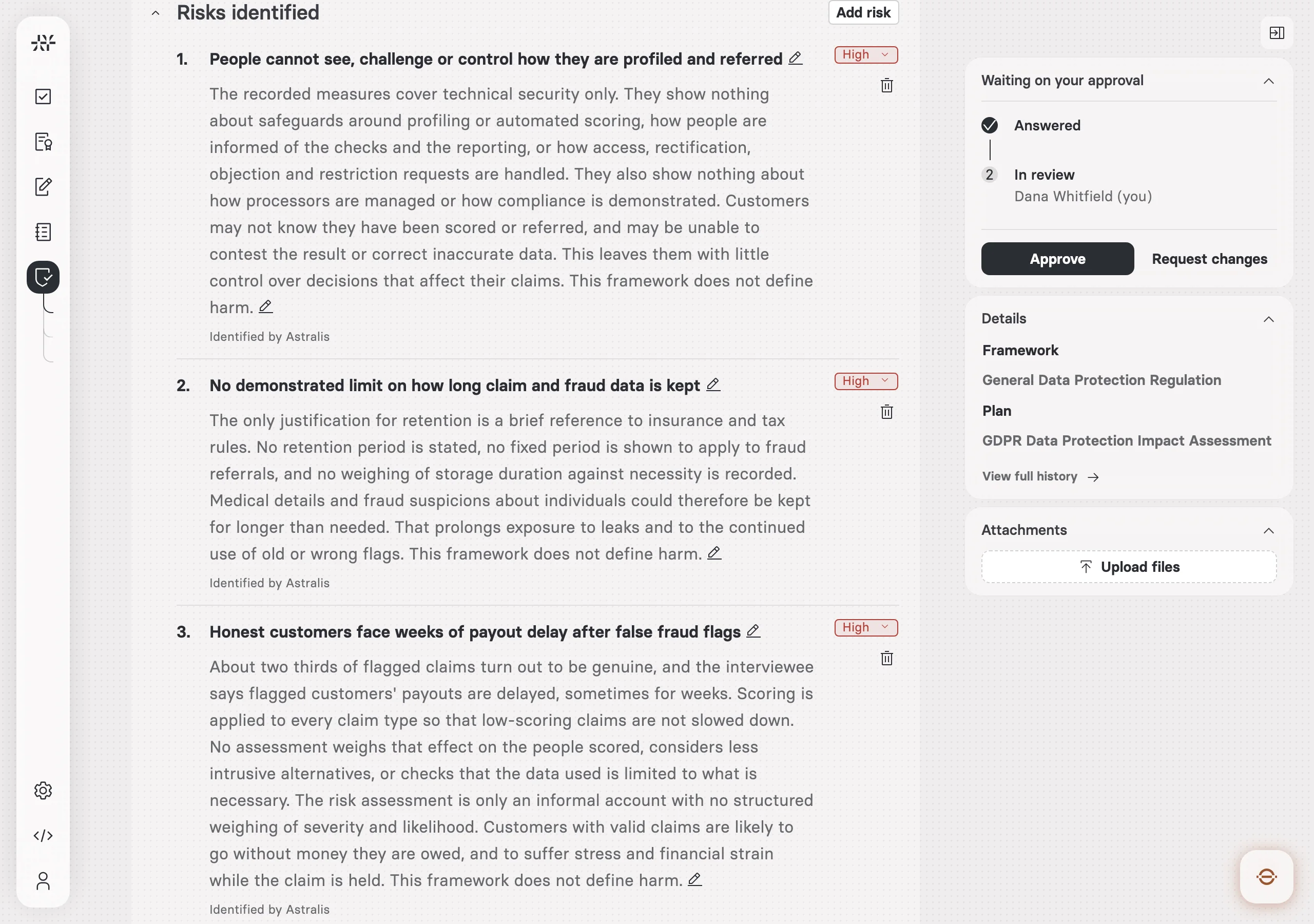
| To | Do this |
|---|---|
| Change a risk's level | Click its level tag and choose High, Medium or Low. Hover over the tag to see the original rating and who changed it. |
| Edit a risk | Click the pencil next to its title or description, edit the text and save. |
| Add a risk | Click Add risk, enter the Risk in one line, enter Why it's a risk, choose a Level and click Save. |
| Dismiss a risk | Click its trash icon, enter a Reason and click Dismiss risk. |
| View or restore dismissed risks | Click Show dismissed. Each dismissed risk shows who dismissed it and why. Click Restore to bring one back. |
Risks you add are marked Added by you. Edited risks show who edited them. Every change is recorded in the assessment's History.
Next steps
- Reviewing and approving assessments: approve the assessment
- Statuses, roles and permissions: who can change risks, and when