Set up and publish assessment plans
An assessment plan defines one assessment type under one framework: when the assessment is required, what it covers, who approves it and how long it can take. This guide covers reviewing the plan Astralis drafted, changing it and publishing it.
Astralis Assessments is an alpha feature for Astralis Enterprise, turned on with the alphaAssessmentsV2 feature flag.
Prerequisites
- The
alphaAssessmentsV2feature flag is on. See the configuration reference. - Your role includes
privacy_assessment:update. The Owner role has it. Viewing plans needs onlyprivacy_assessment:read. - Your organizations have locations set. Astralis uses them to decide which frameworks apply.
- Your data map describes your processing activities. Screening and interviews use it.
Find the plans that apply to you
Go to Risk > Assessment plans. Until a plan is published, the page reads "Assessments need a published plan to start."
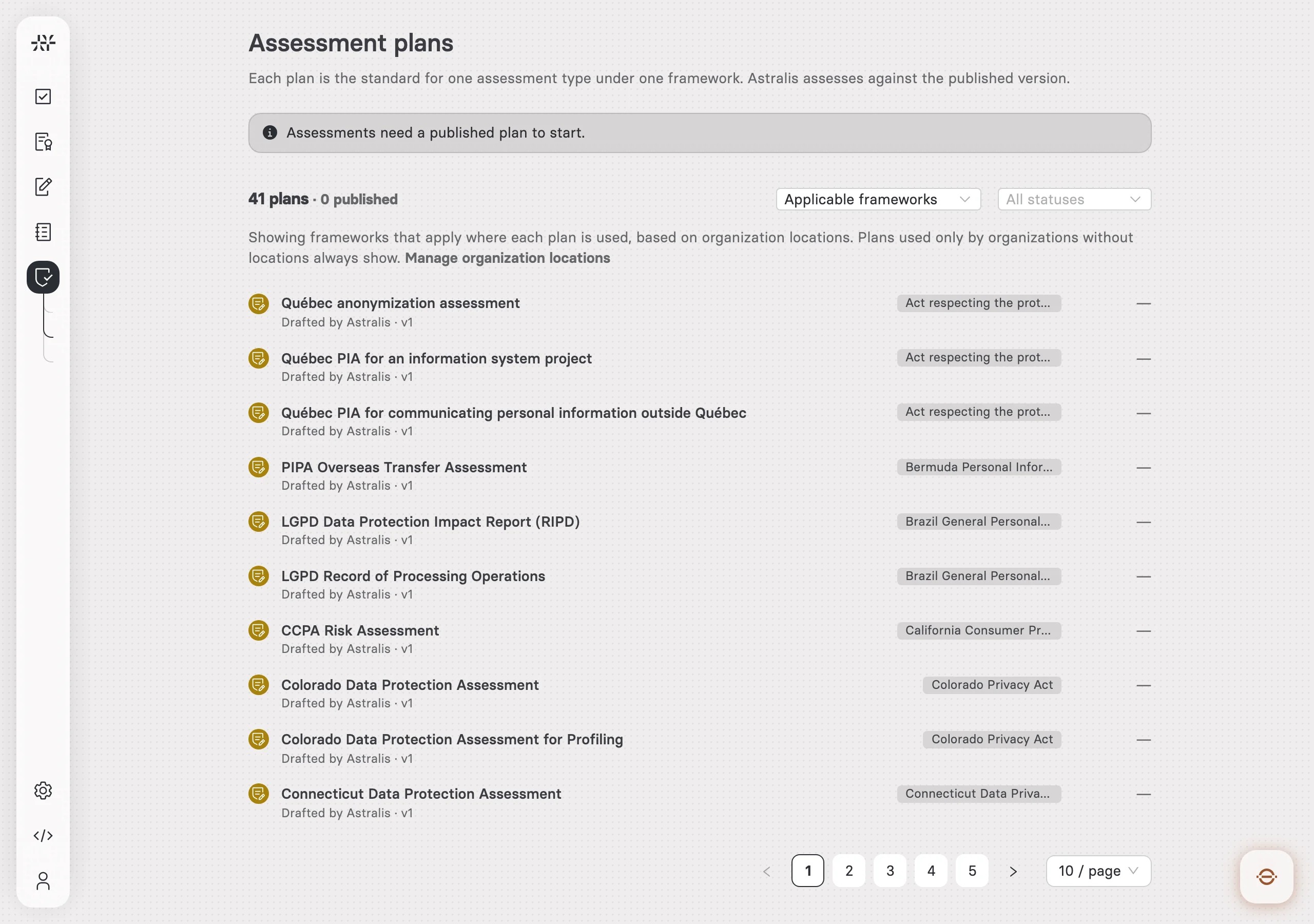
The list shows each plan's version and framework. An unpublished plan drafted by Astralis reads Drafted by Astralis · v1.
- The framework filter defaults to Applicable frameworks, which are the frameworks that apply based on your organizations' locations. Plans used only by organizations with no location always show. Choose All frameworks or one framework to see others. To change your organizations' locations, click Manage organization locations.
- The status filter shows Published, Draft or Historic plans. Historic plans are read-only templates imported from another tool.
Click a plan to open it.
Review the criteria
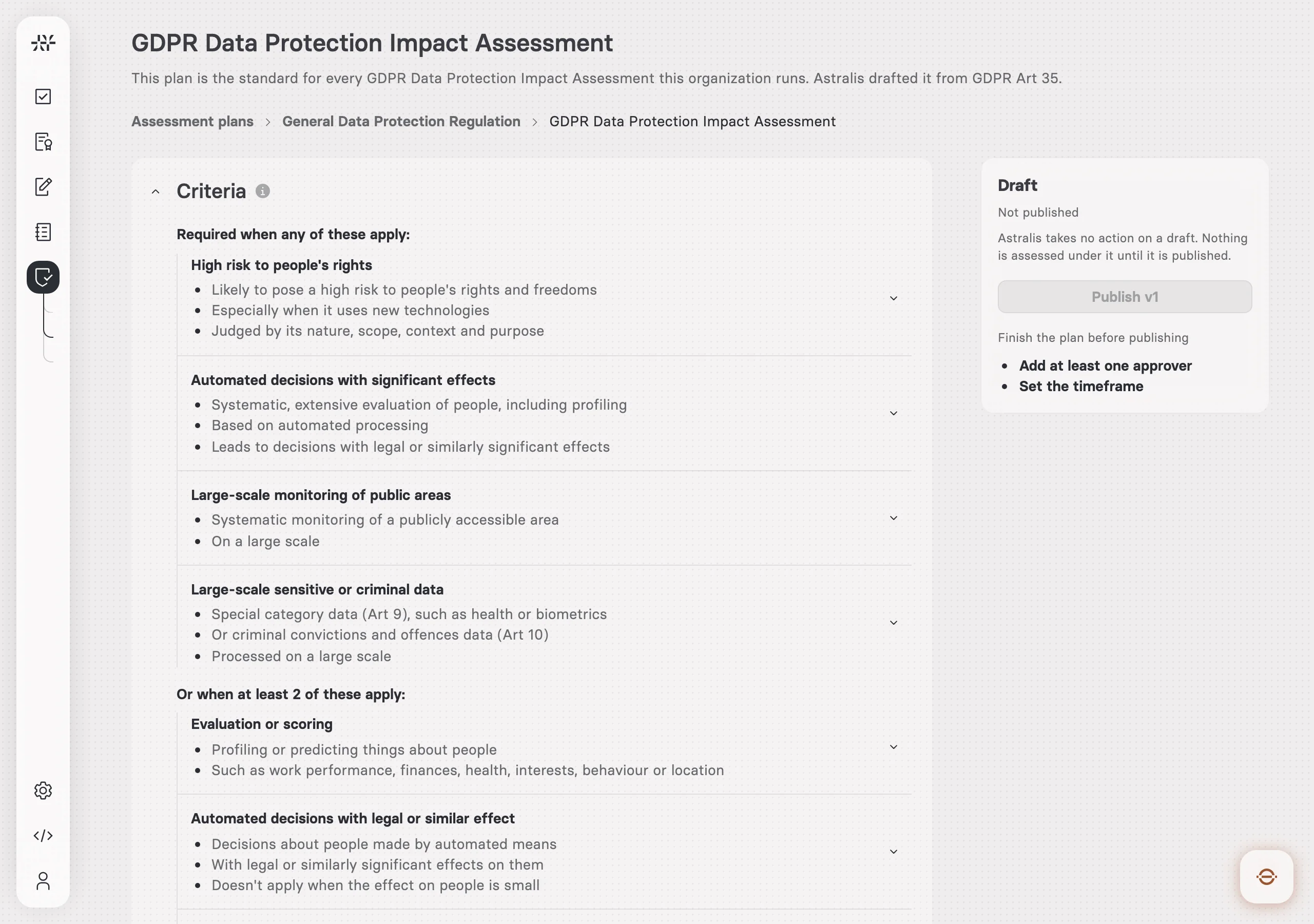
The Criteria card decides whether an activity needs this assessment. Criteria are grouped into blocks such as Required when any of these apply, Or when at least 2 of these apply and Not required when this applies. Expand a criterion to see its source citation and the question screening asks when the data map can't answer it.
To add a condition:
- Under Add a condition, describe when the assessment applies, for example "Uses AI to screen job applicants".
- Click Draft condition. Astralis proposes where to add it in the criteria.
- Click Add to plan or Discard. To change the proposal, edit the description and click Draft it again.
If no fact in the data map covers the condition, screening asks about it in the interview.
To remove a criterion, expand it and click Remove from plan. Removing a criterion that comes from the framework requires a reason, which is saved with the plan. Removed criteria are listed under Removed criteria, where you can add them back.
Review the topics
Each topic in the Topics card is a section of every assessment under the plan. The topic's description says what the section must record. Astralis gets that information from the data map and the interview.
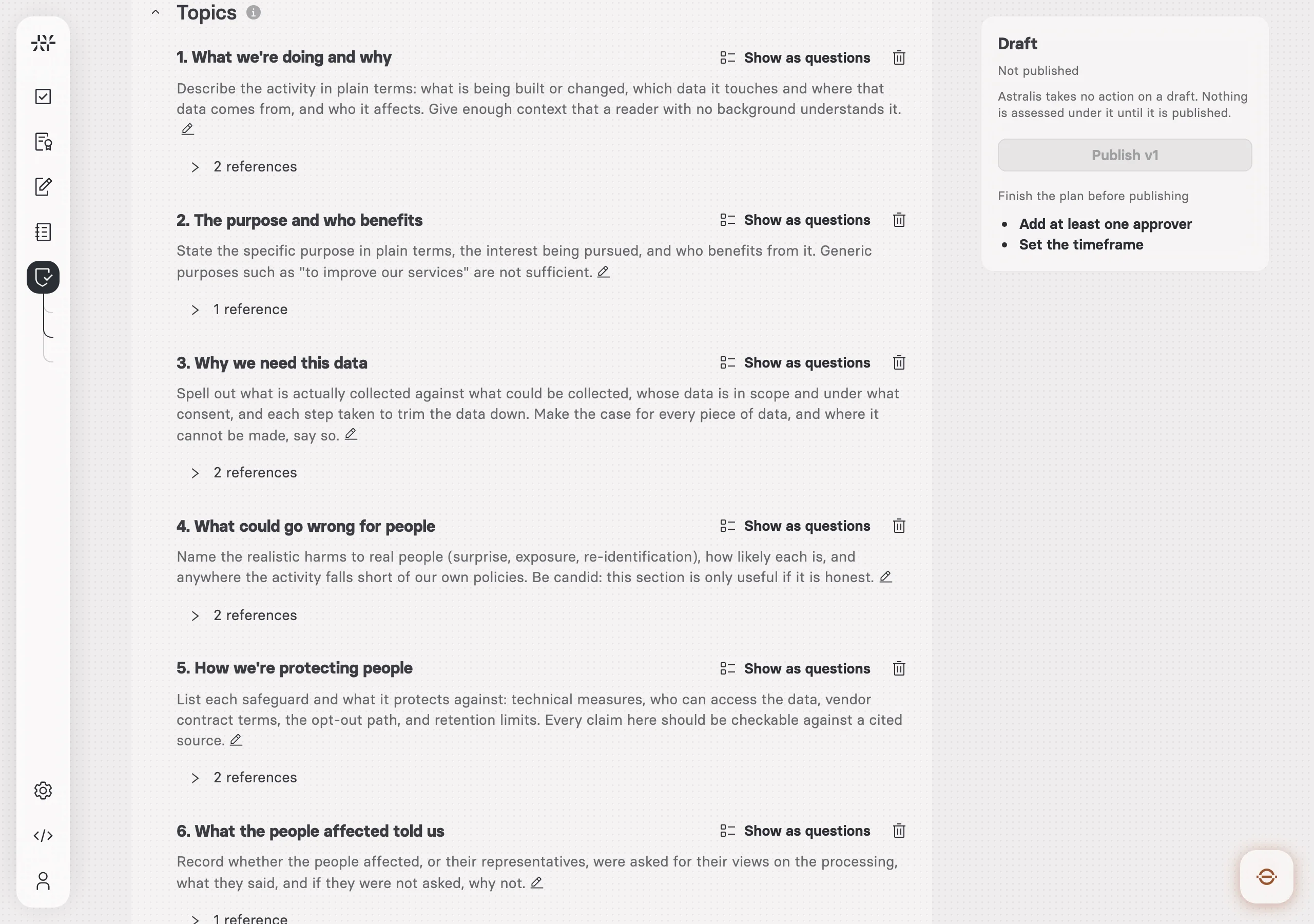
- Edit a description: click the description or its pencil icon.
- Reorder topics: drag a topic.
- Add a topic: click Add topic at the end of the card.
- Remove a topic: click its trash icon. Removed topics are listed under Removed topics, where you can add them back.
Review the questions
Click Show as questions on a topic to see the questions the interview asks for it. Click Show as description to switch back.
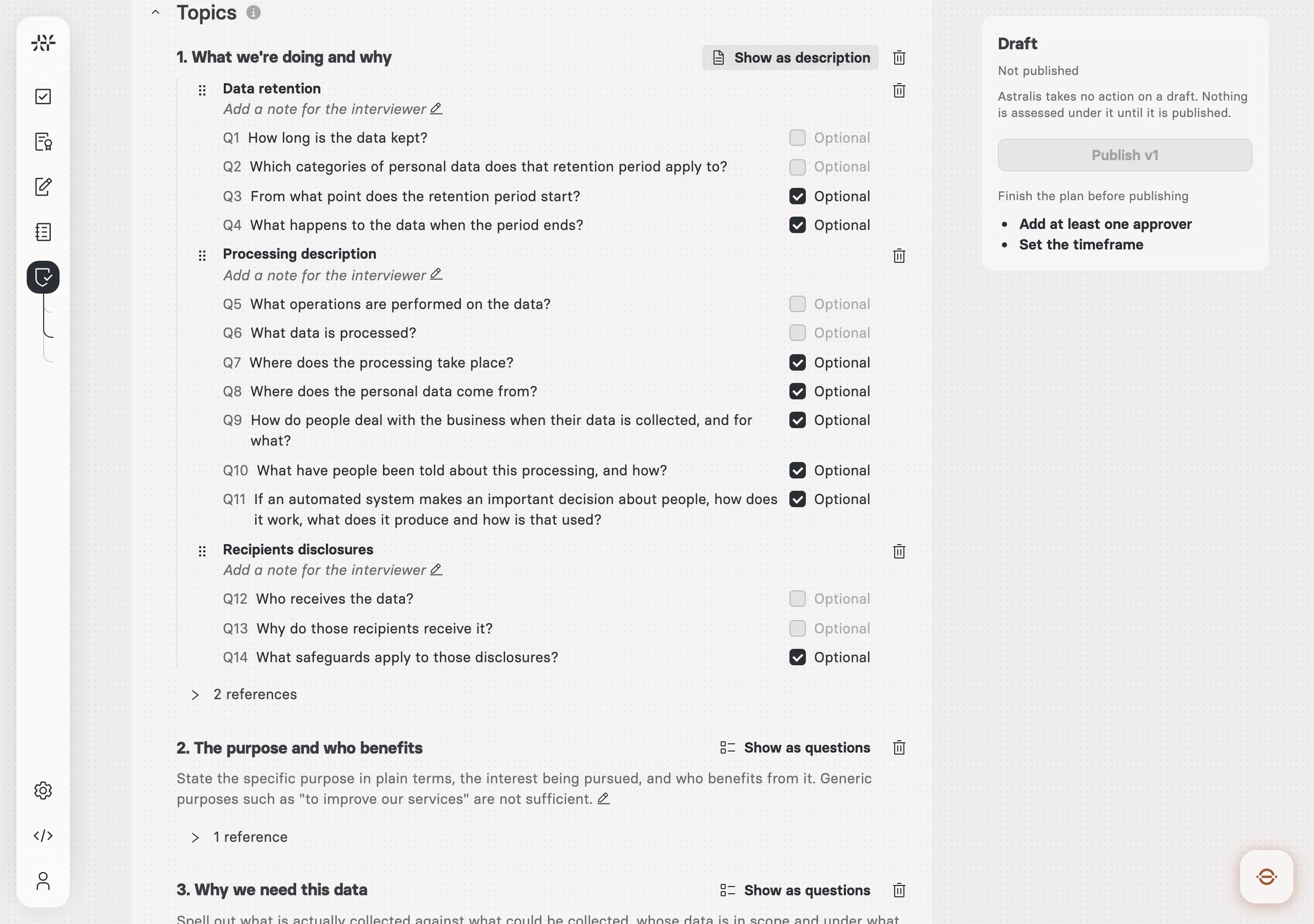
- Questions are numbered Q1, Q2 and so on, and grouped by subject. A conditional question says when it is asked, for example "Ask only if Q1 is Yes".
- Check Optional to allow an assessment to be completed without that answer. Required questions have the checkbox disabled, with the tooltip "Every assessment must answer this question."
- Click Add a note for the interviewer under a group to give Astralis instructions for those questions.
Name the approvers and set the timeframe
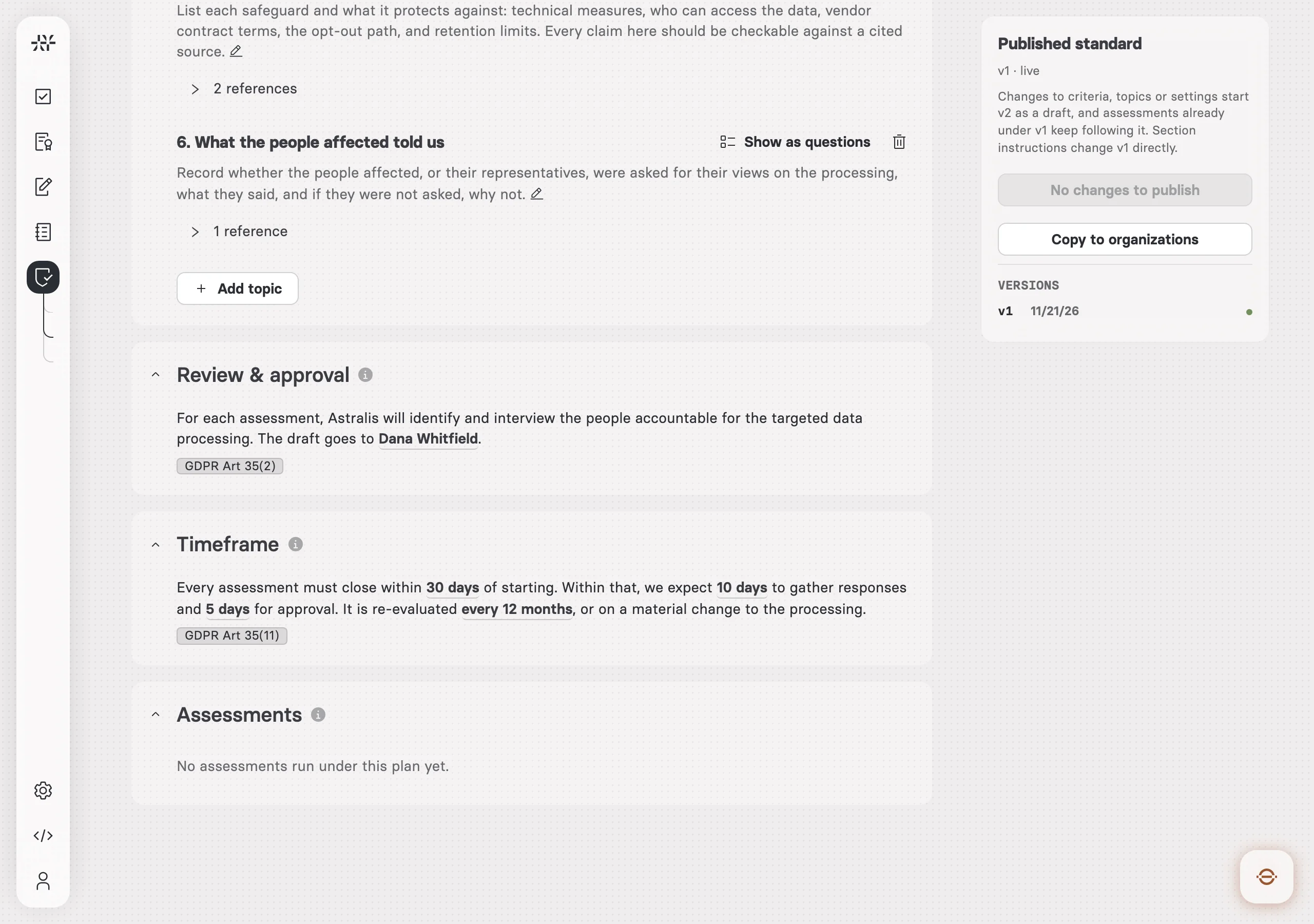
The Review & approval card reads: "For each assessment, Astralis will identify and interview the people accountable for the targeted data processing. The draft goes to …". Click add approvers, choose the approvers and click Save. Approvers must be able to review assessments in the plan's organization. With more than one approver, choose in that order or in any order.
The Timeframe card sets how long each stage can take, counted from the end of the previous stage. Click each choose a duration or choose how often value to set it:
| Setting | Options |
|---|---|
| Overall deadline | 30, 45, 60 or 90 days from the start of the assessment |
| Responses due | 3, 5, 7, 10 or 15 days |
| Approval due | 2, 3, 5 or 10 days |
| Re-evaluate | Every 6, 12, 18, 24 or 36 months, and on any material change to the processing |
If responses and approval together take longer than the overall deadline, the card shows a warning.
Publish the plan
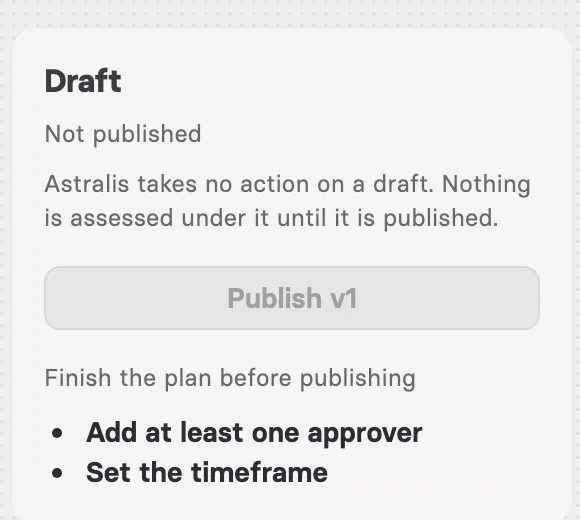
The side card lists what the plan still needs under Finish the plan before publishing. Each item links to its setting:
| Item | To clear it |
|---|---|
| Add at least one approver | Add an active approver who can review assessments in the plan's organization |
| Set the timeframe | Set every value in the Timeframe card |
| Remove approvers who are no longer in the directory | Remove each approver whose account was deleted |
When the list is empty, click Publish v1 (or Publish v2, and so on) and confirm. New assessments of this type use the published version.
Verify the result
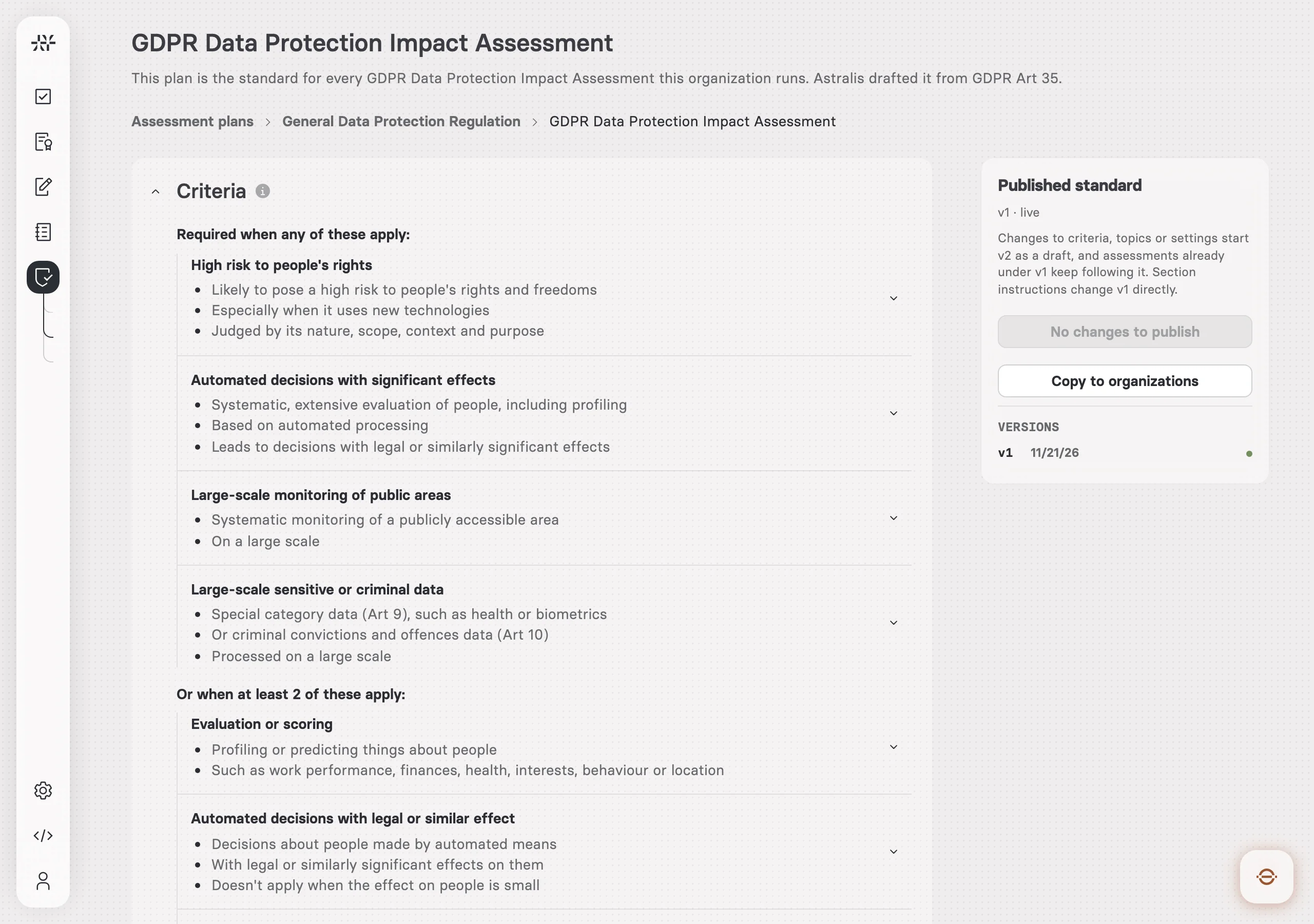
- The side card reads Published standard, v1 · live, and the version is listed under Versions.
- The plan appears in the list under the Published filter, and the header count of published plans goes up by one.
- Within a few minutes, screening checks the organization's processing activities against the plan, and the plan's Assessments card lists the drafts it opens. See screening.
Change a published plan
A published version can't be changed. Editing a live plan's criteria, topics, approvers or timeframe creates the next version as a draft. Assessments under the current version keep using it. Editing section instructions changes the live version. The side card reads Edits since v1 while there are unpublished changes, and the publish button reads No changes to publish when there are none.
View an older version
The side card's Versions list shows every published version. Click one to open it read-only. A banner shows when it was published and that assessments pinned to it use it until they close.
Copy a plan to your organizations
With multiple organizations, the live plan of your default organization has a Copy to organizations button. Each organization in a location where the framework applies gets the live version as a draft. Organizations that already have a plan for that assessment type keep theirs.
Copying needs privacy_assessment:create and privacy_assessment:read in your default organization and in each organization the plan is copied to.
Next steps
- Starting assessments: start an assessment under a published plan
- Reviewing and approving assessments: approve assessments
- How Astralis Assessments work: screening, plans and versions