Asset Report
Overview
The Asset Report provides a comprehensive, cross-system view of all discovered assets in your data map. Assets include cookies, JavaScript tags, images/pixels, iFrames, and browser requests that have been detected across your systems through automated scanning or manual documentation.
This reporting feature enables you to:
- Audit consent compliance across all web assets and tracking technologies
- Track asset distribution across different systems in your organization
- Monitor data use categories associated with each asset
- Identify geographic exposure of assets by location
- Export compliance reports for audits, cookie policies or notices, and privacy assessments.
The Asset Report is accessible from the Admin UI under Data inventory → Asset report.
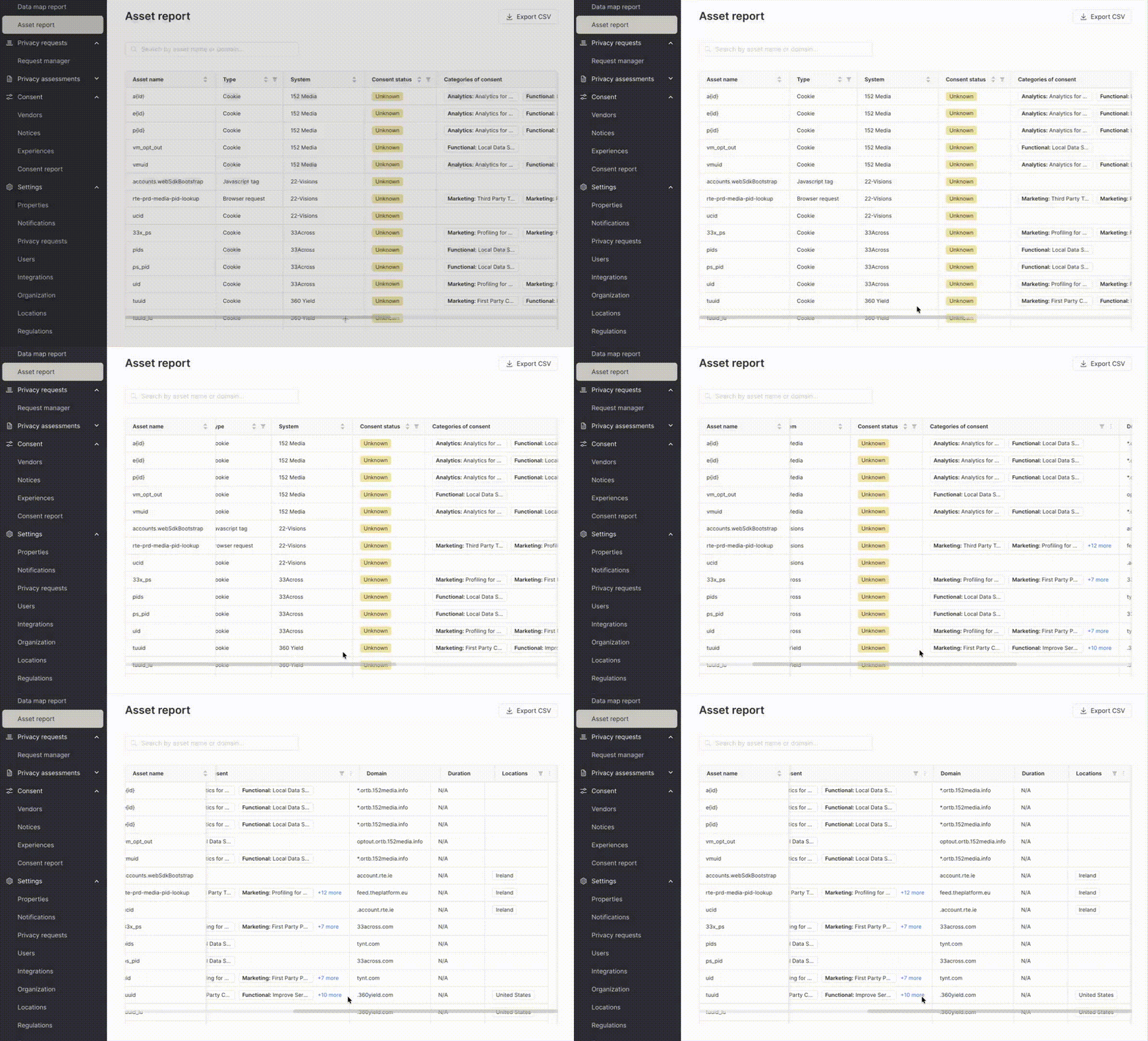
Understanding the Asset Table
The Asset Report displays a paginated table with the following columns:
Asset Name
The name or identifier of the asset. This is typically the cookie name, script filename, tag identifier, or request URL. The asset name column is sortable and searchable.
Type
The category of the asset. Available types include:
- Cookie - HTTP cookies set by websites
- JavaScript tag - Third-party scripts loaded on web pages
- Image - Images and tracking pixels
- iFrame - Embedded frames from external sources
- Browser request - HTTP/HTTPS requests made by the browser
The Type column is sortable and filterable.
System
The name of the system in your data map where this asset was discovered. Each asset belongs to a specific system, and the System column is sortable to help you group assets by their source system.
Consent Status
The consent status column is still in beta and can be turned on or off in Settings > About Fides by toggling the "Asset consent status labels" feature flag.
Indicates when and how the asset is loaded in relation to user consent. Possible values include:
- With consent - Asset loads only after user has granted consent
- Without consent - Asset loads without requiring consent
- Pre-consent - Asset loads before consent is requested or granted
- Exempt - Asset is exempt from consent requirements (e.g., strictly necessary cookies)
- Not applicable - Consent status does not apply to this asset
- Unknown - Consent status has not been determined
- CMP error - Error occurred while determining consent status through the Consent Management Platform
The Consent Status column is sortable and filterable, making it easy to identify compliance gaps or audit consent implementation.
Categories of Consent
The data use categories associated with this asset, such as:
- Analytics - Analytics and measurement
- Marketing - Marketing and advertising
- Functional - Functional or essential services
- Essential - Strictly necessary functionality
Multiple categories can be associated with a single asset. This column is filterable and expandable in the table view, allowing you to see all categories at a glance.
Domain
The domain that sets or loads the asset. This helps identify first-party versus third-party assets.
Duration
How long the asset persists or is retained. Common formats include:
1y- One year30 days- Thirty dayssession- Browser session onlypersistent- No expiration
Duration is particularly important for cookie compliance and data retention policies.
Locations
Geographic locations or jurisdictions where the asset was detected if it was added via the Fides website monitor. The Locations column is filterable and expandable, allowing you to generate region-specific compliance reports.
Filtering Assets
The Asset Report supports powerful filtering capabilities to help you focus on specific subsets of assets. Filters are dependent, meaning that selecting a filter option will narrow the available options in other filter dropdowns based on the current selection.
Available Filters
You can filter assets by:
- Type - Filter by asset category (Cookie, JavaScript tag, Image, iFrame, Browser request)
- Consent Status - Filter by consent implementation status
- Categories of Consent - Filter by data use categories
- Locations - Filter by geographic regions
Using Filters
To apply filters:
- Click on the filter icon or dropdown for the column you want to filter
- Select one or more options from the available values
- The table will update automatically to show only matching assets
- Other filter dropdowns will update to show only options that apply to the current filtered results
To clear filters:
- Click the "Reset" button to remove all active filters from a column
- Or deselect individual filter options to incrementally broaden your view
Filters are applied cumulatively. Each filter you add further narrows the results. The dependent filtering ensures you only see relevant options, preventing empty result sets.
Sorting Assets
Click on any sortable column header to sort the table:
- First click - Sort ascending (A-Z, lowest to highest)
- Second click - Sort descending (Z-A, highest to lowest)
- Third click - Remove sorting and return to default order
Sortable columns include:
- Asset name
- Type
- System
- Consent status
Sorting works in combination with filters and search, allowing you to organize filtered results in the most useful way for your analysis.
Searching Assets
The search functionality allows you to quickly find specific assets by name or domain. The search is case-insensitive and matches partial strings.
To search:
- Enter your search term in the search box at the top of the table
- Results will filter automatically as you type
- Search applies across both the Asset Name and Domain columns
Search works in combination with filters and sorting, making it easy to find specific assets within a filtered dataset.
Example searches:
google- Find all assets that include google in the name or domain_ga- Find Google Analytics cookies.com- Find all assets from .com domainsfacebook- Find Facebook tracking assets
Exporting Reports
The Asset Report includes a CSV export feature that allows you to download the current view of assets for offline analysis, auditing, or compliance documentation.
How Export Works
The export function respects all active filters, search terms, and selections:
- Exports filtered results - Only assets matching current filters and search are included
- Not paginated - The export includes all matching assets, not just the current page
CSV Export Columns
The exported CSV includes the following columns:
- Asset Name - Name or identifier of the asset
- Asset Type - Type category (Cookie, JavaScript tag, etc.)
- Domain - Domain that sets or loads the asset
- Duration - How long the asset persists
- System Name - Name of the system where asset was discovered
- Consent Status - Consent implementation status
- Data Uses - Categories of consent/data use (comma-separated if multiple)
- Locations - Geographic regions (comma-separated if multiple)
- Description - Additional details about the asset (this is not currently populated but will be in fuuture versions of Fides.)
- Pages Detected On - The number of pages where the asset was detected by the website monitor.
Exporting a Report
To export an asset report:
- Apply any desired filters to narrow your results
- Use search to further refine the asset list if needed
- Click the Export CSV button in the top-right corner of the page
- The CSV file will download automatically as
asset-report-<date>.csv - Open the file in Excel, Google Sheets, or any CSV-compatible application
Before exporting, take a moment to verify your filters and search terms are configured correctly. The export will capture exactly what you see in the filtered table view.
Use Cases for Exports
Common use cases for asset report exports include:
- Regulatory compliance audits - Export assets by location (e.g., all GDPR-covered assets in EU regions)
- Consent compliance review - Export assets with "Pre-consent" or "Without consent" status to identify compliance gaps
- Third-party risk assessment - Export by domain to analyze third-party data sharing
- Data use category analysis - Export by categories to understand advertising vs. analytics usage
- System-specific reporting - Export assets for a single system for focused review
- Cookie reports - Export cookies to create a list of all cookies that can be referenced in a cookie or privacy policy.
API Reference
For developers and advanced users, the Asset Report functionality is also available through REST API endpoints. See the API reference for full details.
Related Documentation
- Website Monitoring - Monitoring your website for privacy compliance
- Data Mapping Reports Tutorial - Learn about other data mapping visualizations and reports
- Privacy Requests Reporting - Reporting on privacy request execution
- Data Map Overview - Understanding systems and the data map