Configuring Consent v3
In this tutorial, we'll walk through setting up and using the Consent v3 API end-to-end. Starting from scratch, you'll register identity types, configure privacy notices with parent-child relationships, and use the API to record and retrieve consent preferences.
After completing this tutorial, you'll be able to:
- Register custom identity types so Fides can associate preferences with your users
- Set up a notice hierarchy with parent and child notices
- Use the Consent v3 API to save and retrieve consent preferences
Prerequisites
For this tutorial you'll need:
- A Fides Cloud or Fides Enterprise account
- An OAuth access token for a user with the Owner or Contributor role. See Generating OAuth tokens for how to obtain a token.
- At least one system with a data use on your data map. Read how to add systems to the Data Map.
Step 1: Register identity types
Before saving consent preferences, Fides needs to know which identity types your organization uses. Built-in types like email, phone_number, and fides_user_device_id work immediately without registration. If you want to use a custom identifier -- such as a loyalty program ID or an internal account number -- you need to register it first.
For conceptual background on how identities work, see Identities.
Register a custom identity
Use the POST /api/v3/definitions/identities endpoint to register your custom identity type:
curl -X POST 'http://localhost:8080/api/v3/definitions/identities' \
  -H 'Authorization: Bearer <access_token>' \
  -H 'Content-Type: application/json' \
  -d '{
    "identity_key": "loyalty_id",
    "name": "Loyalty ID",
    "type": "string"
  }'
You can verify your registration by listing all registered identities:
curl -X GET 'http://localhost:8080/api/v3/definitions/identities' \
  -H 'Authorization: Bearer <access_token>'
Once registered, loyalty_id can be used to store and retrieve preferences just like the built-in types.
Step 2: Configure privacy notices with parent-child relationships
Notice hierarchies let you group related privacy notices so that a user's choice on a parent notice can automatically apply to its children. For example, opting out of a "Marketing" parent notice can automatically opt the user out of "Email marketing" and "SMS marketing" child notices.
For a general introduction to privacy notices, see Configuring Privacy Notices.
Create the child notices first
In the Fides UI, navigate to Consent → Notices and click Add a privacy notice +.
Create each child notice with the following settings, saving each one before moving on:
| Title | Notice key | Consent mechanism |
|---|---|---|
| Email marketing | email_marketing | Opt-Out |
| SMS marketing | sms_marketing | Opt-Out |
Create the parent notice and assign children
Once the child notices are saved, create the parent notice:
- Title:
Marketing - Notice key:
marketing - Consent mechanism:
Opt-Out
On the parent notice, find the Child notices field and select Email marketing and SMS marketing. Save the notice.
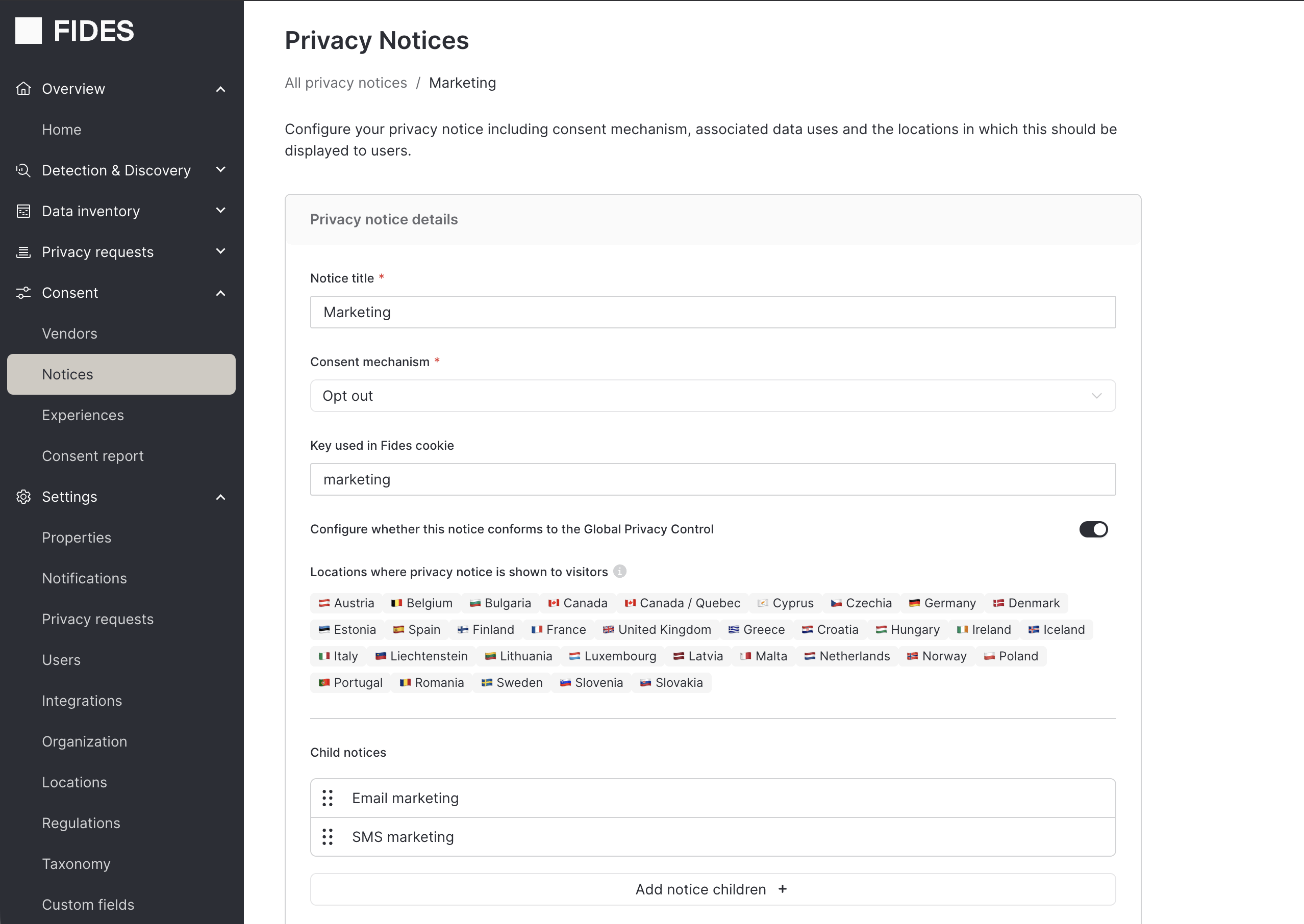
Your notice hierarchy now looks like this:
Marketing (parent)
├── Email marketing (child)
└── SMS marketing (child)
Step 3: Choose a propagation policy
When saving preferences through the API, you can apply a propagation policy to automatically extend a user's consent choice across the notice hierarchy. The policy is set using the policy query parameter on the save preferences endpoint.
For a full explanation of each policy's behavior, see Propagation Policies.
Here's a quick guide for this tutorial's notice hierarchy:
| Policy | Behavior |
|---|---|
cascade_down_opt_out (default) | Opting out of marketing automatically opts out of both children. Opt-ins are not cascaded. |
cascade_down_all | Any choice on marketing (opt-in or opt-out) is applied to all children. |
For this tutorial we'll use cascade_down_opt_out, which is the default -- the policy parameter is not required, but we'll include it explicitly for clarity.
Step 4: Save preferences via the API
With identities registered and notices configured, you can now save a user's consent preferences.
The following example saves an opt-out preference for the marketing notice using a loyalty_id identity. Because we're using cascade_down_opt_out, Fides will automatically apply the opt-out to email_marketing and sms_marketing as well:
curl -X POST 'http://localhost:8080/api/v3/privacy-preferences?policy=cascade_down_opt_out' \
  -H 'Authorization: Bearer <access_token>' \
  -H 'Content-Type: application/json' \
  -d '{
    "identity": {
      "loyalty_id": { "value": "MEMBER-98765" }
    },
    "preferences": [
      {
        "notice_key": "marketing",
        "notice_history_id": "pri_notice-history-abc-123",
        "value": "opt_out"
      }
    ],
    "meta": {
      "fides": {
        "method": "banner"
      }
    }
  }'
The notice_history_id identifies the specific version of the notice that was shown to the user. Retrieve this value from the privacy experience returned by GET /api/v1/privacy-experience.
The response returns the full current preferences document for the identity, including both the explicit opt-out on marketing and the policy-generated opt-outs on its children.
For full details on the save preferences endpoint, see Save preferences.
Step 5: Retrieve and verify preferences
After saving, confirm that preferences were recorded correctly by retrieving the current consent state for the identity.
Get current preferences
curl -X GET 'http://localhost:8080/api/v3/privacy-preferences/current?identity.loyalty_id=MEMBER-98765' \
  -H 'Authorization: Bearer <access_token>'
The response includes one entry per active notice. For each preference, the meta.fides.preference_type field tells you how it was created:
explicit-- the user submitted this preference directlypolicy-- Fides generated this preference via the propagation policydefault-- Fides assigned a default because no preference exists yet
You should see marketing as explicit and both child notices as policy.
List historical preference records
To view the full history of preference submissions for this identity:
curl -X GET 'http://localhost:8080/api/v3/privacy-preferences?identity.loyalty_id=MEMBER-98765' \
  -H 'Authorization: Bearer <access_token>'
For more on the difference between current and historical records, see Consent records.